Step by step
Each step's number matches the marker on the screenshot; hover over or select a step to highlight it.
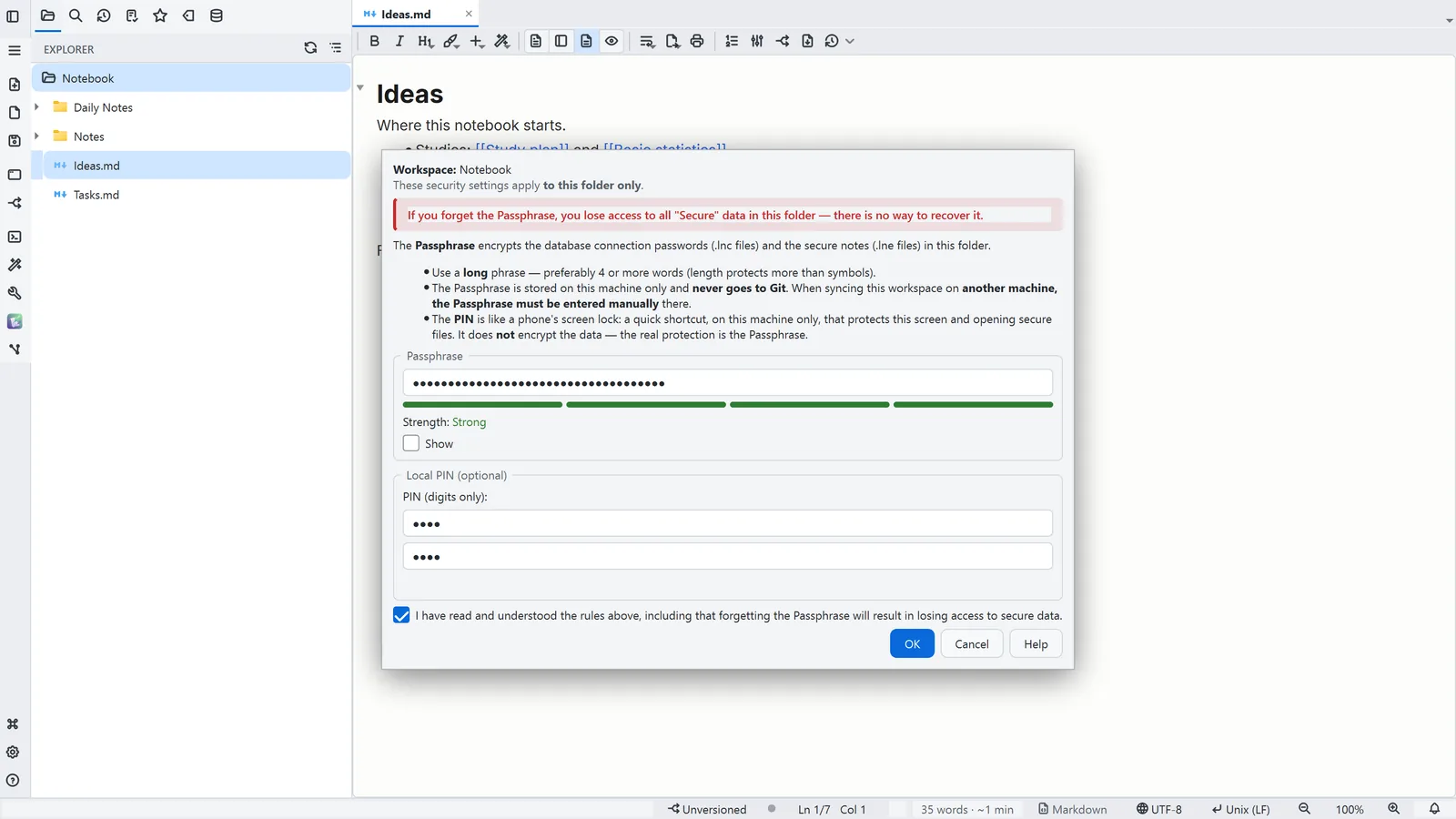
- 1Help → Set Up Passphrase… opens this screen. The red warning is serious: if you forget the Passphrase, the folder's secure data cannot be recovered
- 2Use a long phrase of 4 or more words: it encrypts connection passwords and secure notes (.lne)
- 3The PIN (4 to 8 digits) is a lock for this computer only: it guards this screen and opening secure files, but encrypts nothing
- 4Confirm that you read the rules, and OK saves the Passphrase on this computer
Read more in the HelpSecurity: Passphrase, PIN and Secure Markdown
Other ways
Set Up Passphrase
- Menu
- Help → Set Up Passphrase...
- Command palette
- Set Up Passphrase...
Tips
- The Passphrase stays on this computer only and never goes to Git: on another computer, enter the same Passphrase again
- Changing the Passphrase on the same screen re-encrypts all of the workspace's secure data; if one item fails, nothing is changed