Step by step
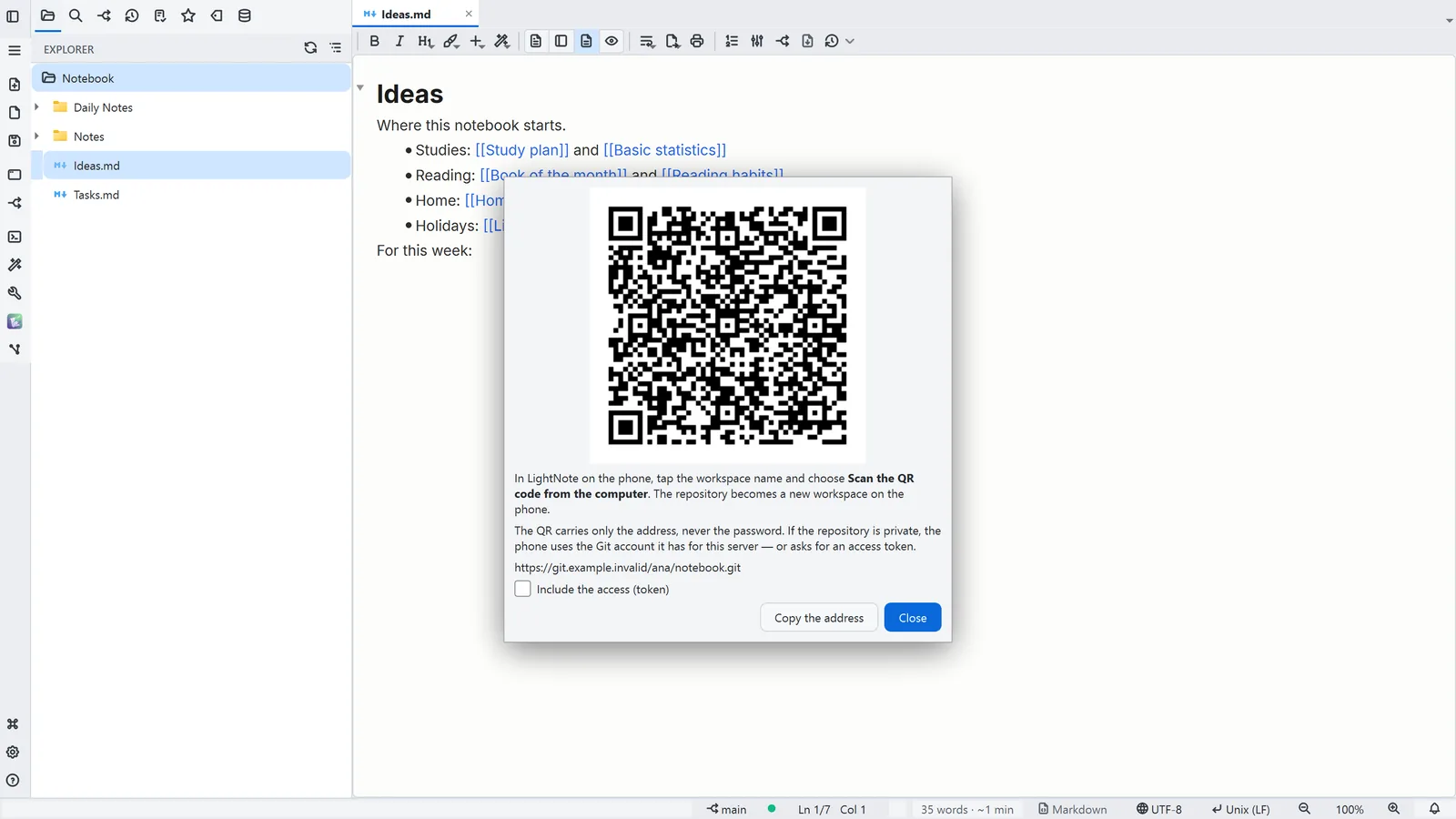
Each step's number matches the marker on the screenshot; hover over or select a step to highlight it.
- 1From the Git button in the status bar, choose Open on phone…
- 2On the phone, tap the workspace name and Scan the QR code from the computer: the repository becomes a new workspace
- 3The QR code carries only the repository address; if it is private, the phone asks for a token
- 4Include the access puts a phone-only token in the QR code, encrypted with a password you type there
Read more in the HelpYour notes on your phone
Tips
- Open on phone needs a remote repository (GitHub, GitLab, Gitea or your own server): Git is the bridge
- If both sides change the same file, the phone keeps its version in a copy alongside, with no conflict markers in the text