01Getting started
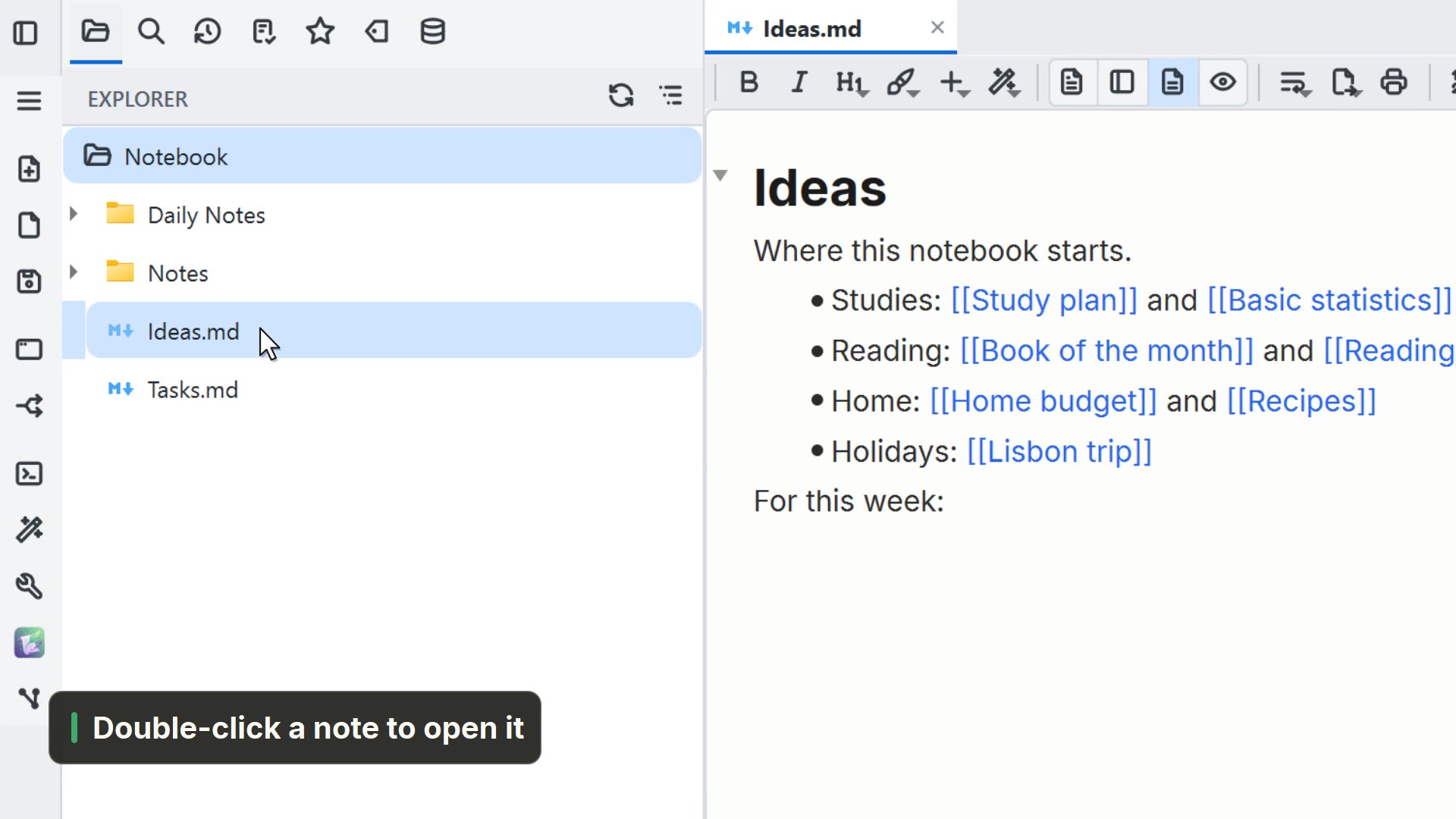 00:151.1Open a folder
Open the folder with your notes from the start screen and browse the tree.
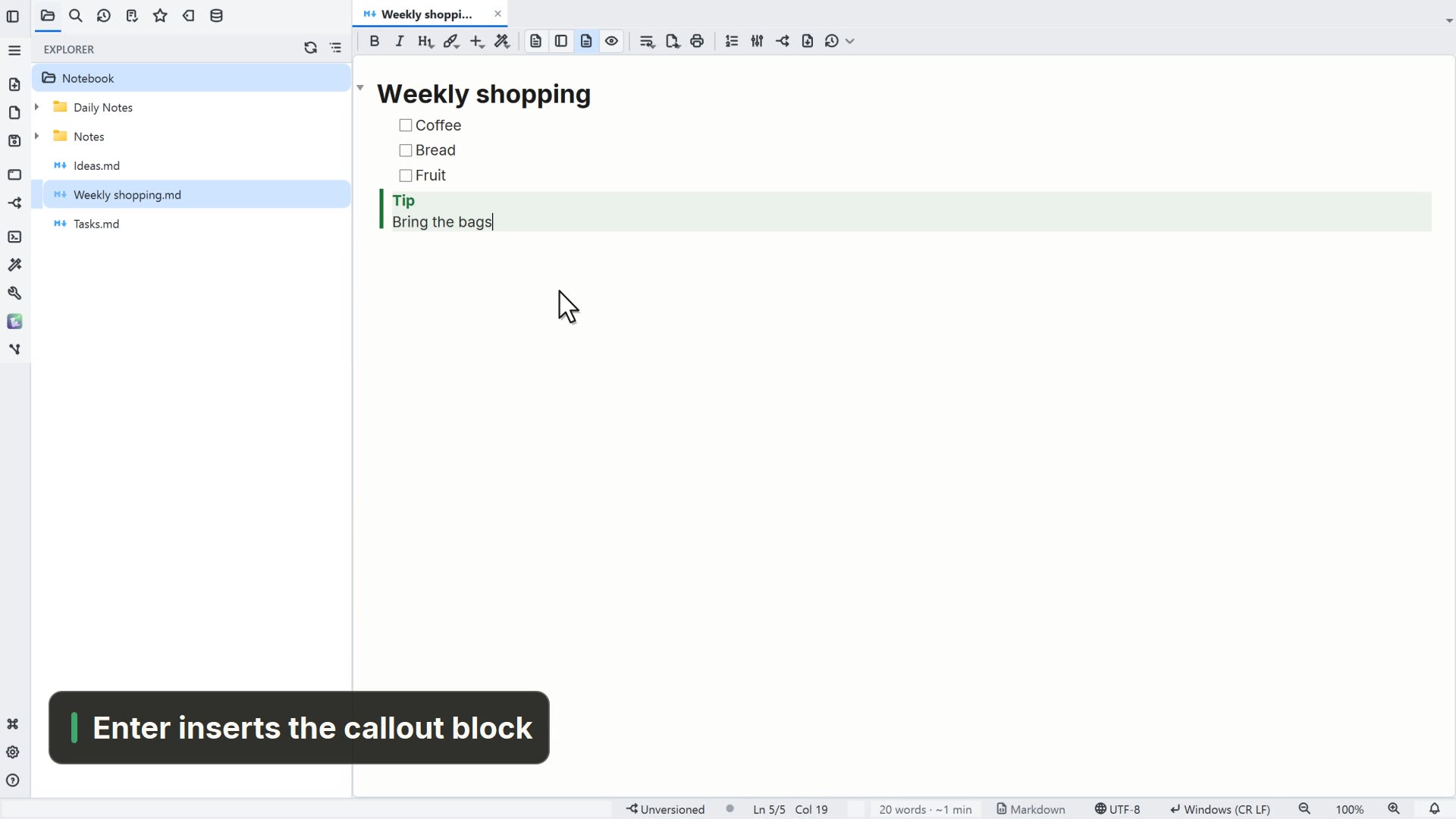 00:241.2Your first note
Create a note, write a heading and tasks, and insert a block from the / menu.
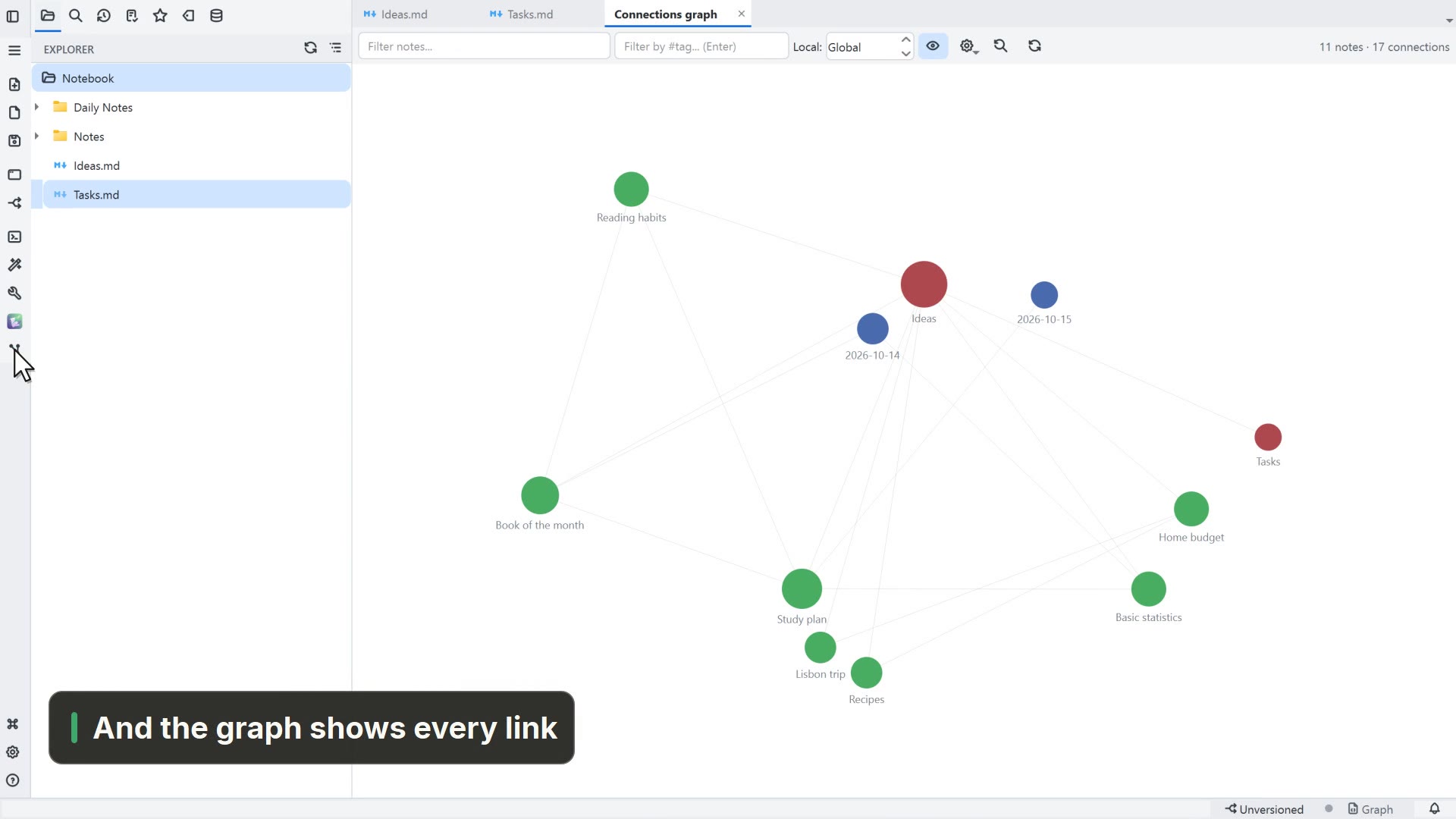 00:221.3Link your notes
Link one note to another with [[, follow the link and see the connections in the graph.
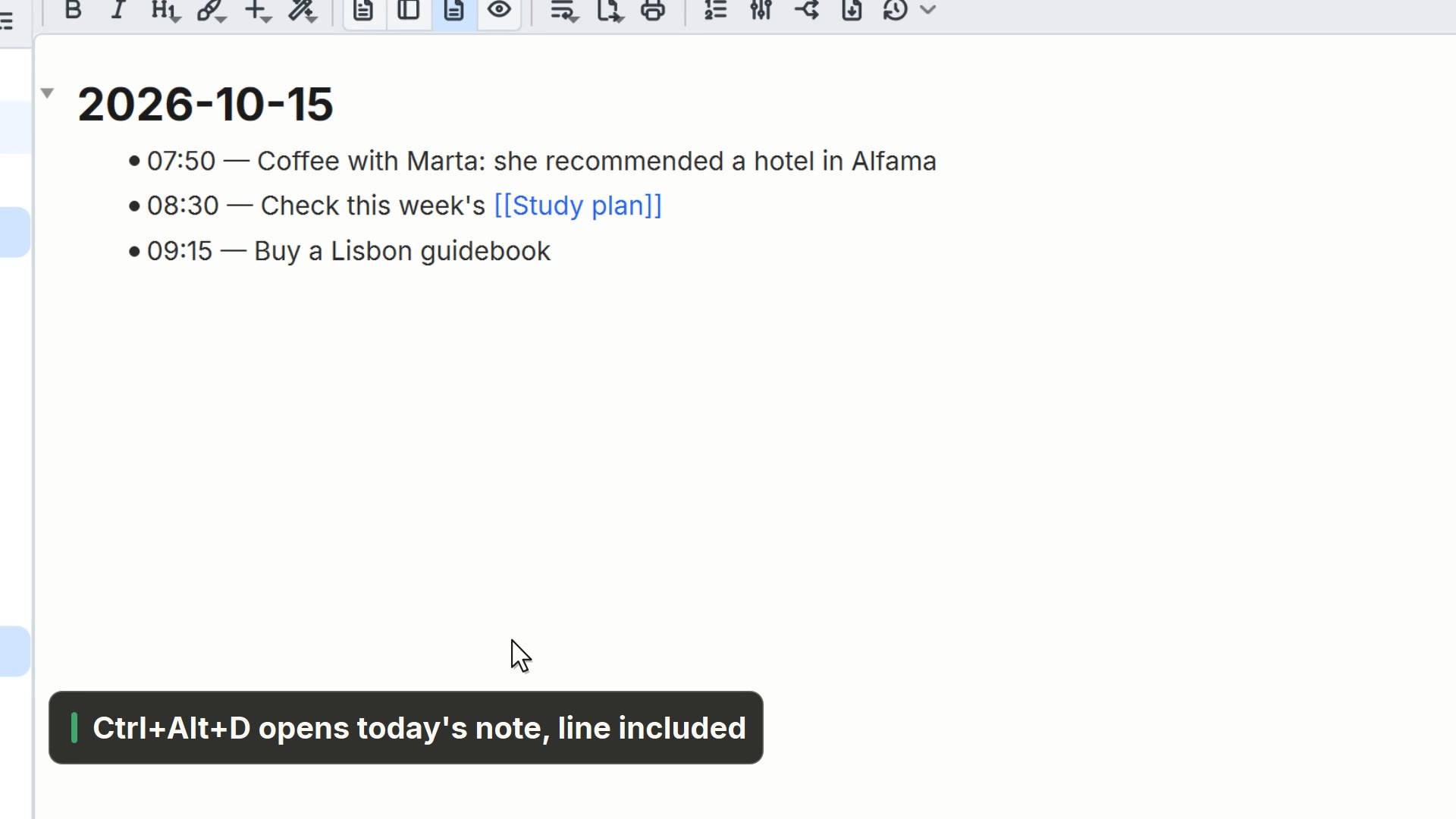 00:201.4Quick capture
Jot down an idea from anywhere with Ctrl+Alt+N, straight into today's note.
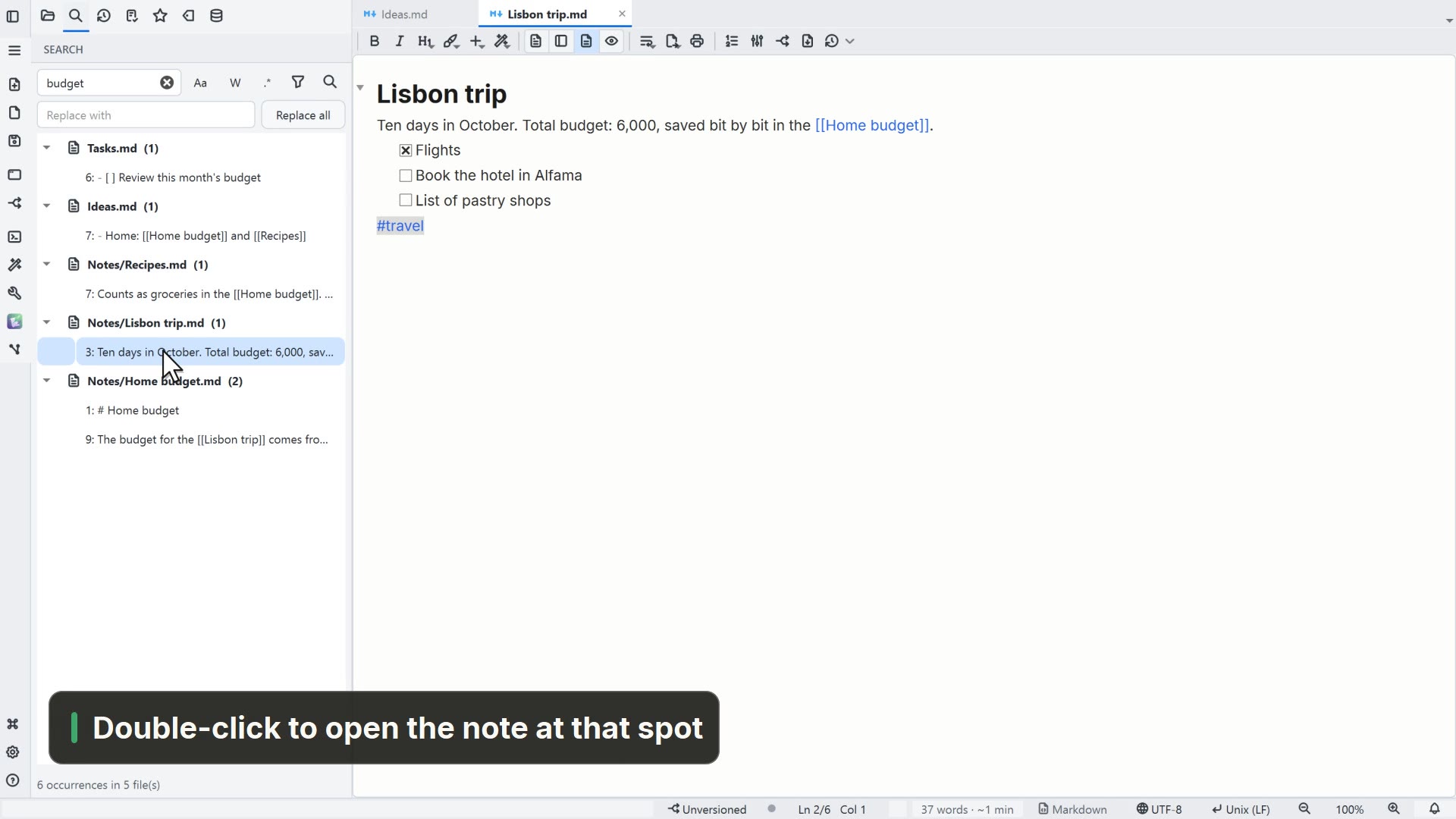 00:151.5Search your notes
Find a word across all your notes and open the note at the right spot.
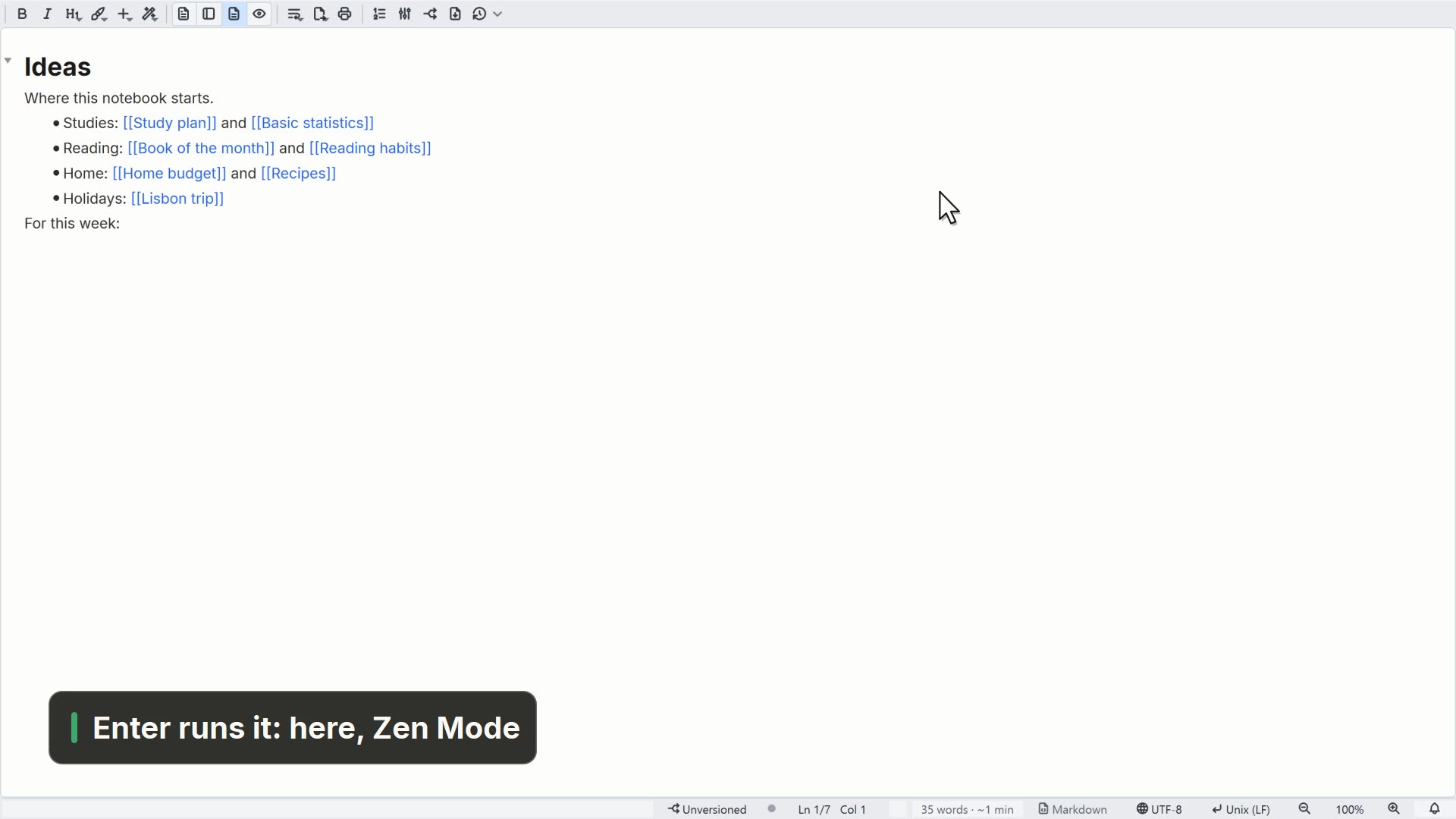 00:171.6The command palette
Find any file or command by name, without digging through menus.
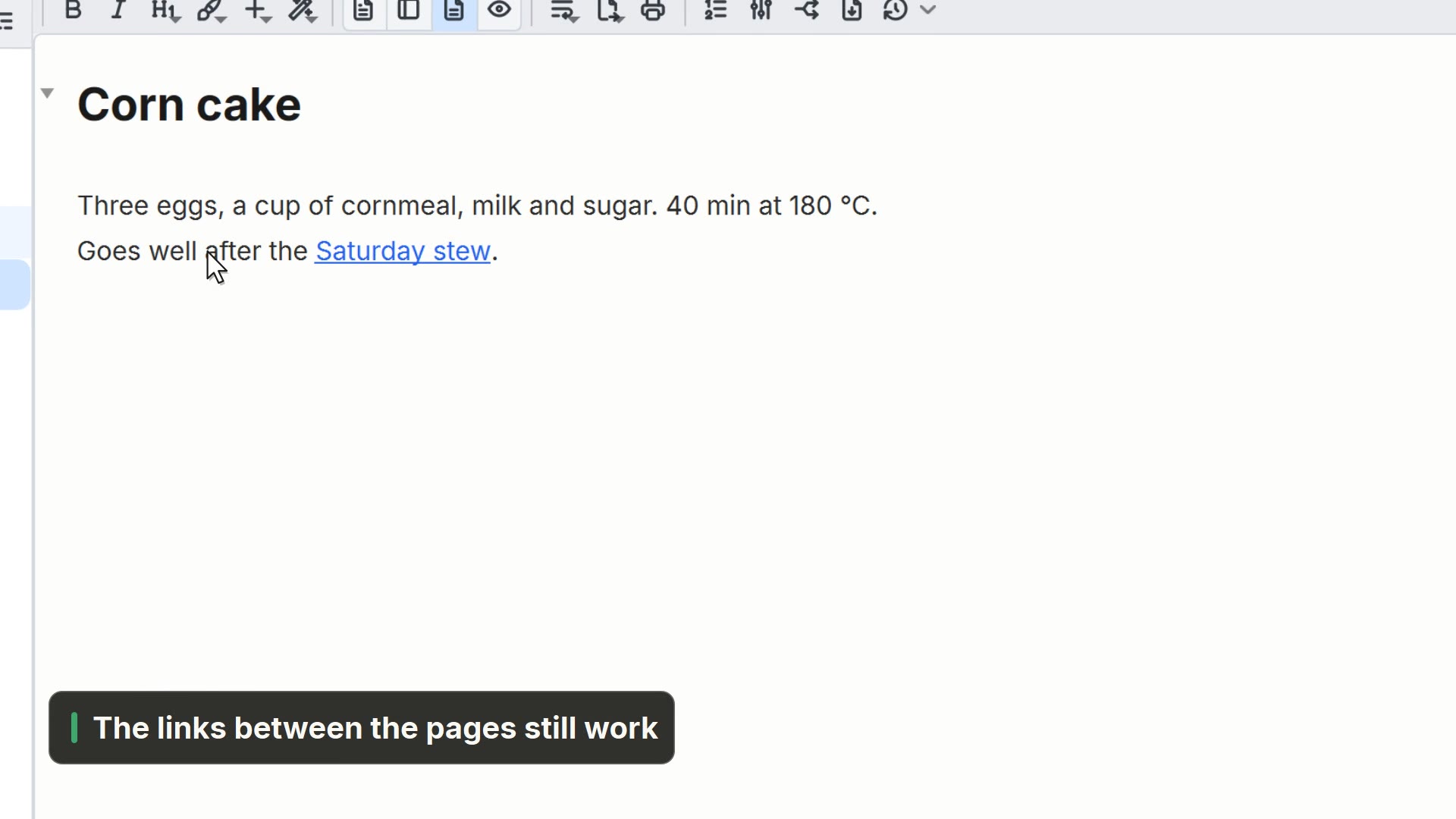 00:211.7Import from Notion
Bring a Notion export into your notebook, with the links between pages working.
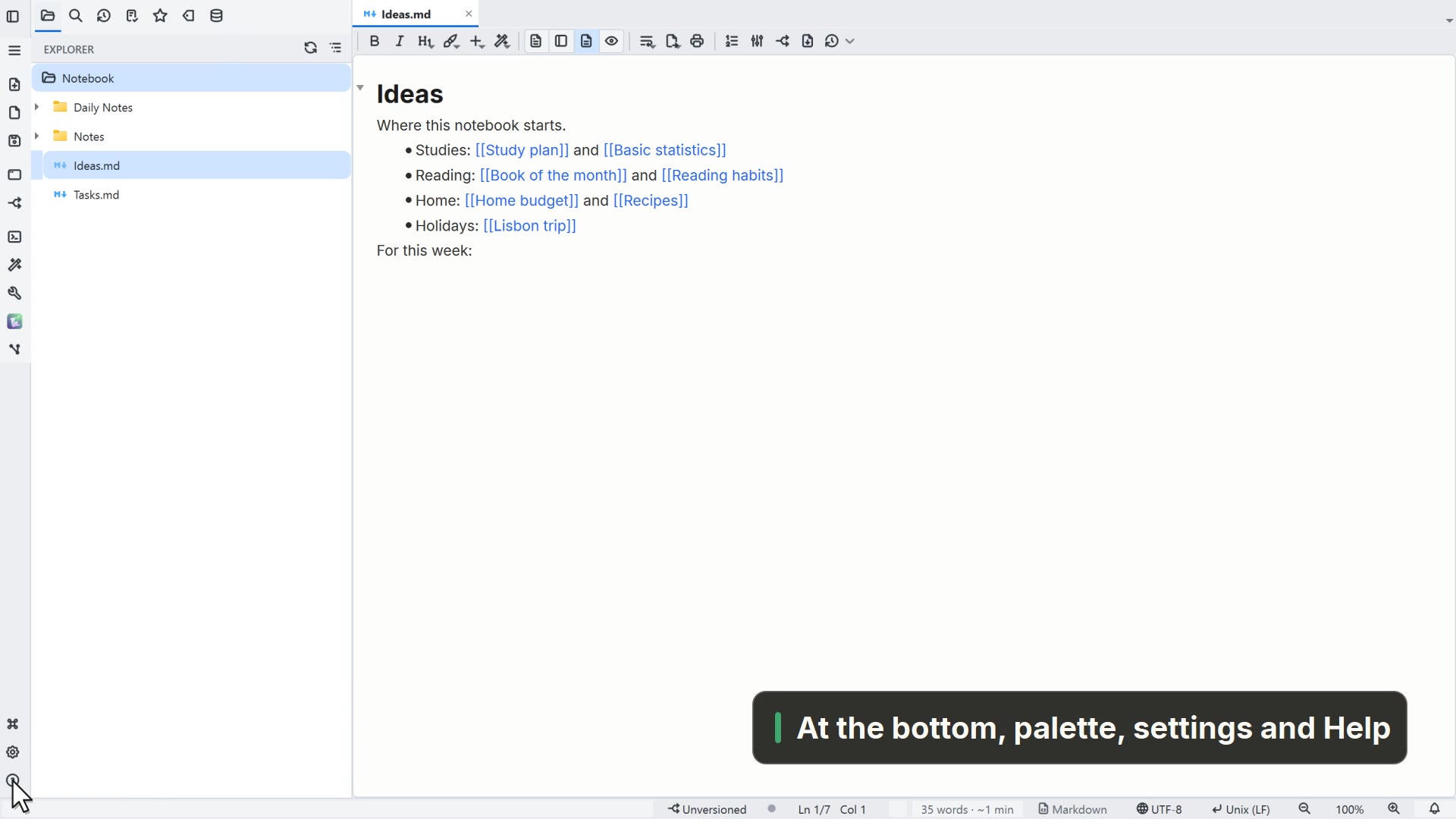 00:311.8The activity bar
Get to know the activity bar buttons and the sidebar tabs.
02AI
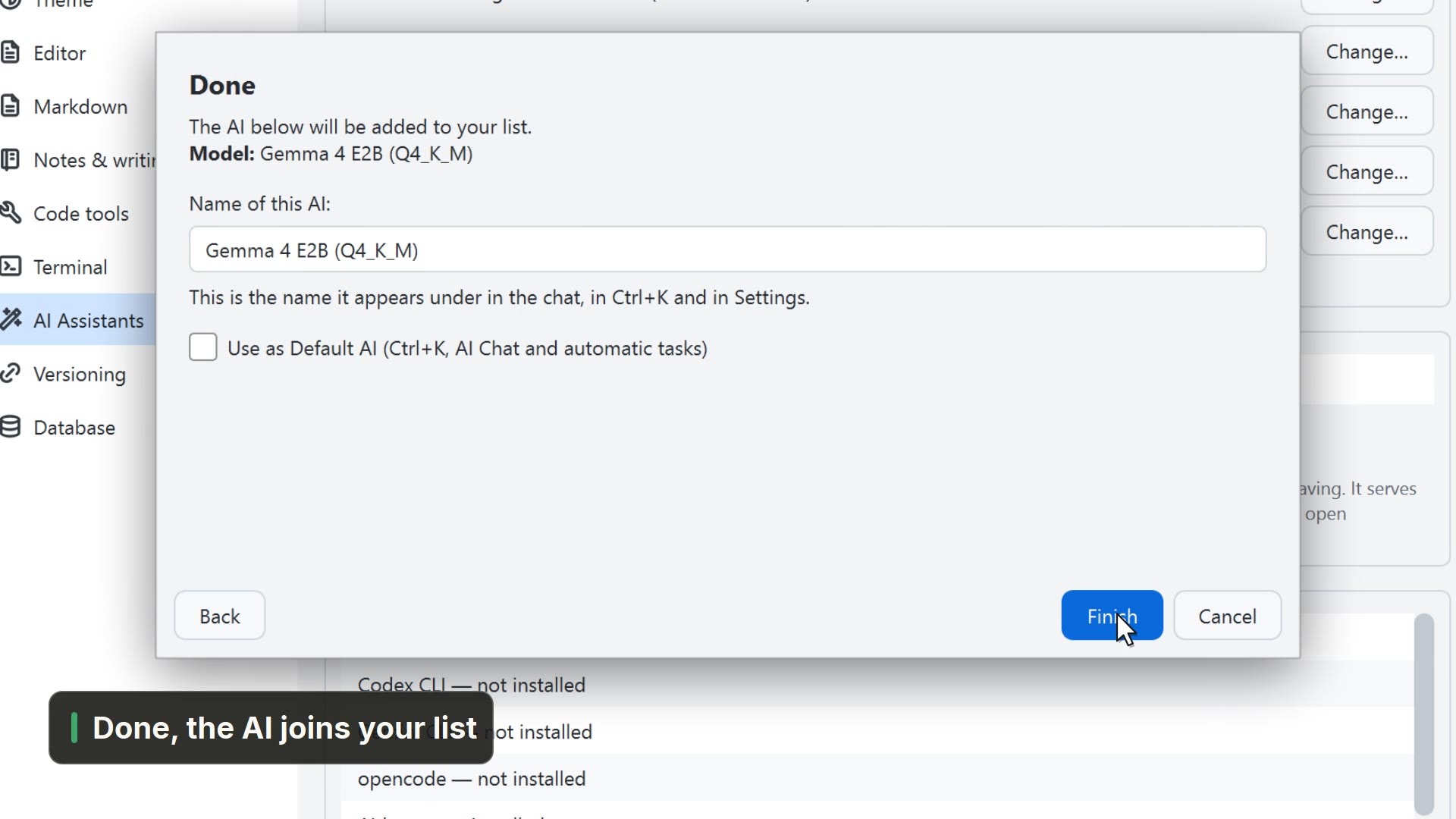 00:272.1AI on your computer
Download an AI model that runs on your computer, with Set up AI.
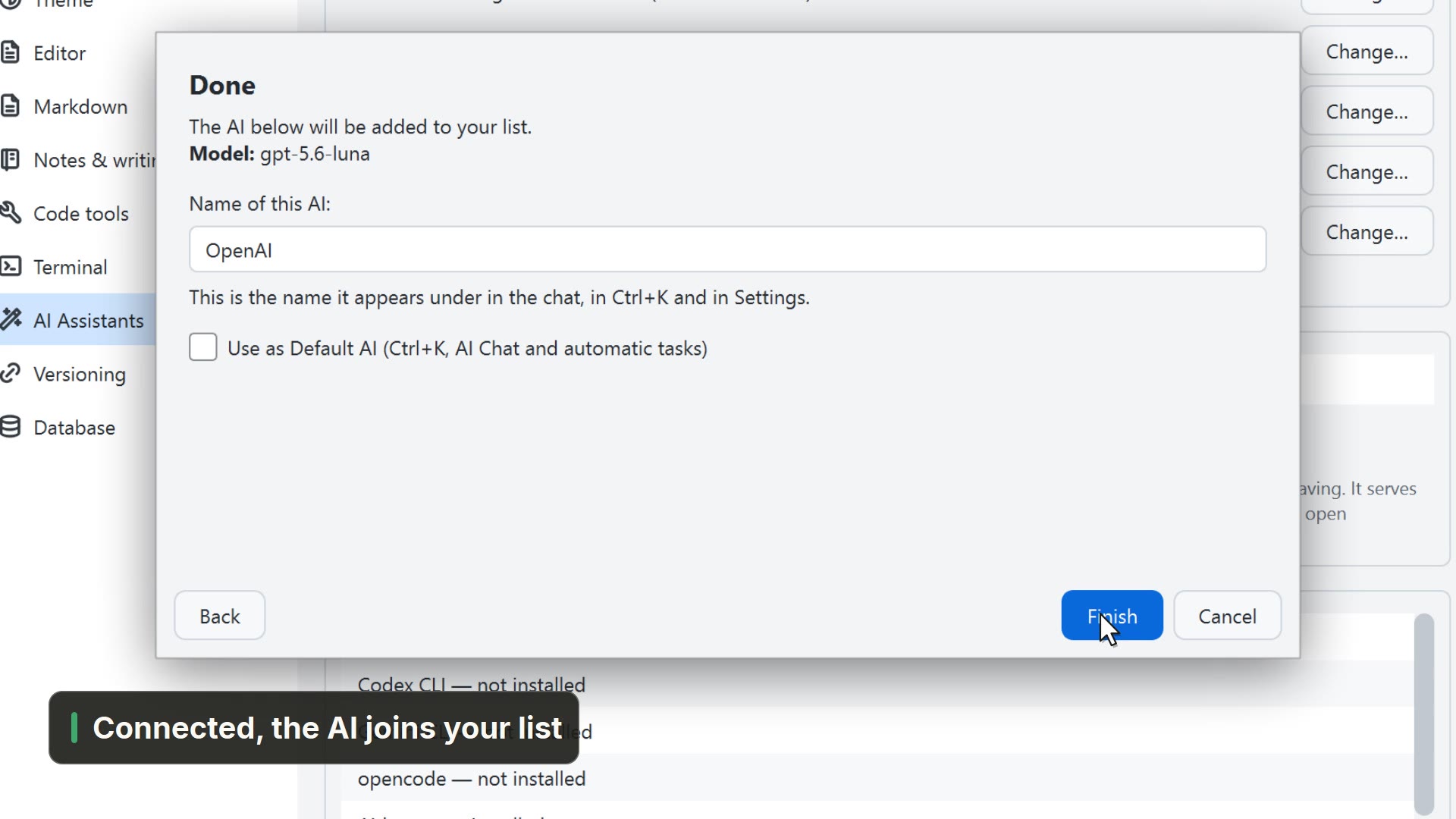 00:242.2AI in the cloud
Connect a cloud AI provider with your API key.
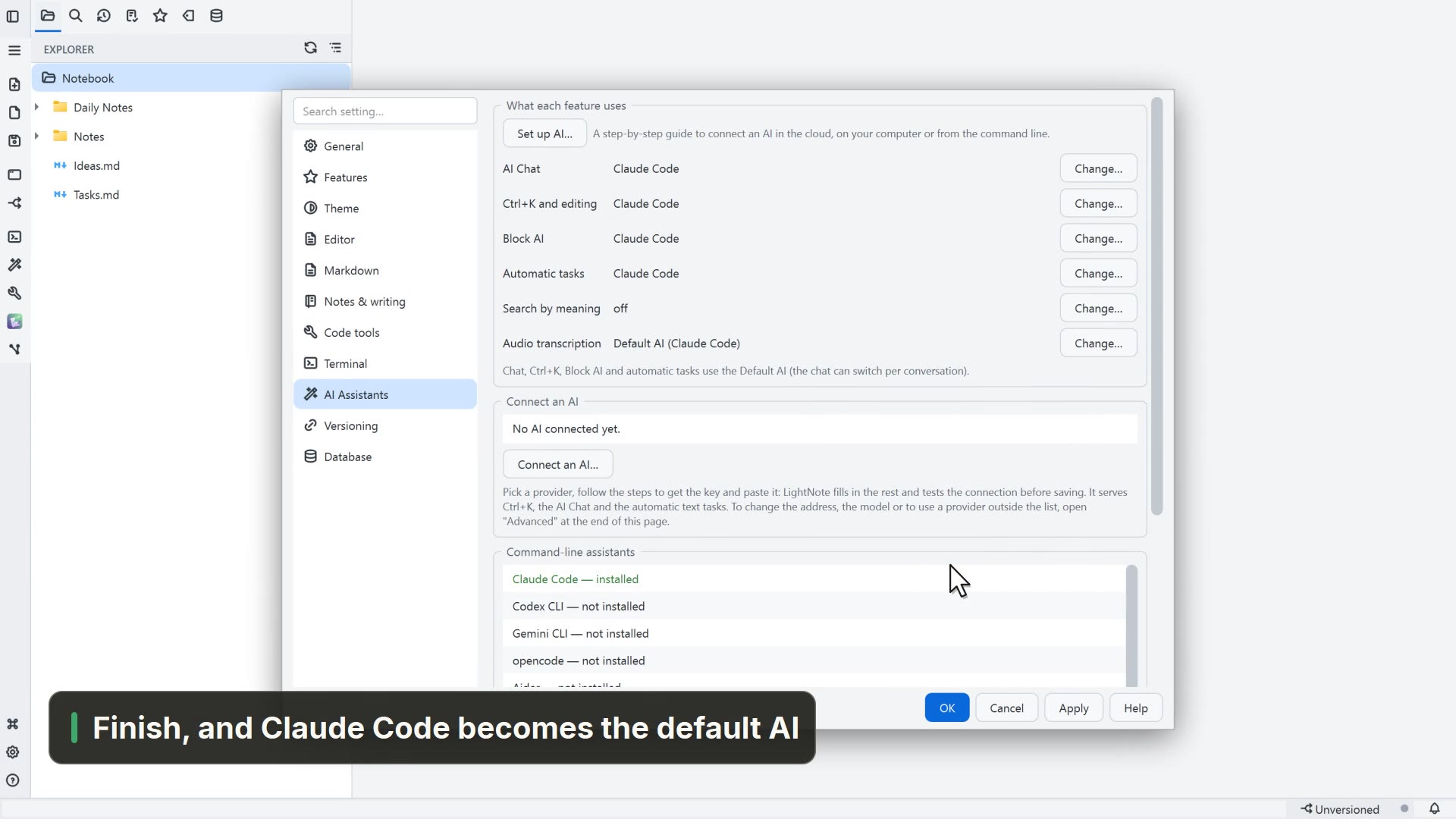 00:232.3AI CLI
Use an AI CLI you already have, like Claude Code, as the default AI.
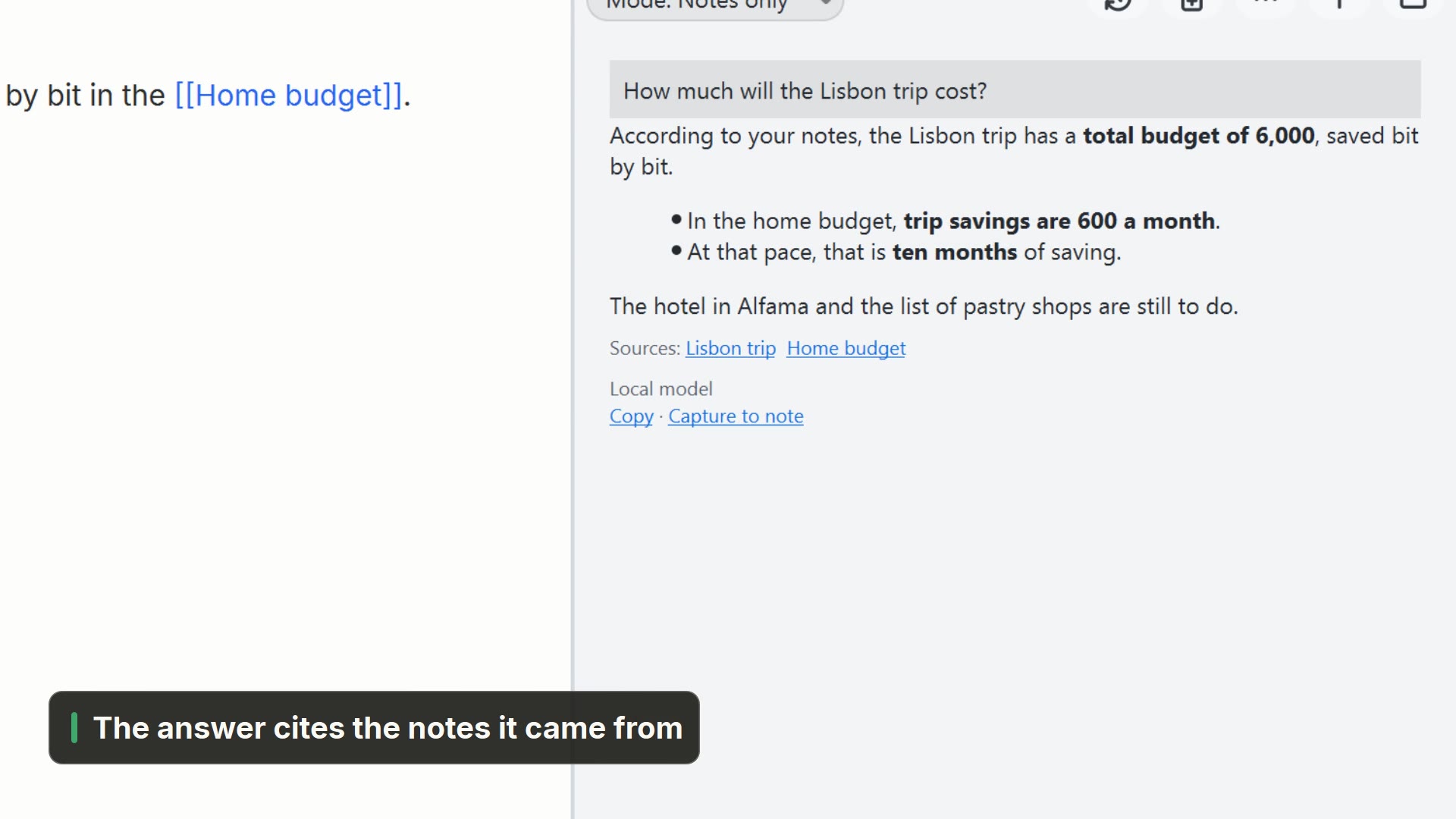 00:182.4Ask your notes
Ask a question and get an answer drawn from your own notes.
03AI cockpit
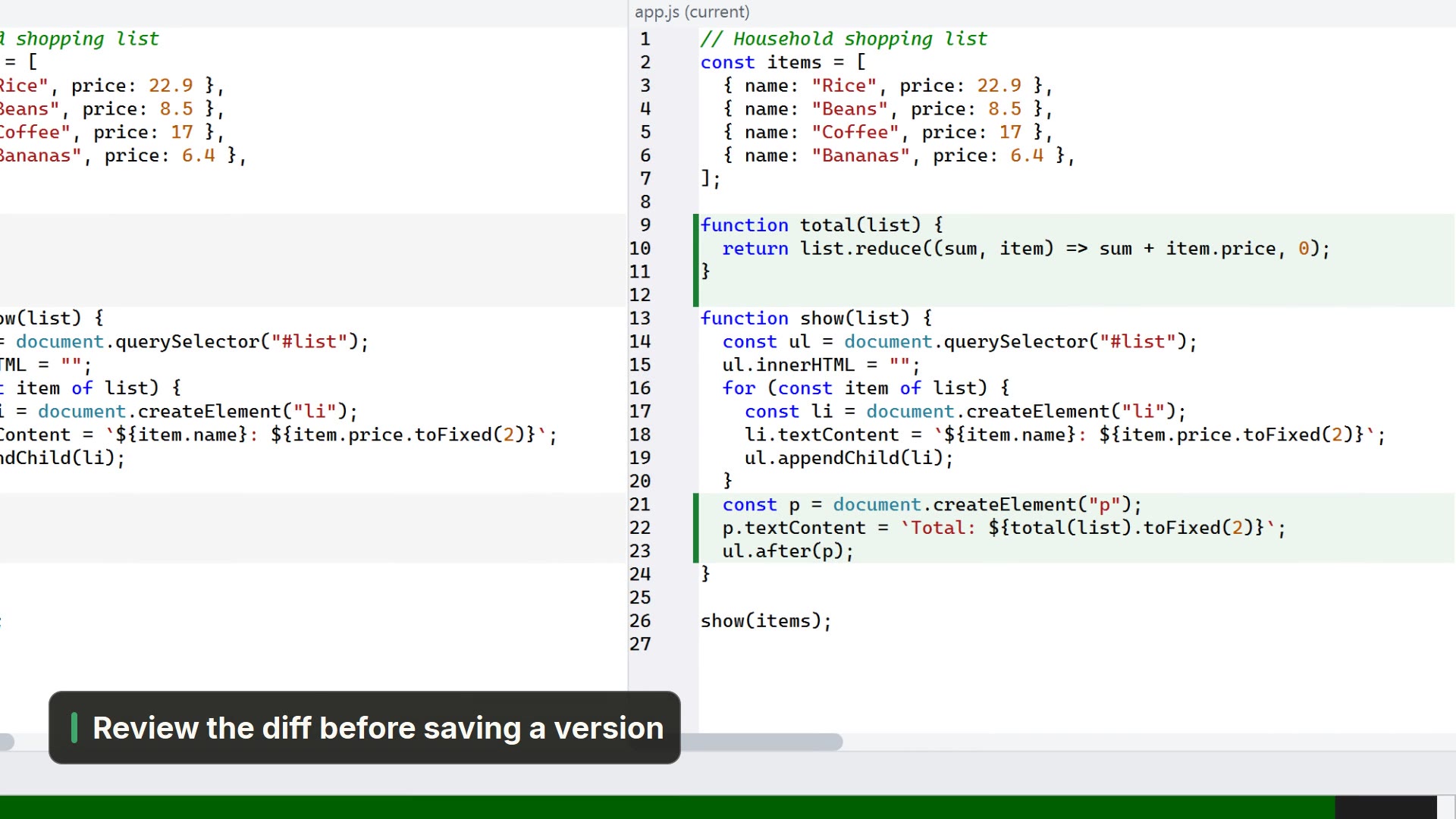 00:293.1Claude Code in the terminal
Open Claude Code from the AI button, ask for a change and review what it did.
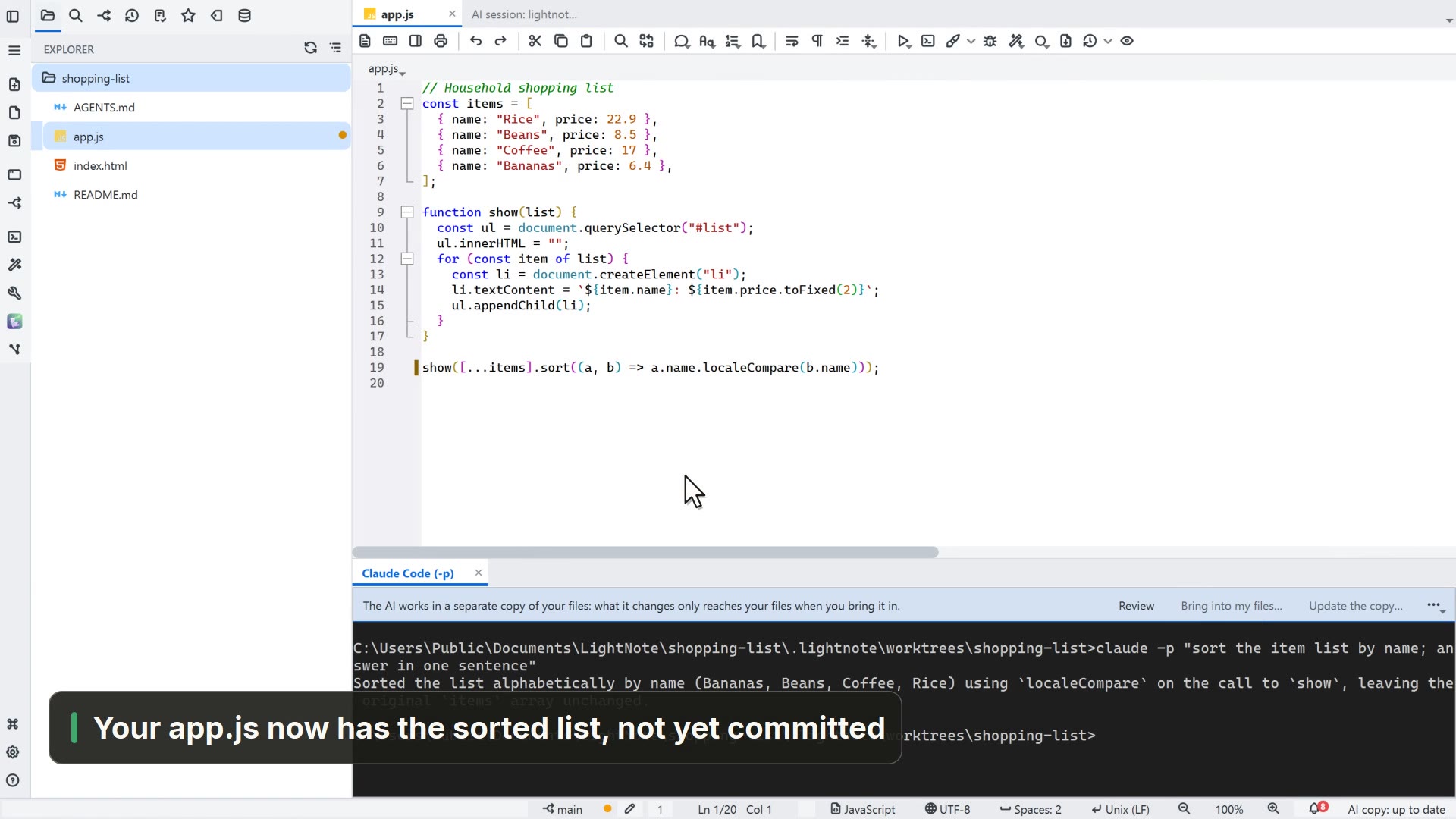 00:383.2AI in an isolated copy
Let an AI agent work in a copy of the project, review what it did and bring it into your files.
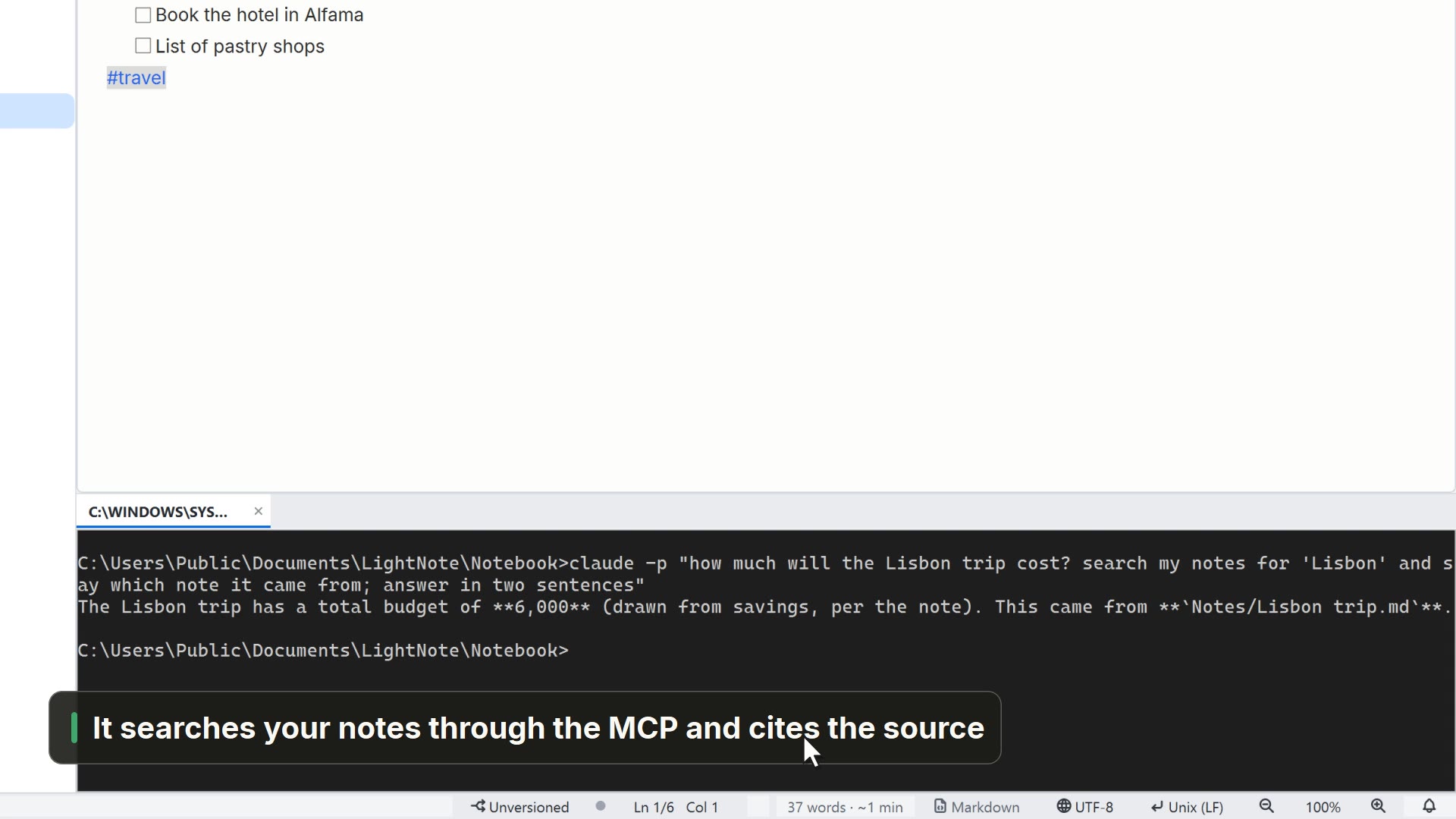 00:263.3Your notes as AI context
Turn on the folder's MCP so an AI CLI can look things up in your notes.
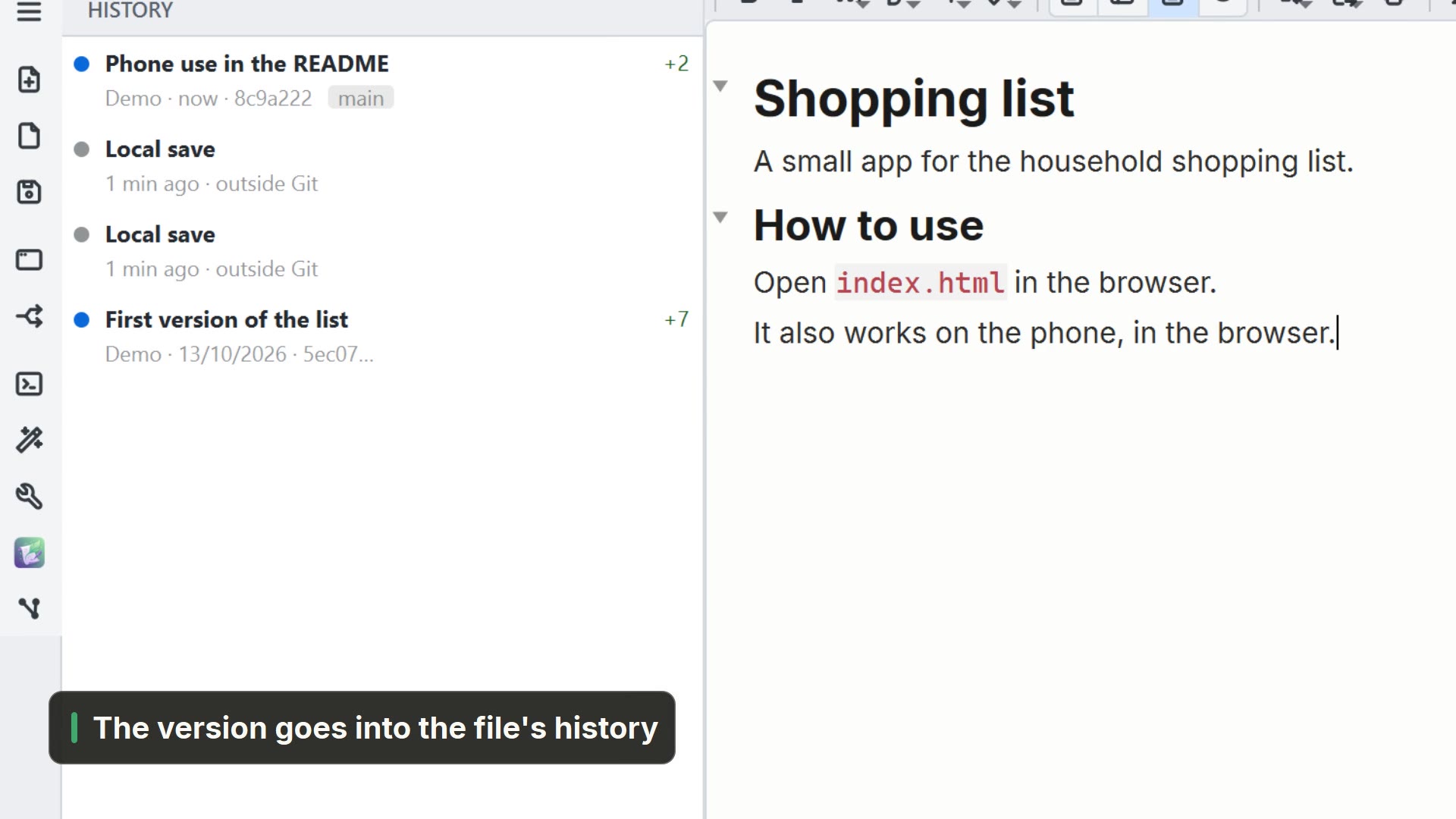 00:273.4Git, day to day
See what changed, save a version with a message and find it in the history.
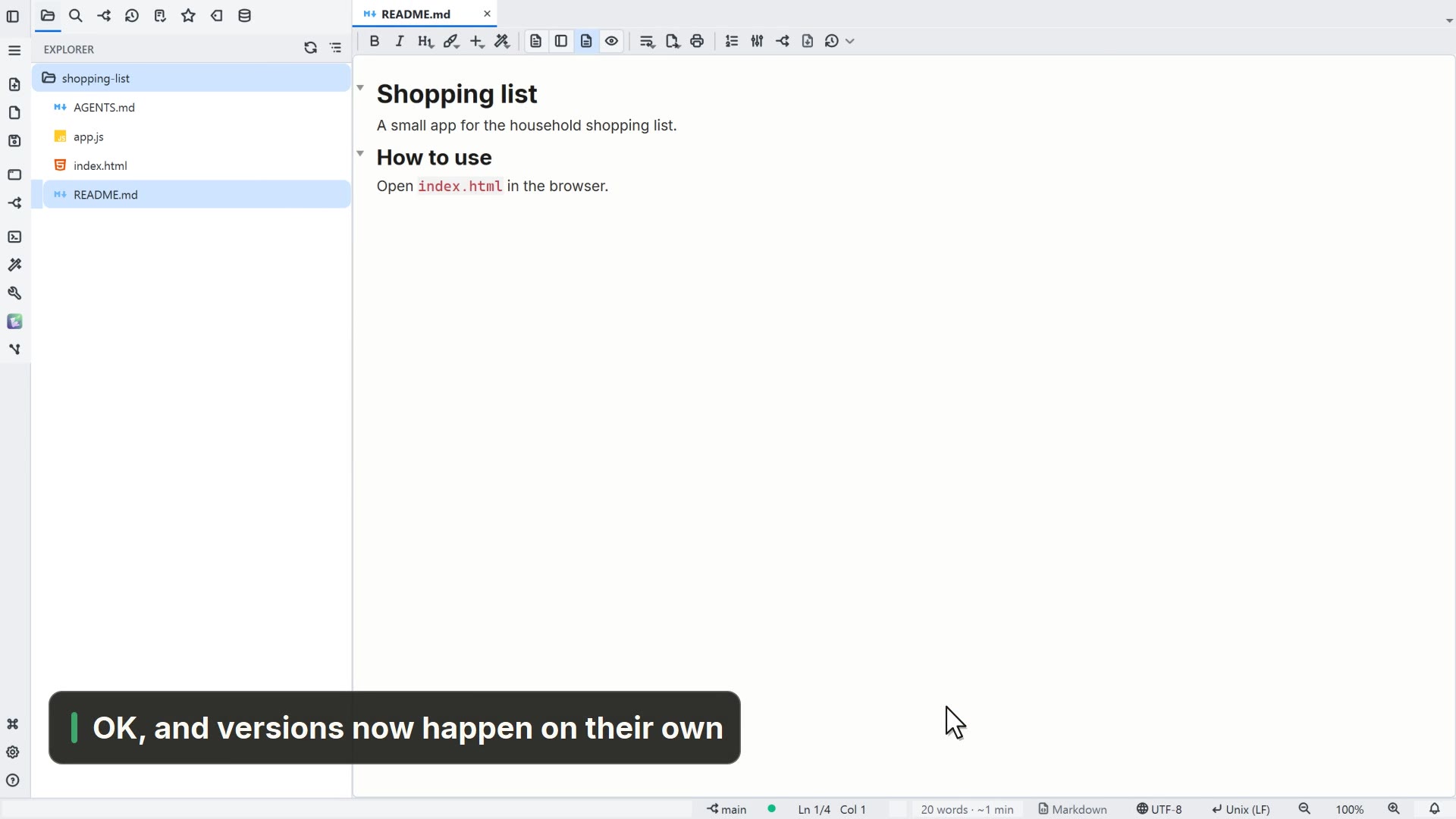 00:163.5Automatic versions with Git
Let LightNote save versions by itself, and choose when.
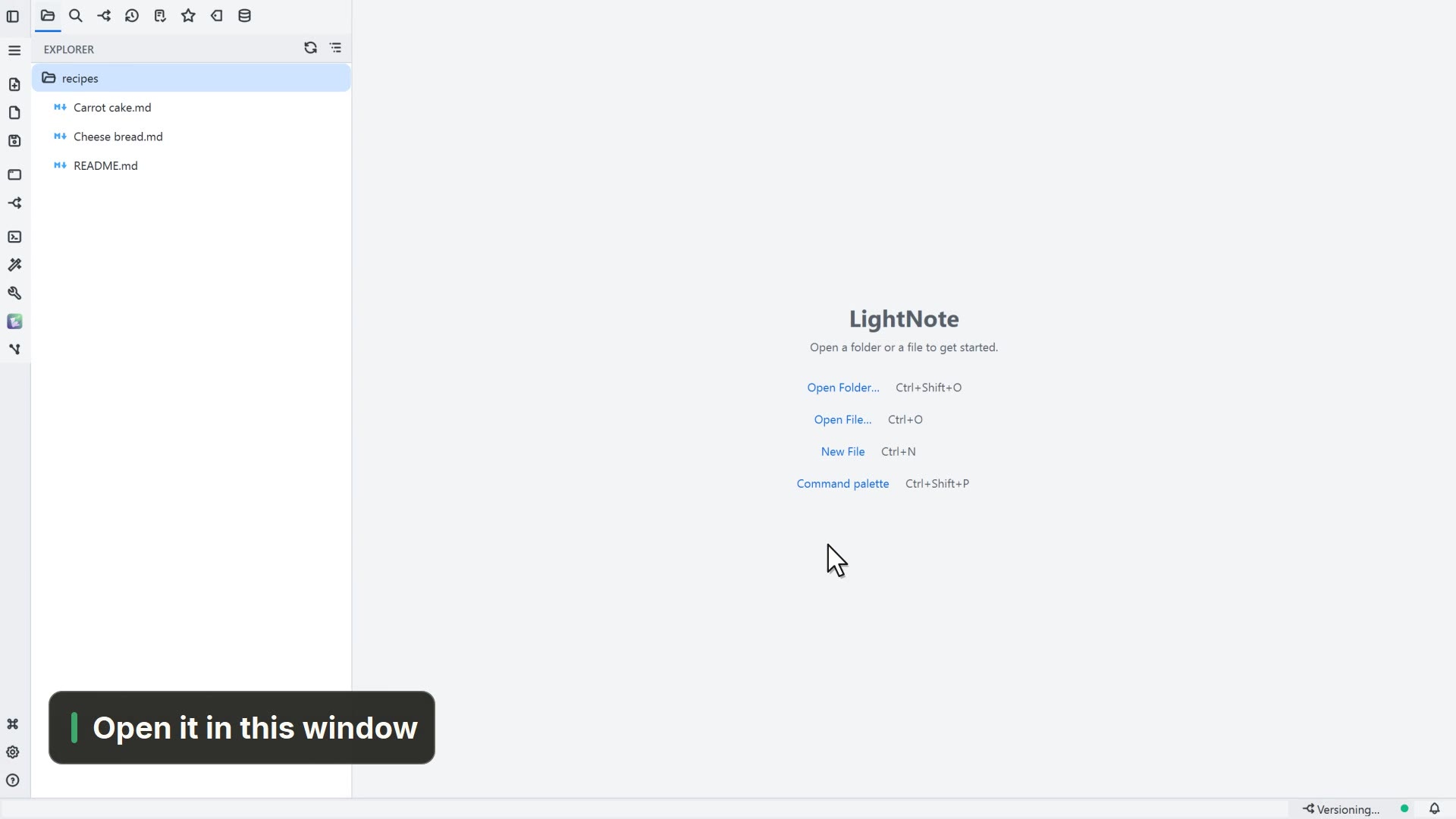 00:213.6Clone a repository
Bring a Git repository to your computer and open it in LightNote.
04Customize
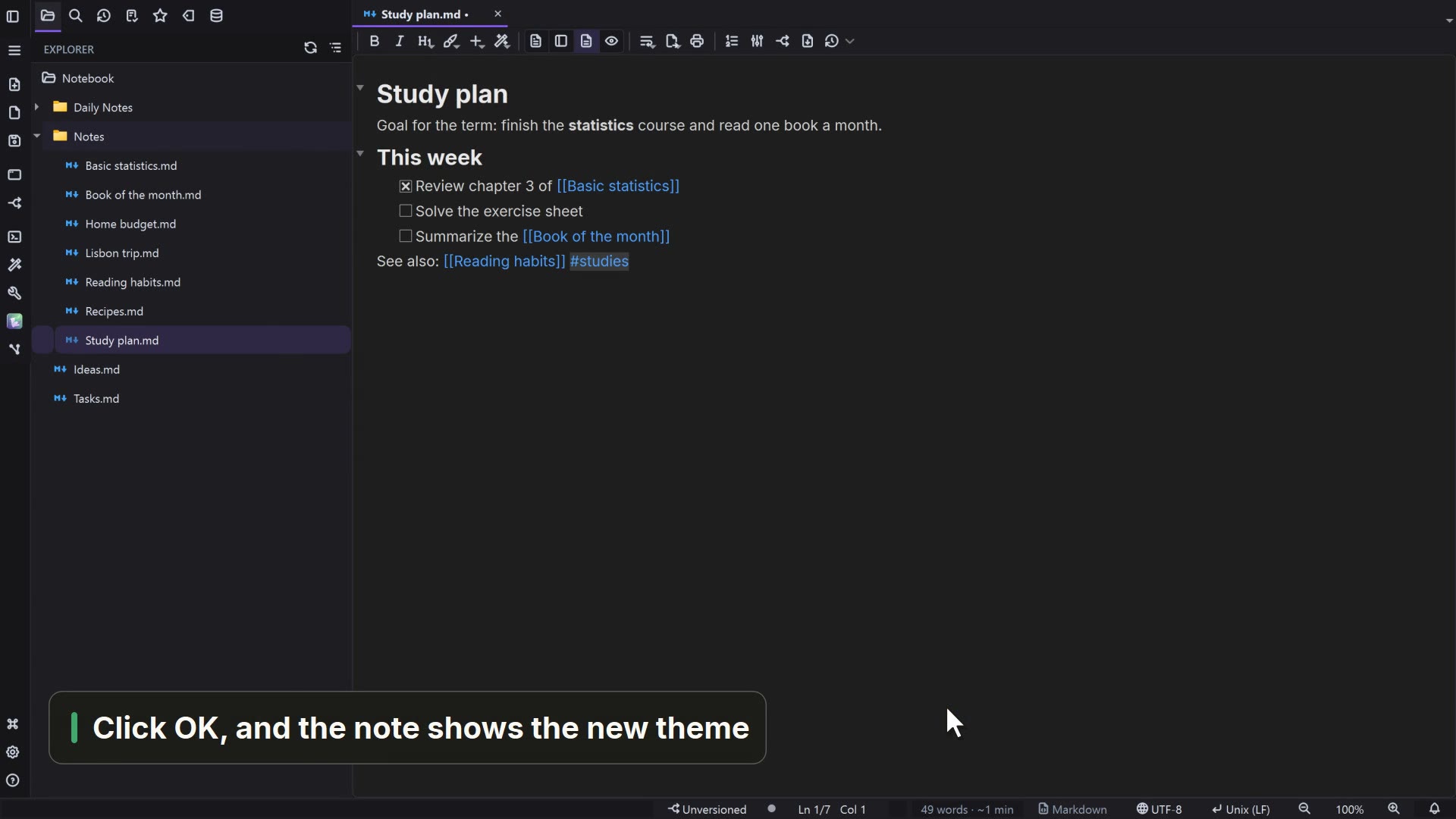 00:244.1Change the theme
Switch the window and your notes to dark, from Settings.
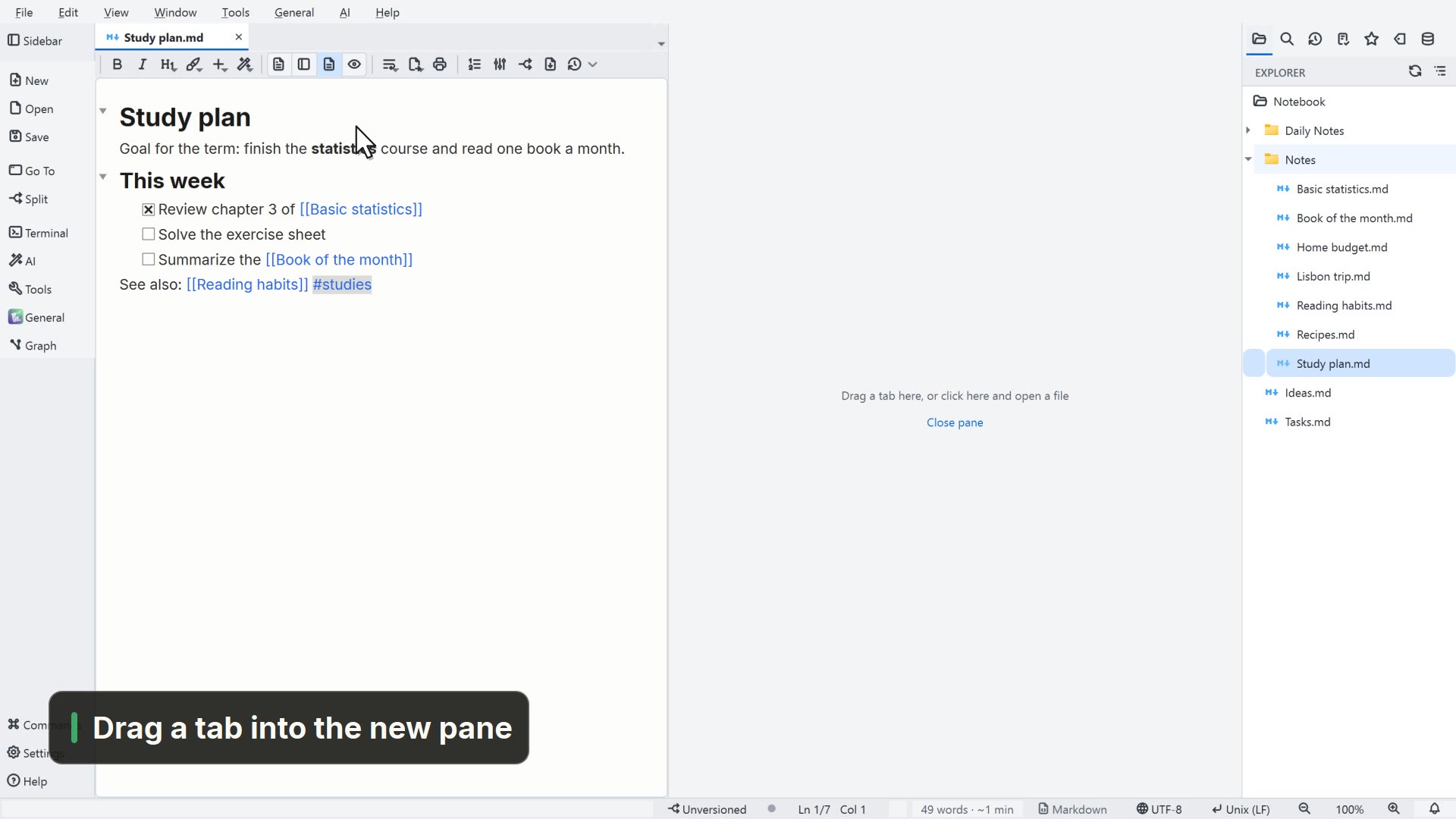 00:264.2Arrange the window
Change the window layout and split the editor into two side-by-side panes.
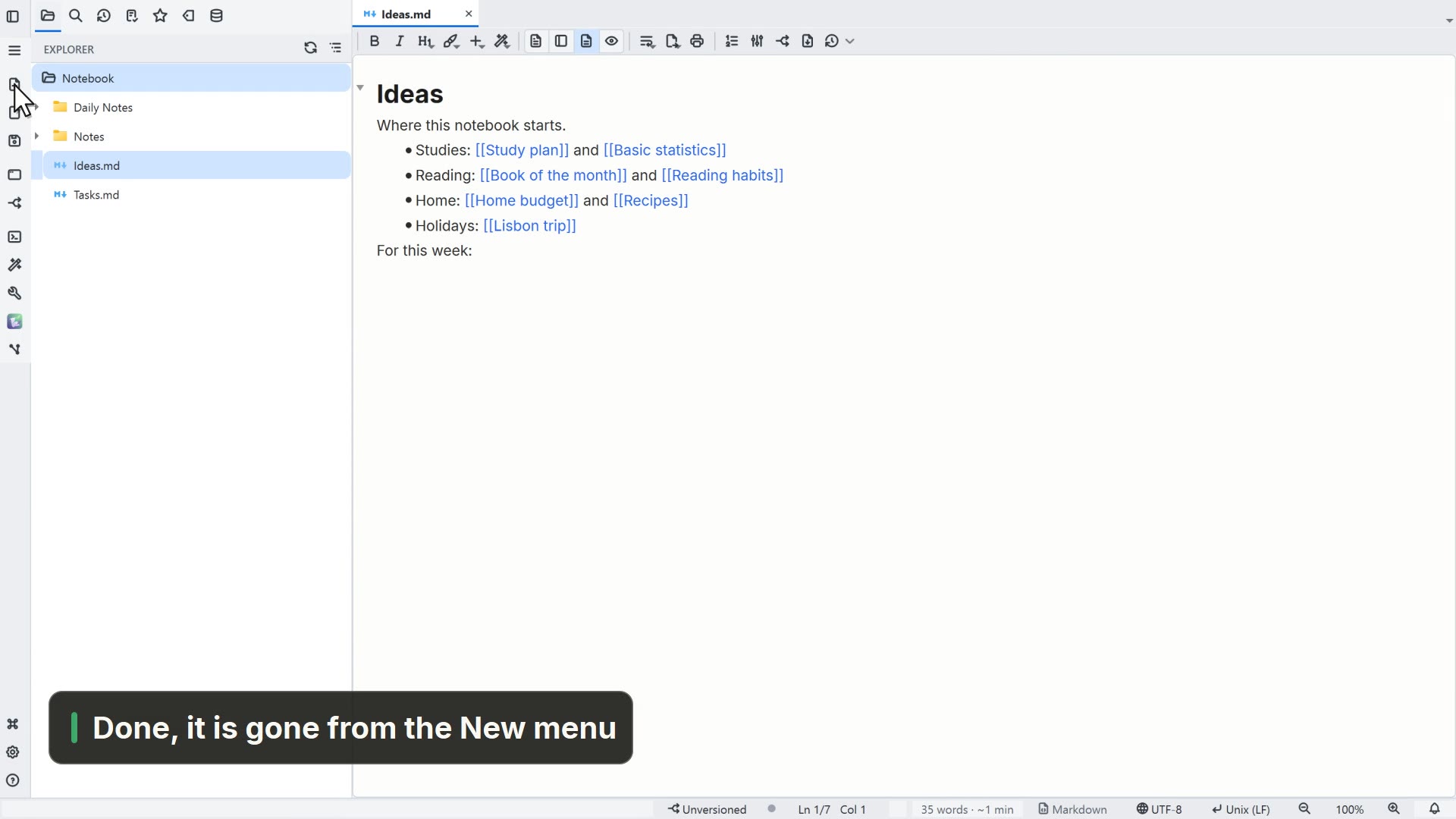 00:234.3Hide features
Get what you don't use out of the way, in Settings → Features.
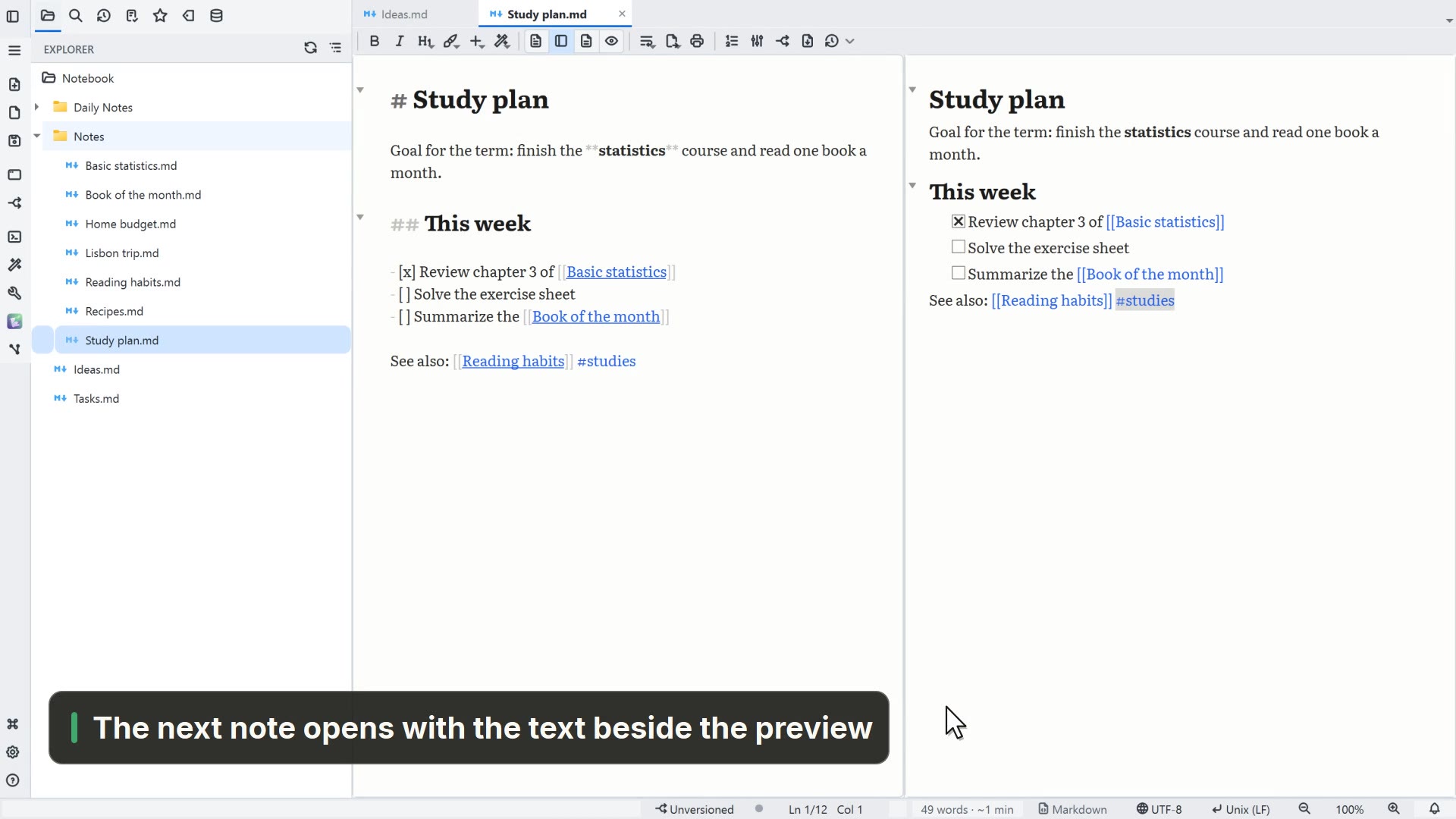 00:224.4Note font and view
Change the note font and choose which view notes open in.
05Academic
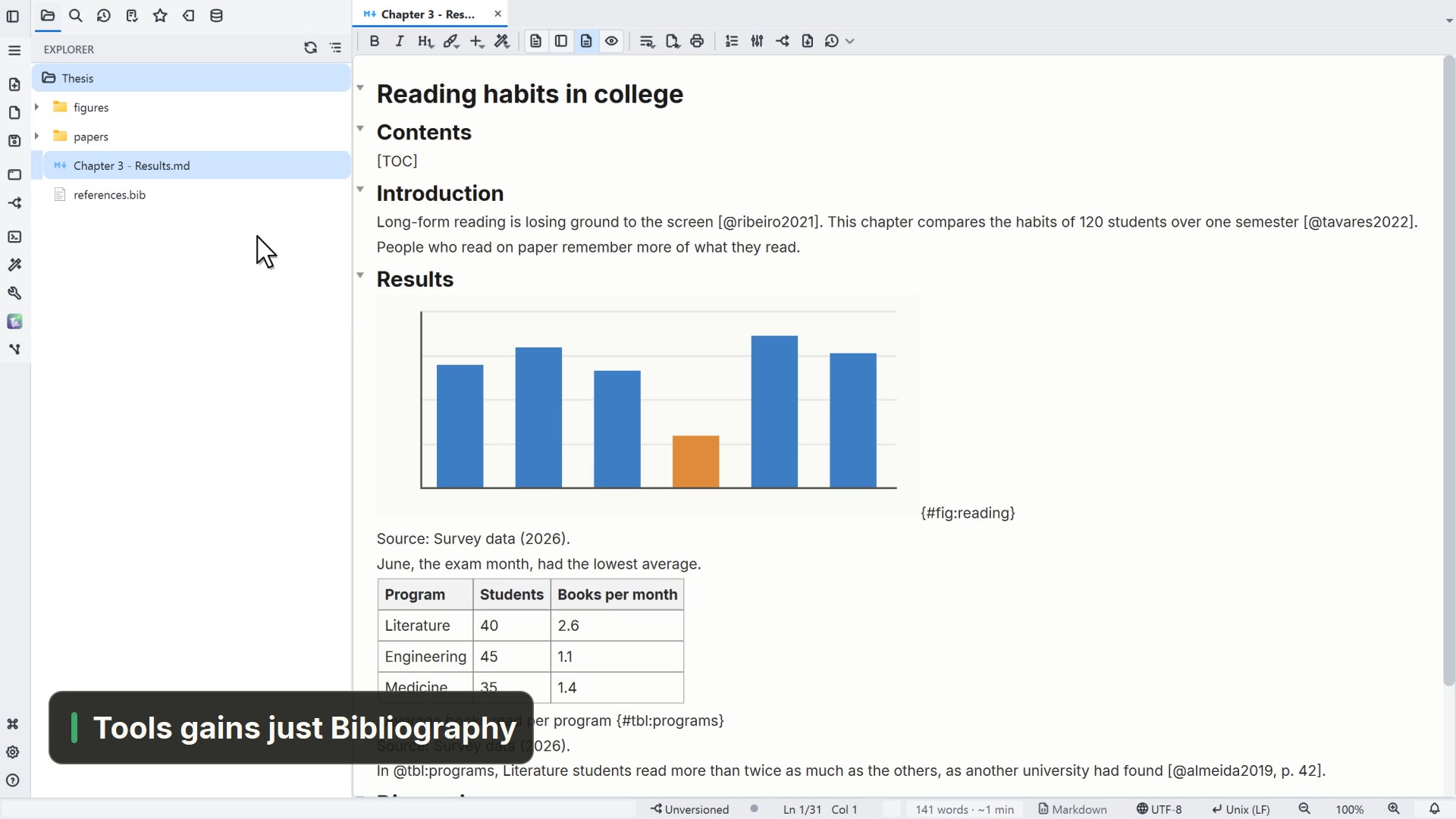 00:235.1Turn on the academic features
Turn on only what your paper needs, like citations and numbering, in Settings → Features.
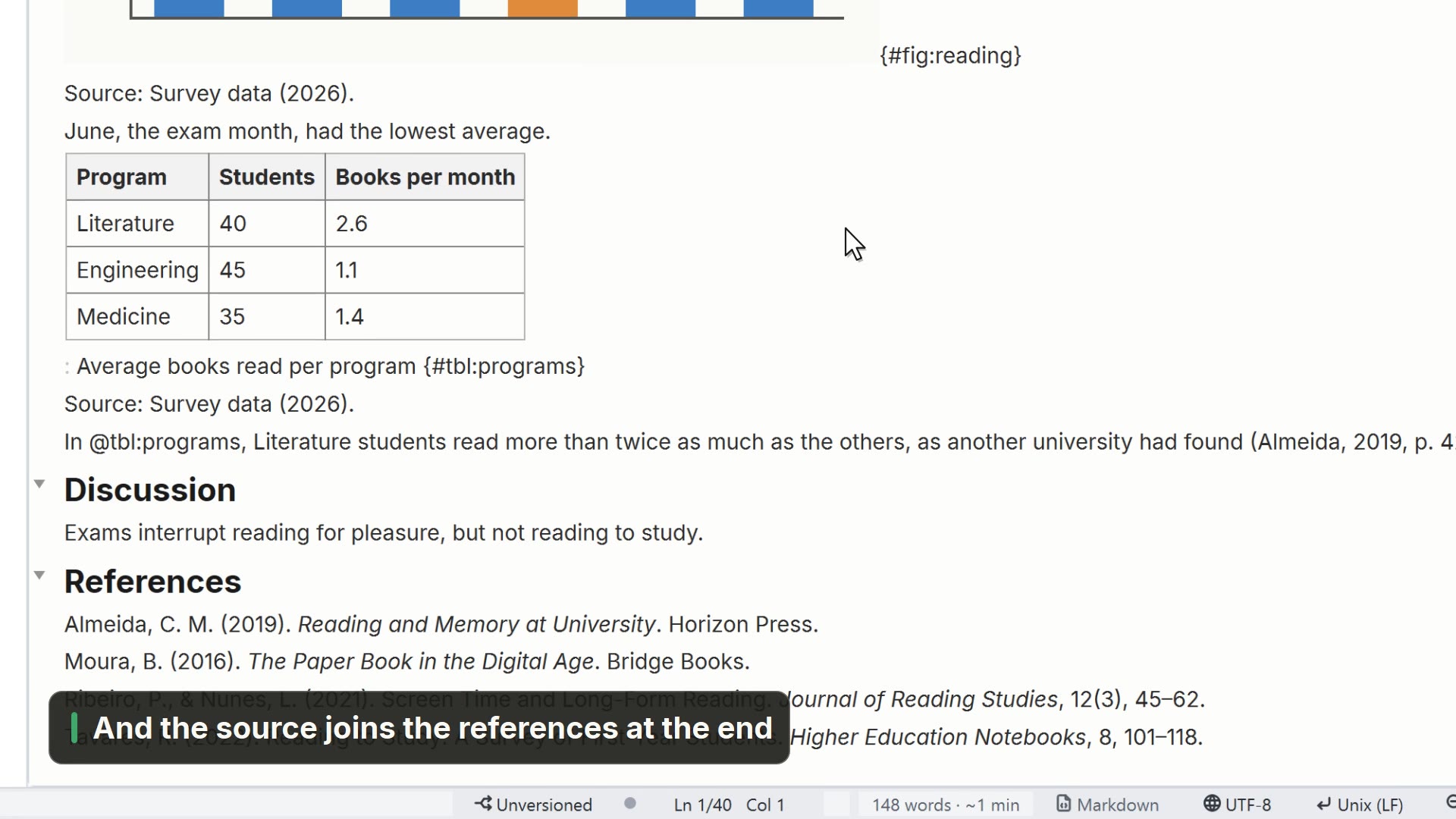 00:215.2Cite your sources
Cite a source from your .bib file and see the citation and references in the folder's style.
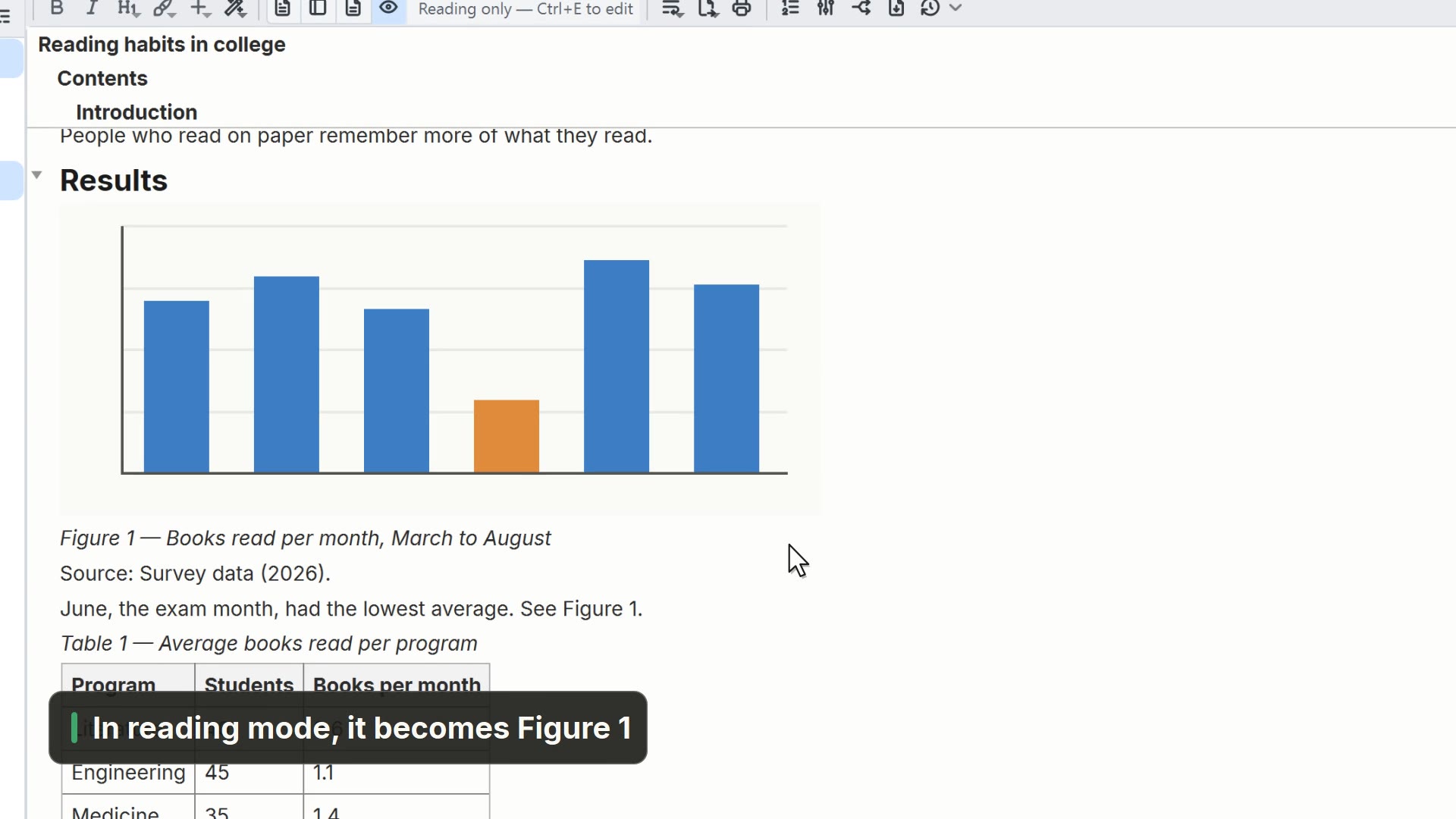 00:155.3Number figures and tables
Label a figure and a table and refer to them in the text, with automatic numbering.
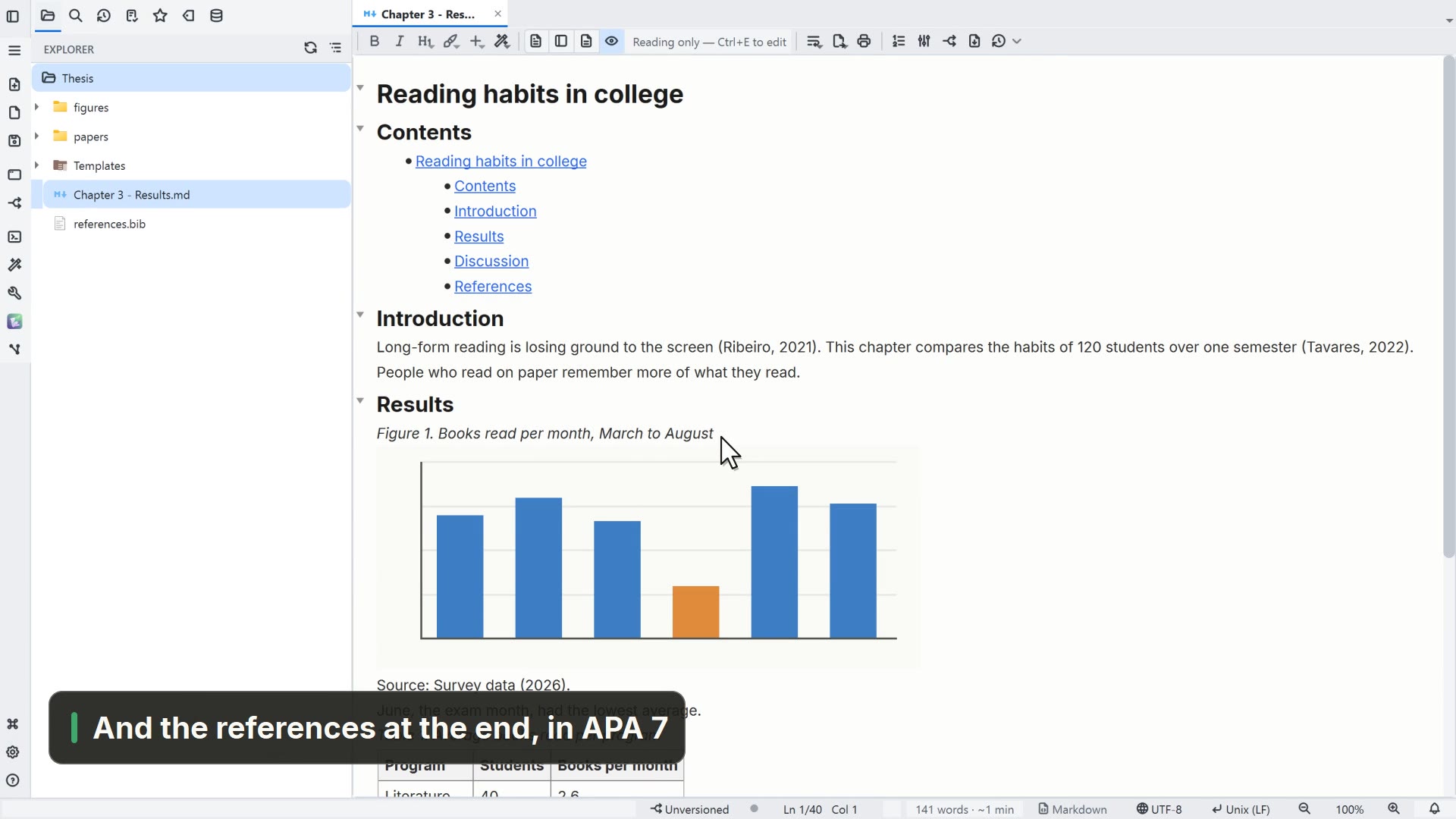 00:295.4Print to an academic standard
Pick your paper's standard and see the page with margins, contents and references in the preview.
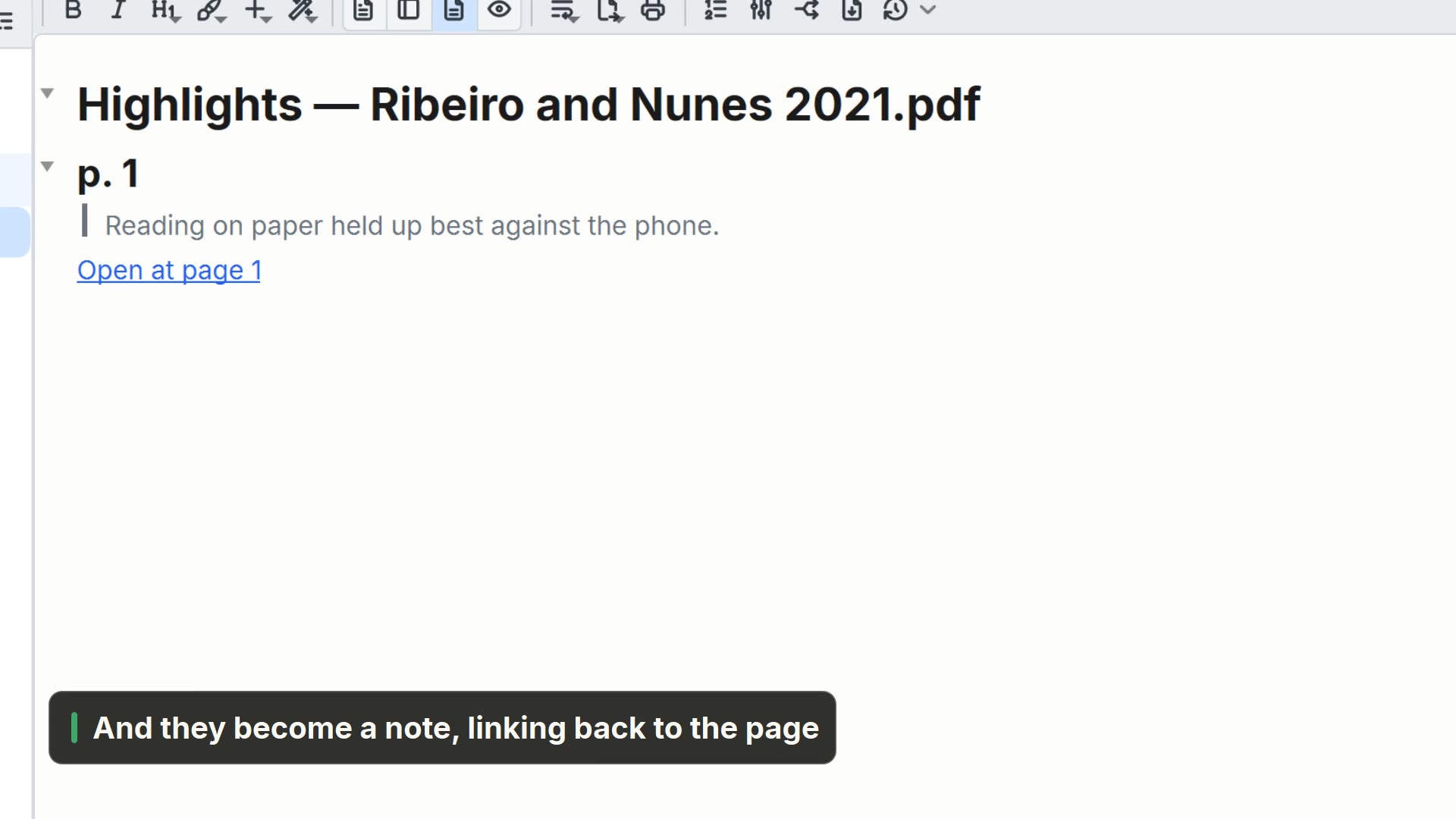 00:225.5Highlight a PDF
Highlight a passage in a PDF paper and take your highlights into a note.
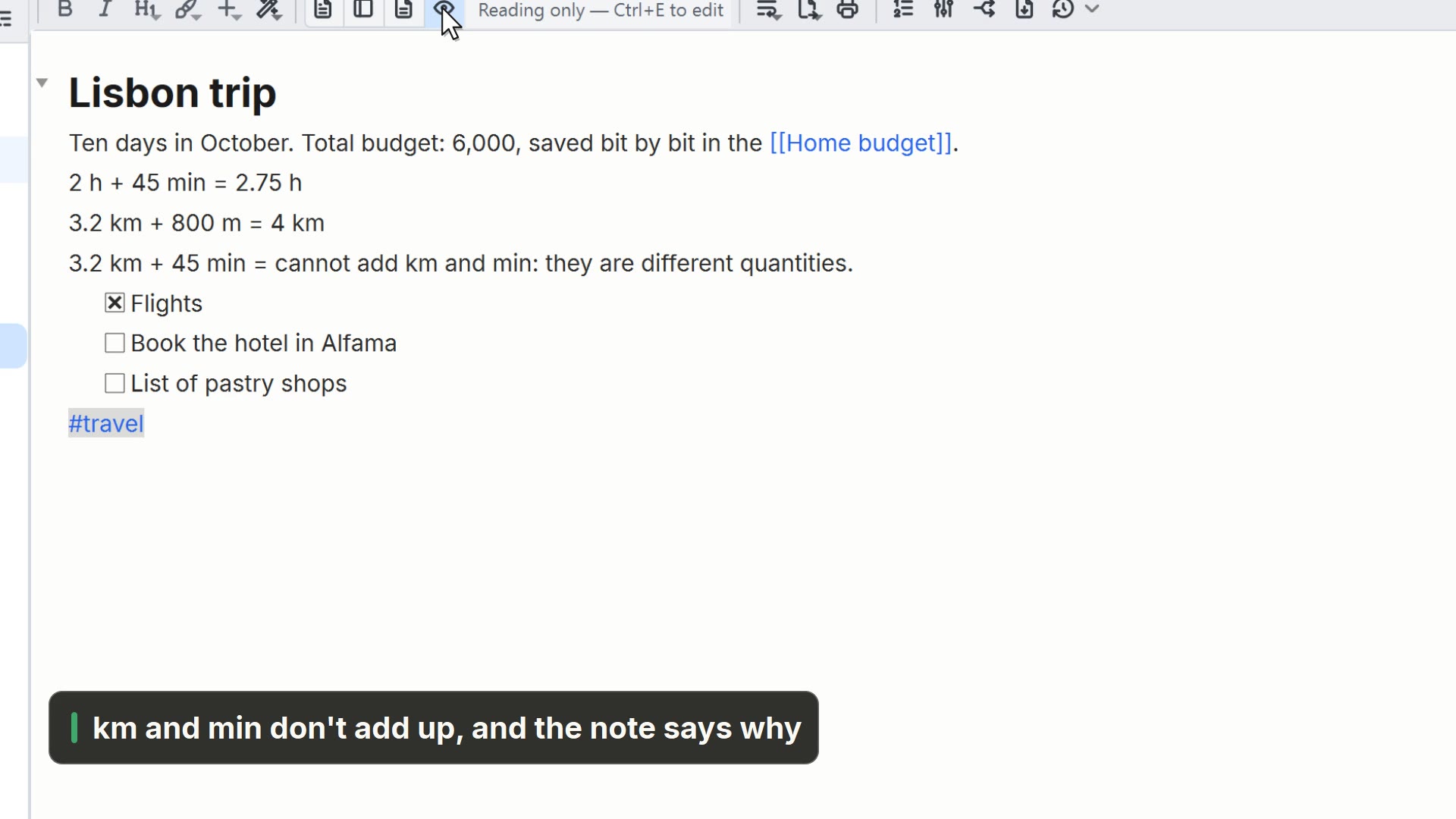 00:175.6Math with units
Write a calculation with units ending in = and see the result, or why it doesn't add up.
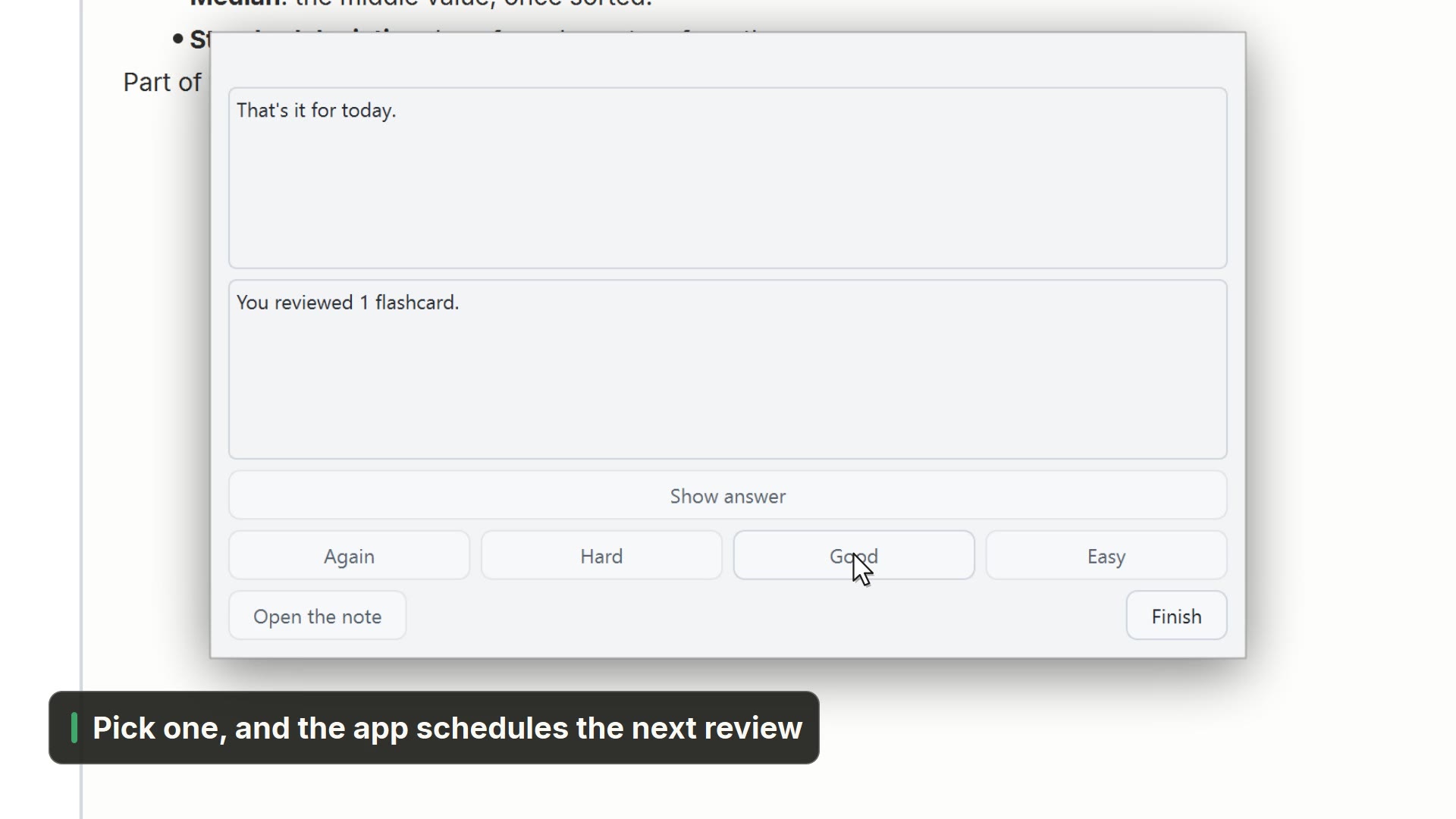 00:275.7Flashcards
Write question-and-answer cards in a note and review them with spaced repetition.
06Tools
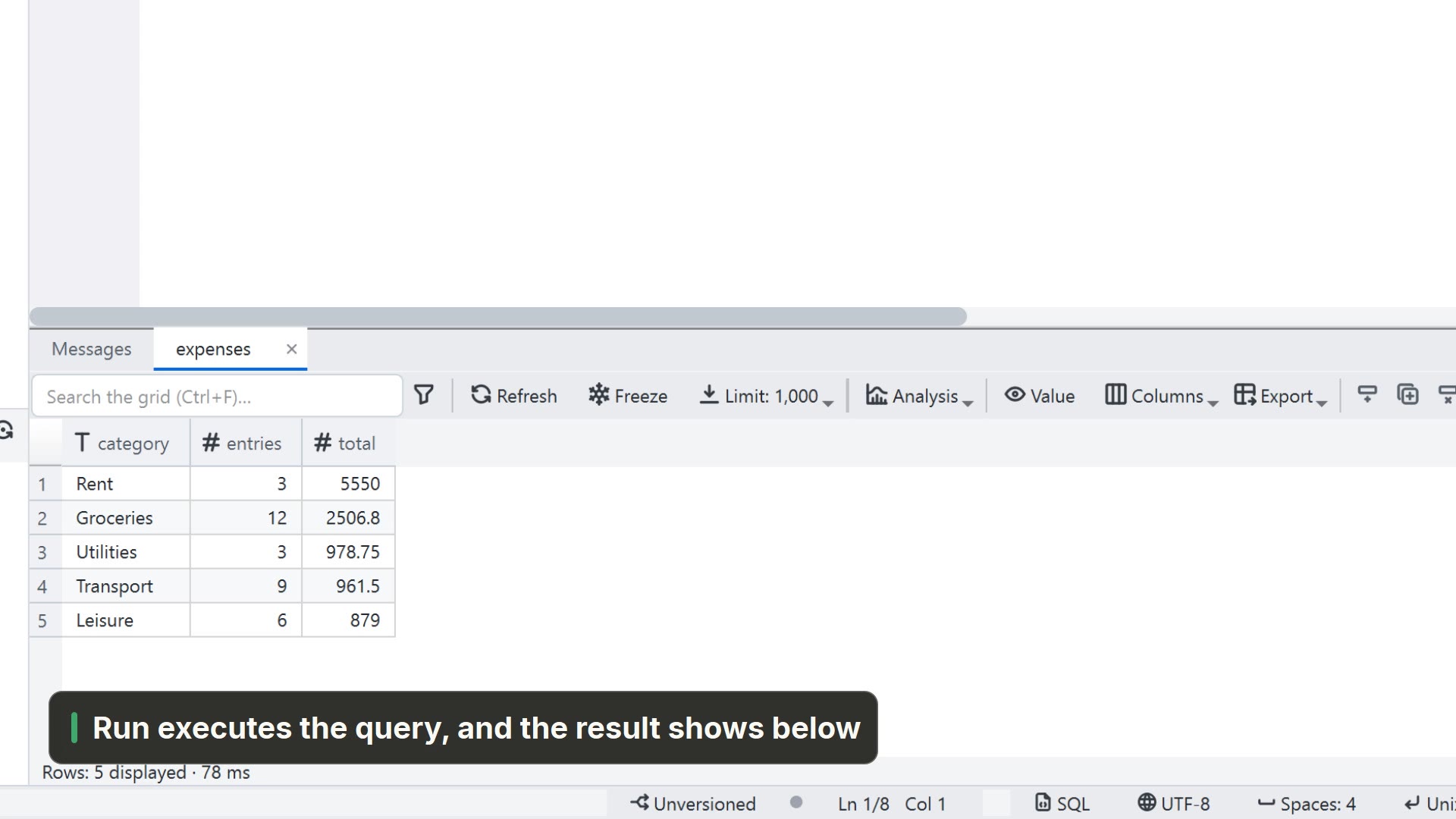 00:236.1Analyze data
Open a CSV, build a chart and a pivot table, and query the data in SQL.
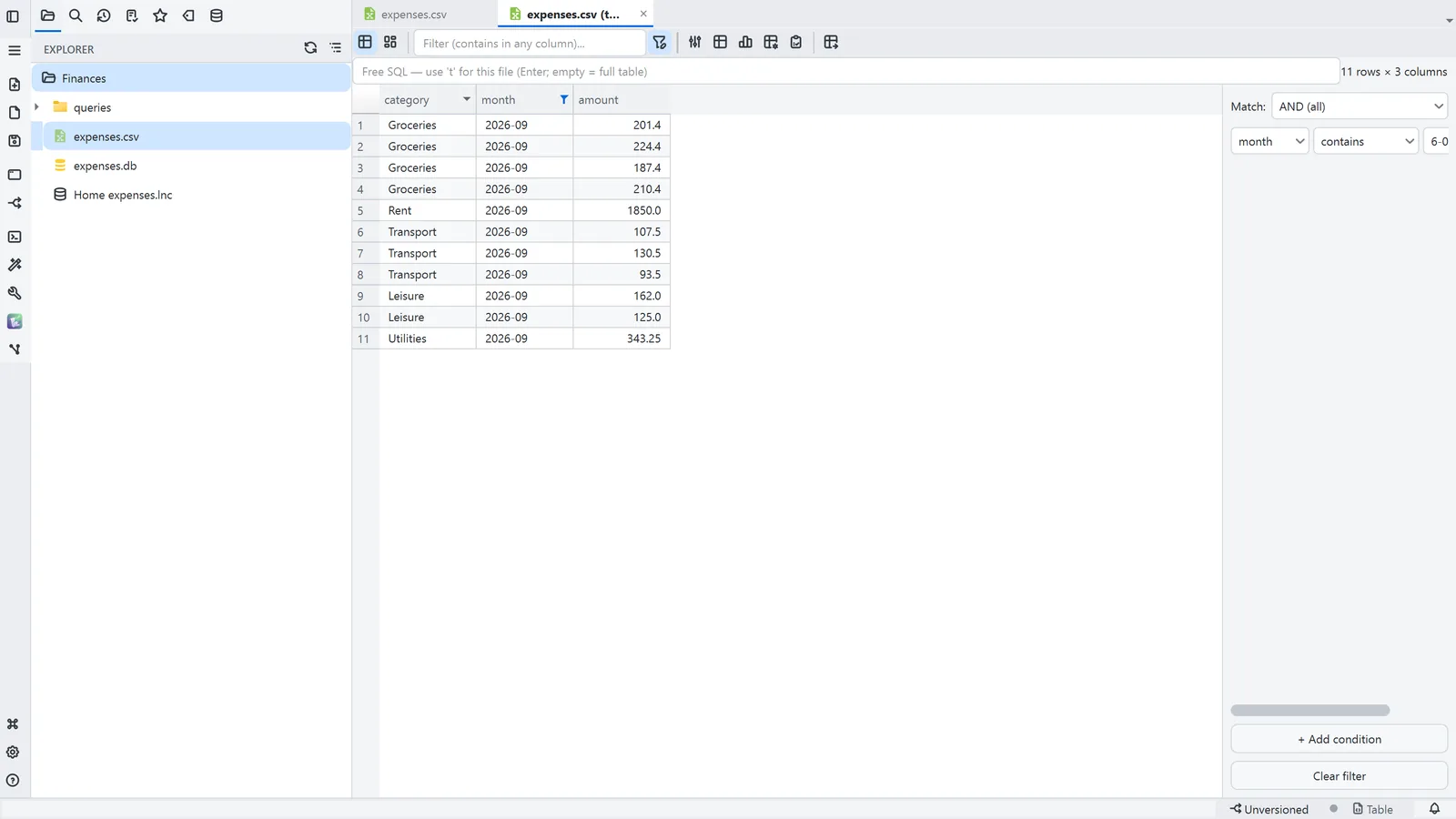 Guide6.2Filter a table and see the chart
Open a CSV as a table, filter a column, and see the result in a chart.
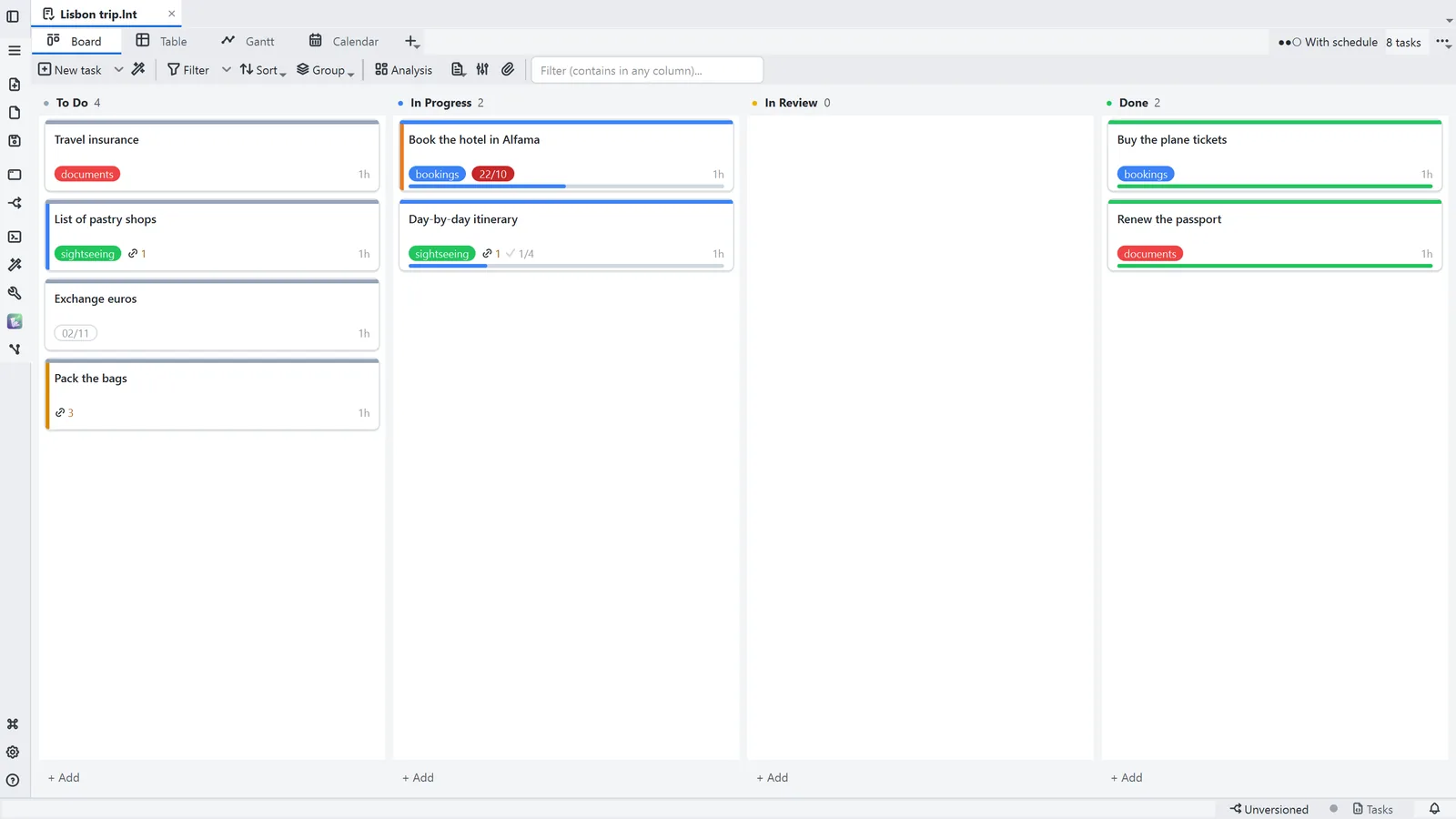 Guide6.3Task board, table and Gantt
See the same task board as a Kanban, as a table and as a schedule, and add a task.
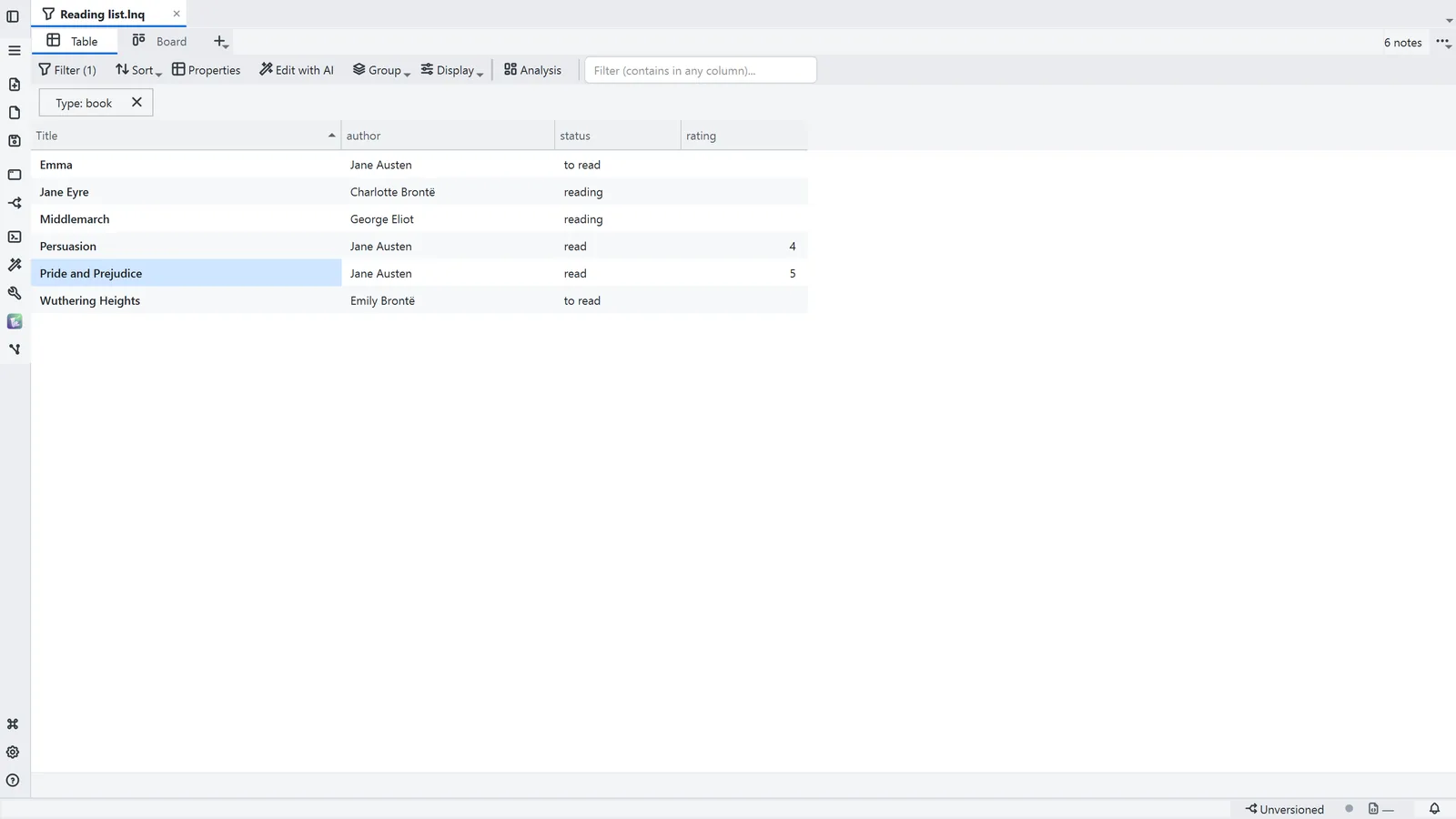 Guide6.4Bases over your notes
Build a saved query over your notes and see it as a table and as a board.
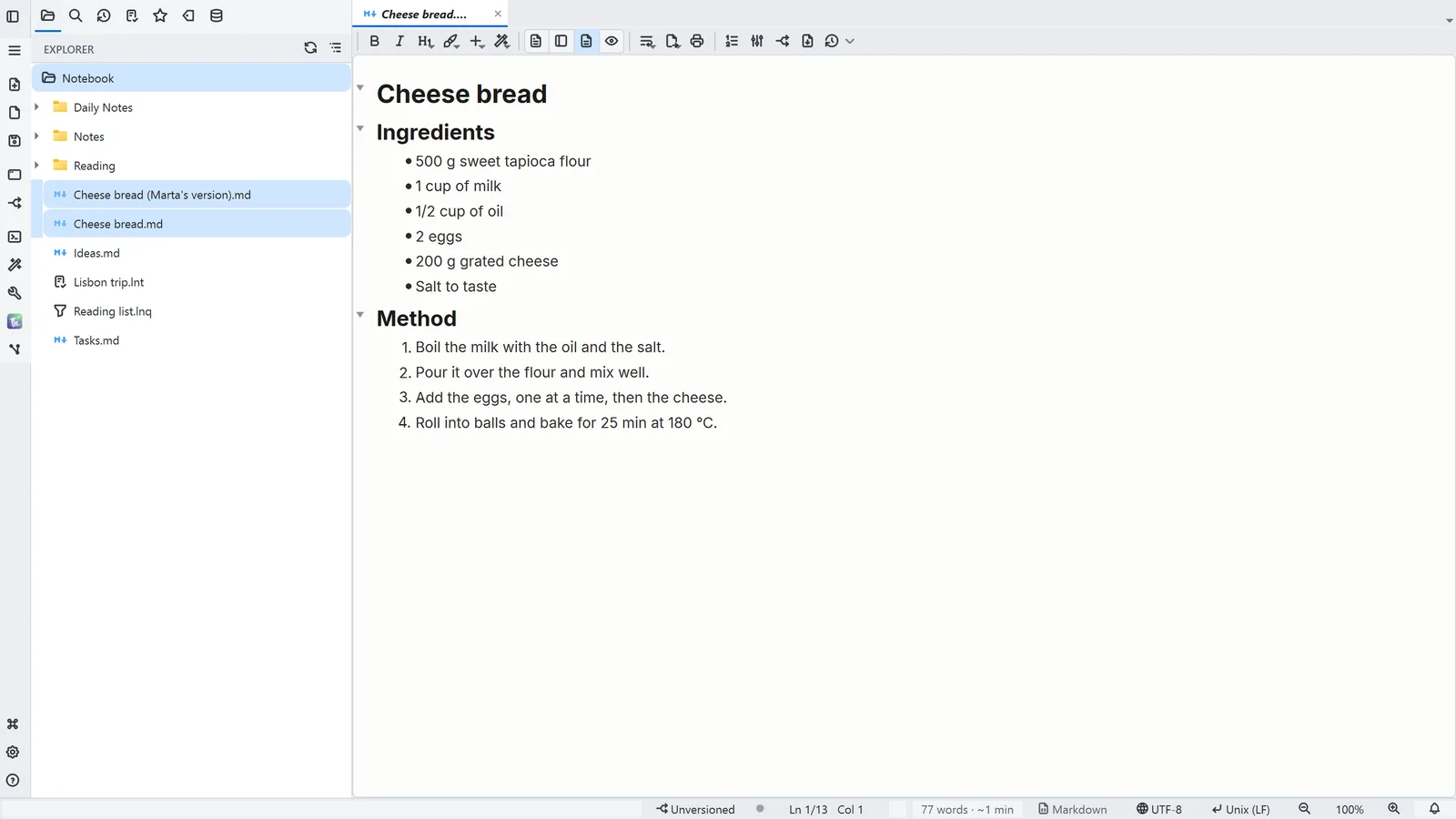 Guide6.5Compare two files
Pick two files and see the differences line by line, side by side.
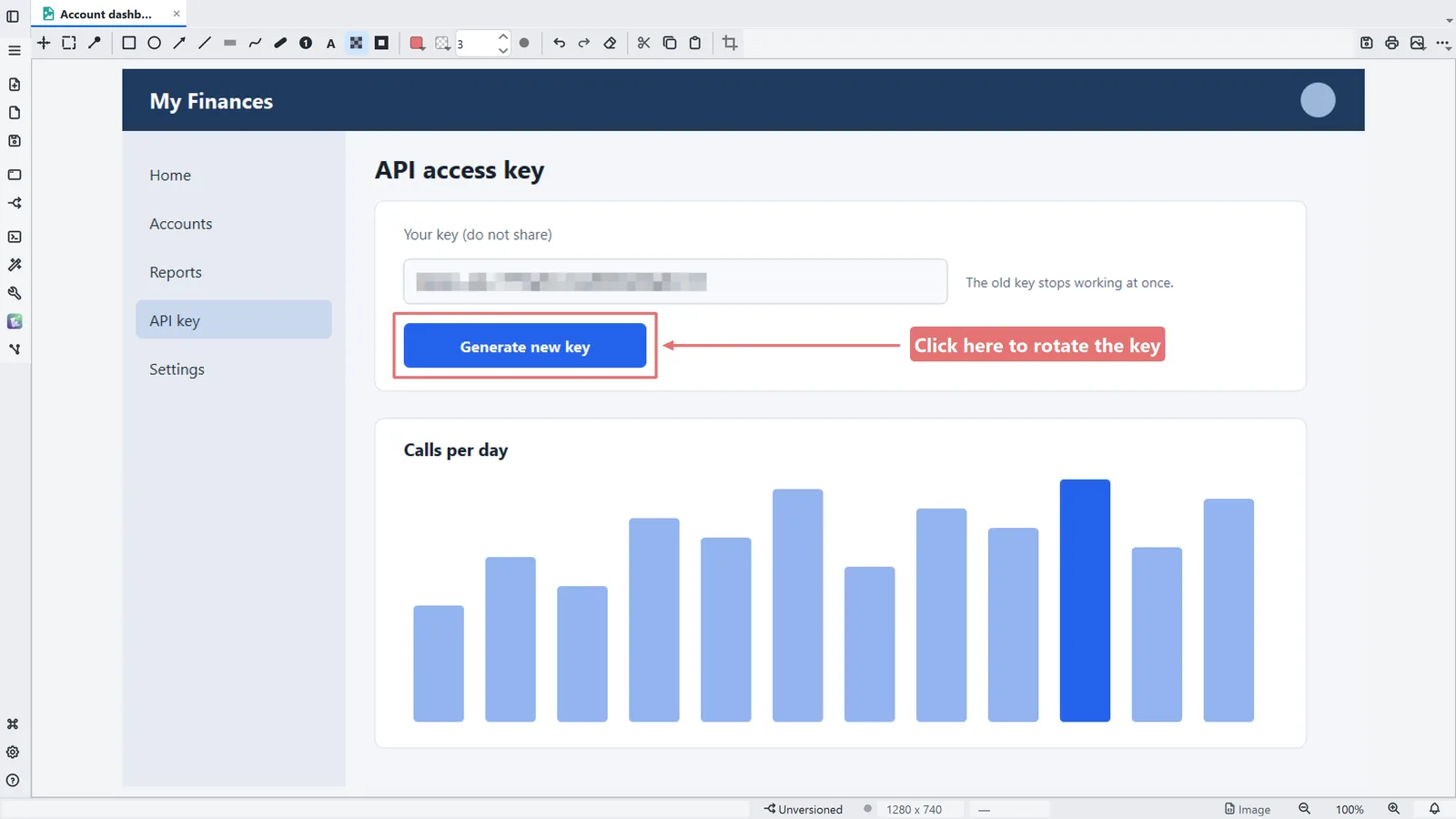 Guide6.6Mark up a screenshot
Point out what matters in a screenshot with a rectangle, an arrow and text, and blur what must not show.
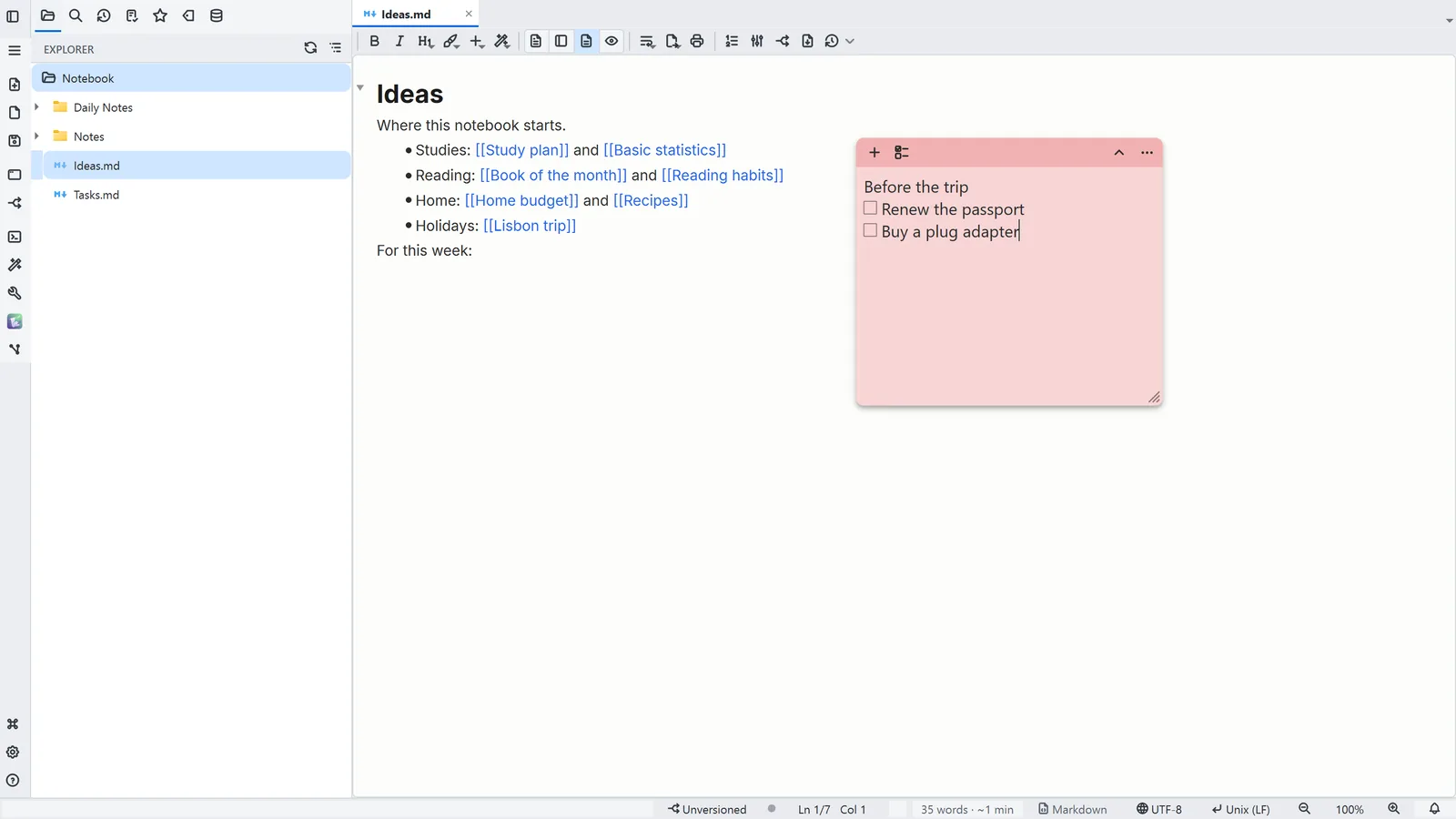 Guide6.7Sticky notes
Create a sticky note that floats over the desktop, with a checklist.
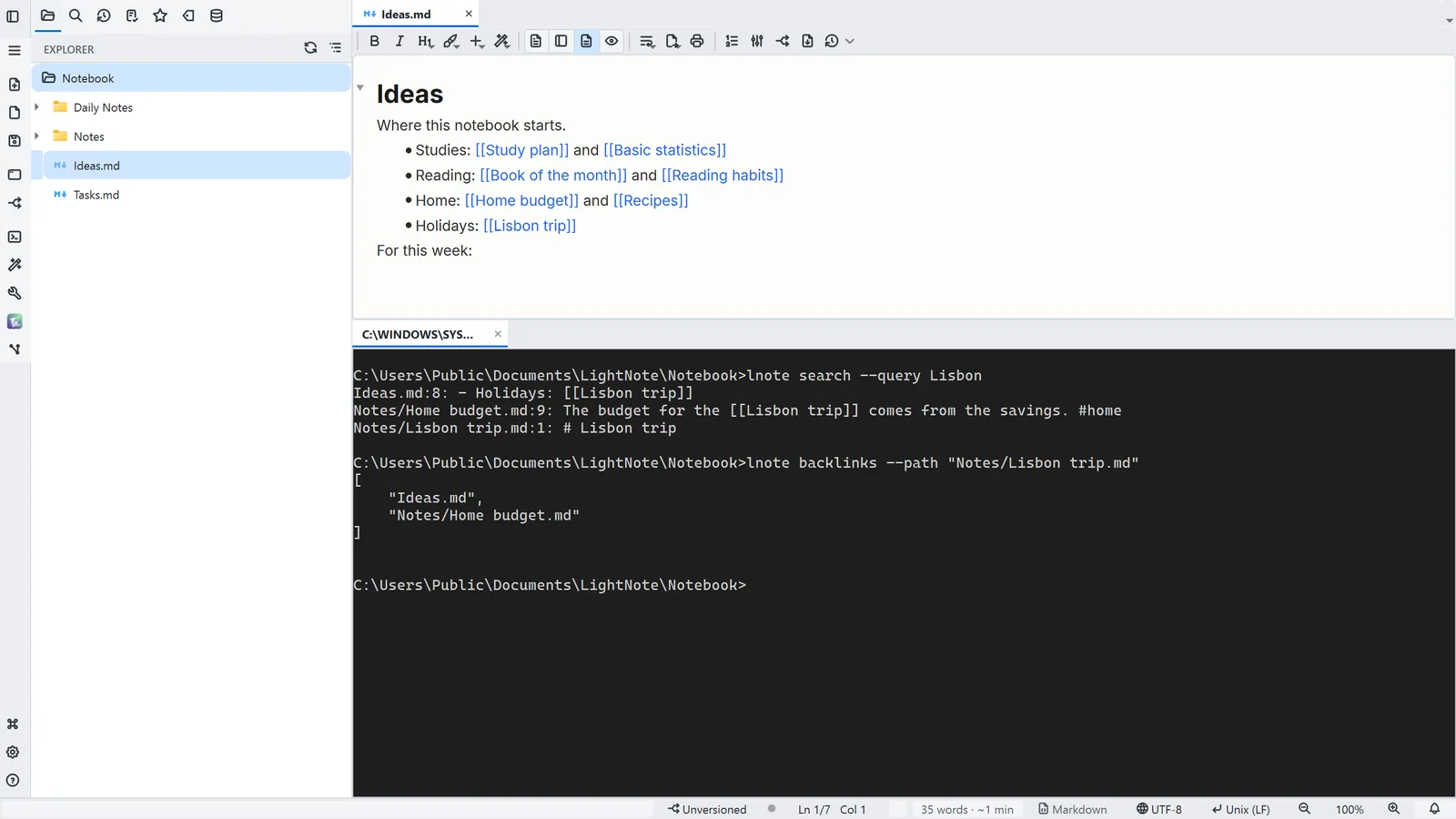 Guide6.8The lnote command line
Read, search and write your notes from the terminal, for scripts and automation.
07Rich notes
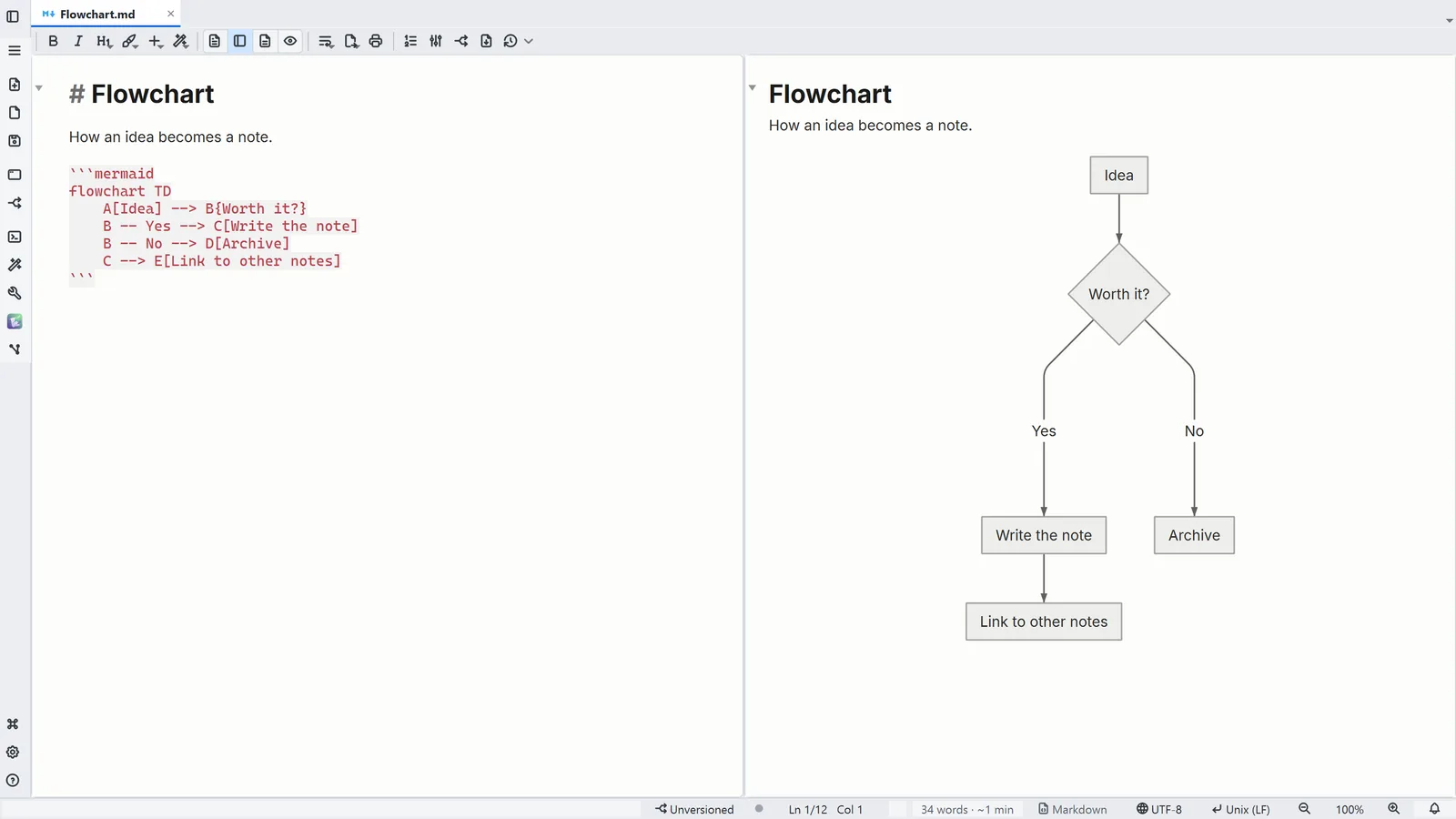 Guide7.1Mermaid diagrams in a note
Write a diagram as text and see it drawn next to it, in five types.
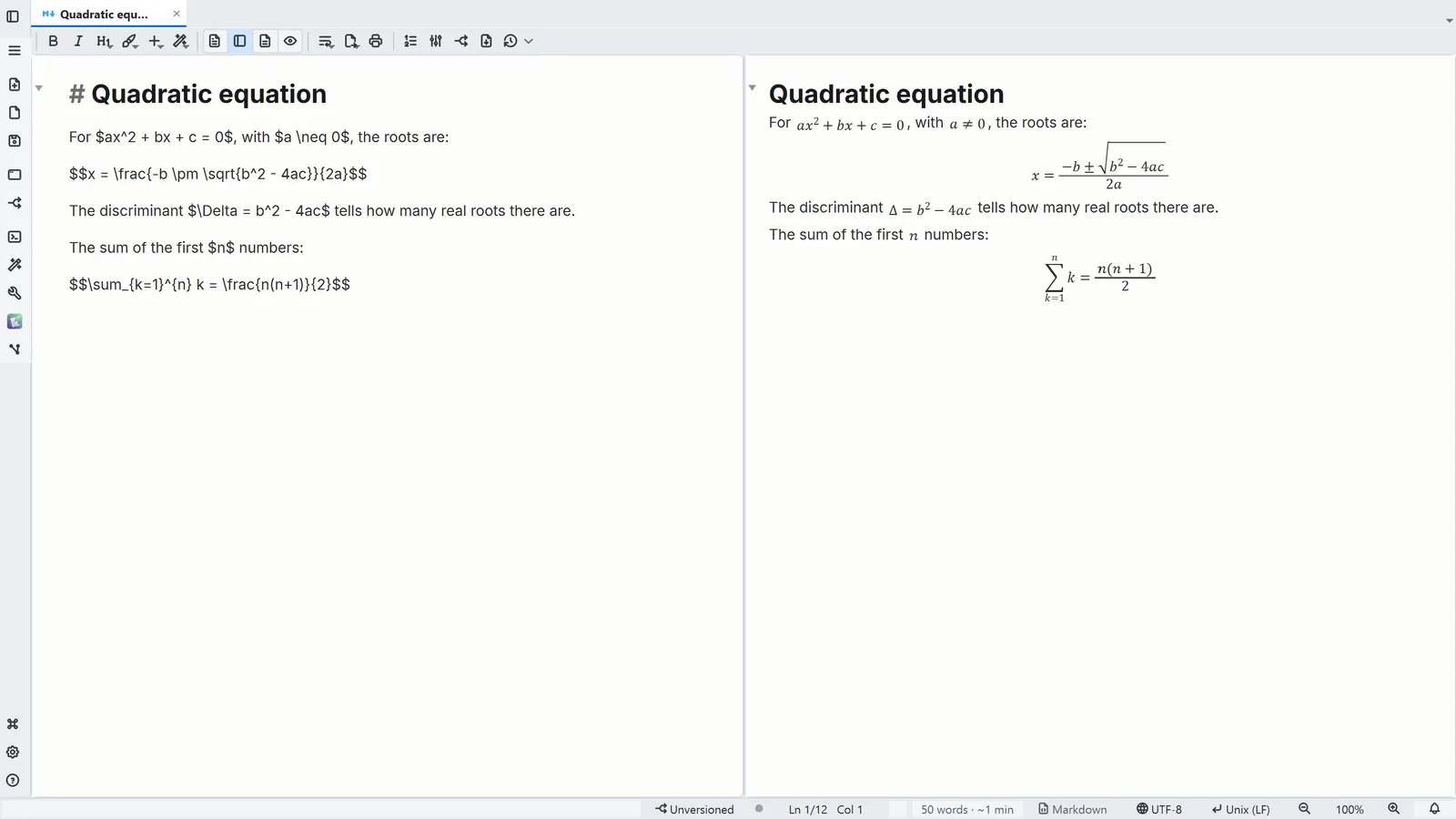 Guide7.2Formulas and chemistry in a note
Write LaTeX formulas, chemical equations and SMILES molecules, and see them drawn next to the text.
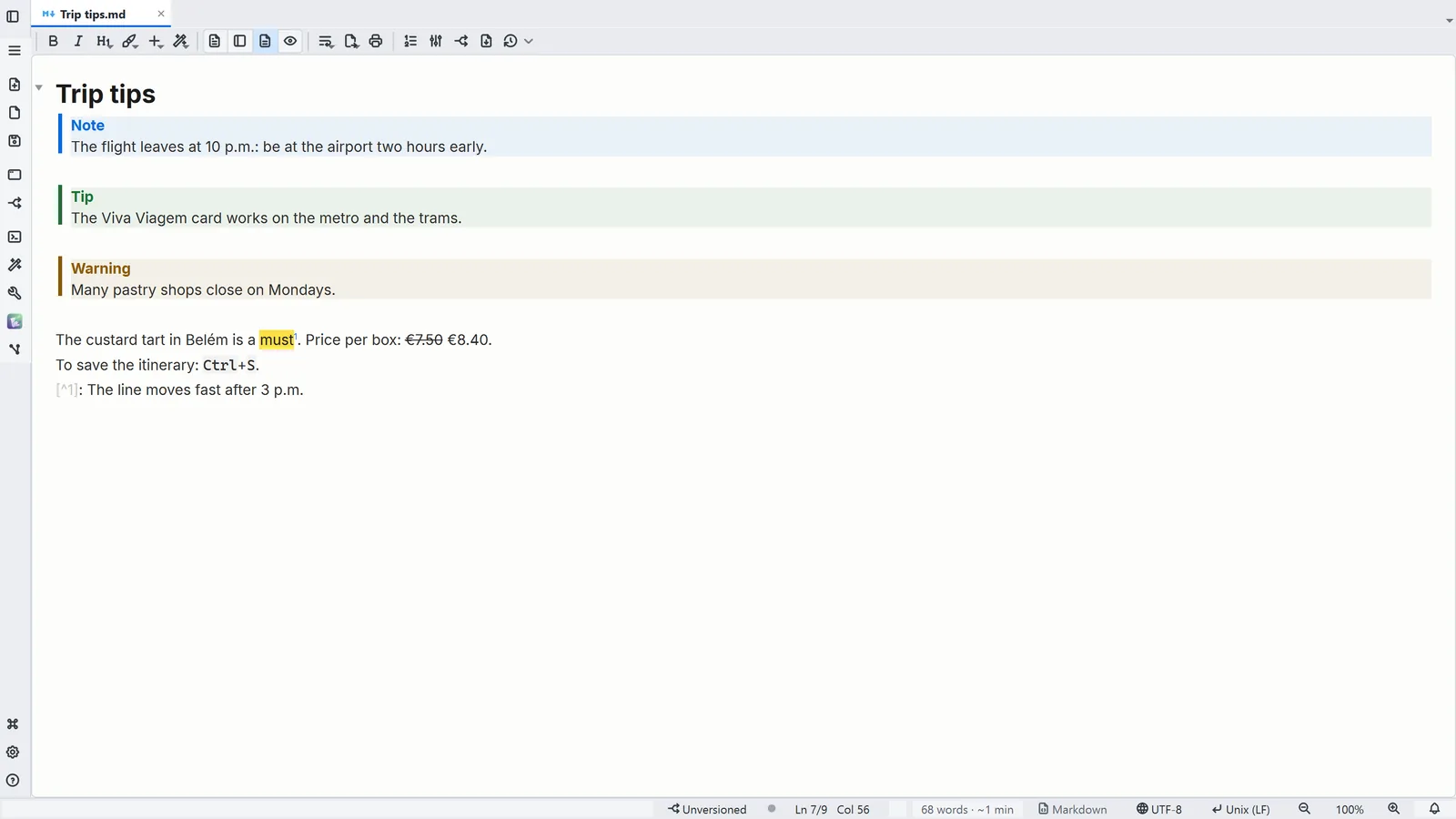 Guide7.3Callouts and footnotes
Highlight a warning in a colored box, add a footnote and mark up text, in formatted editing.
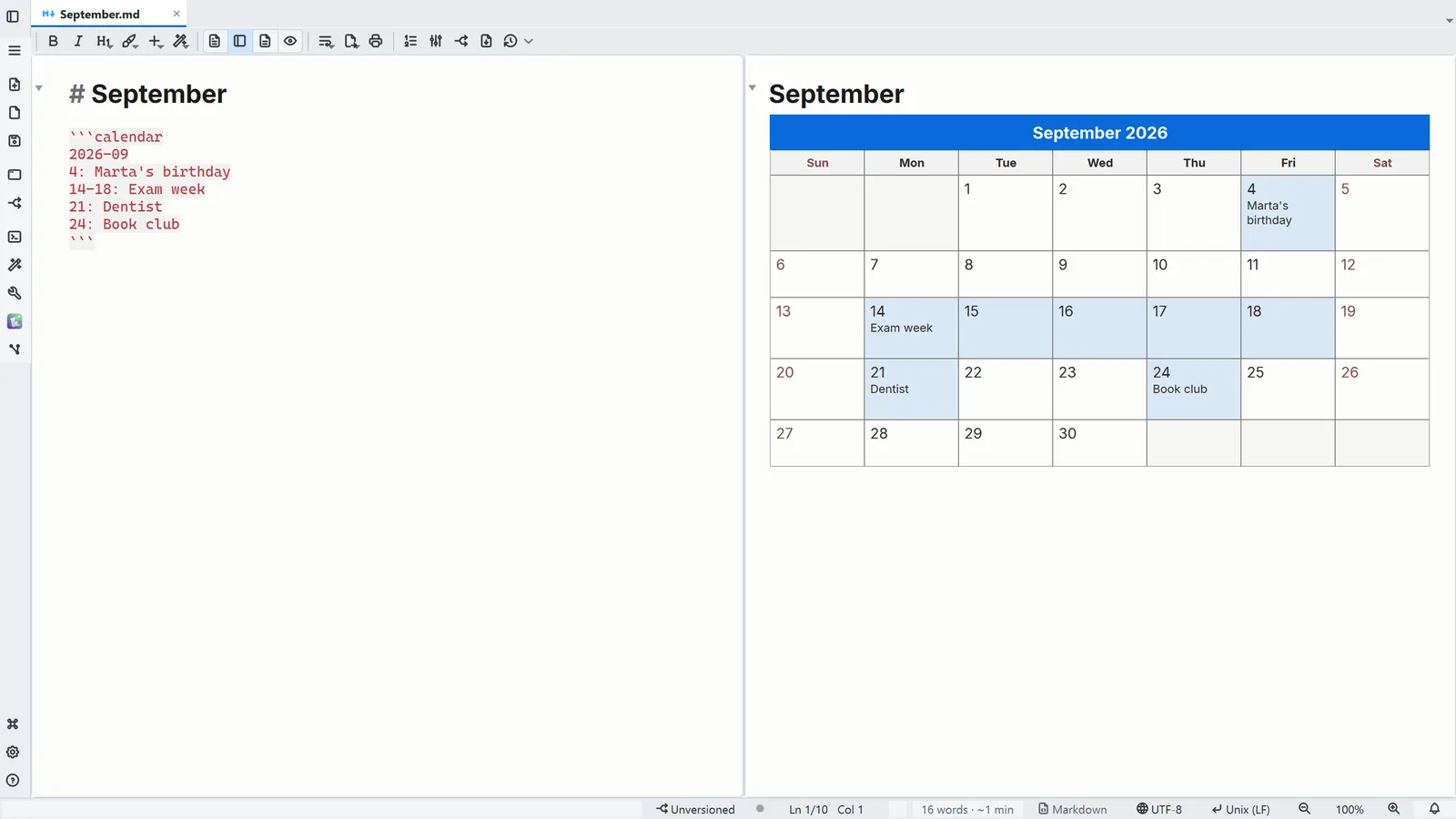 Guide7.4A calendar inside a note
Write a month or a week as text and see the calendar drawn in the note.
08Your data
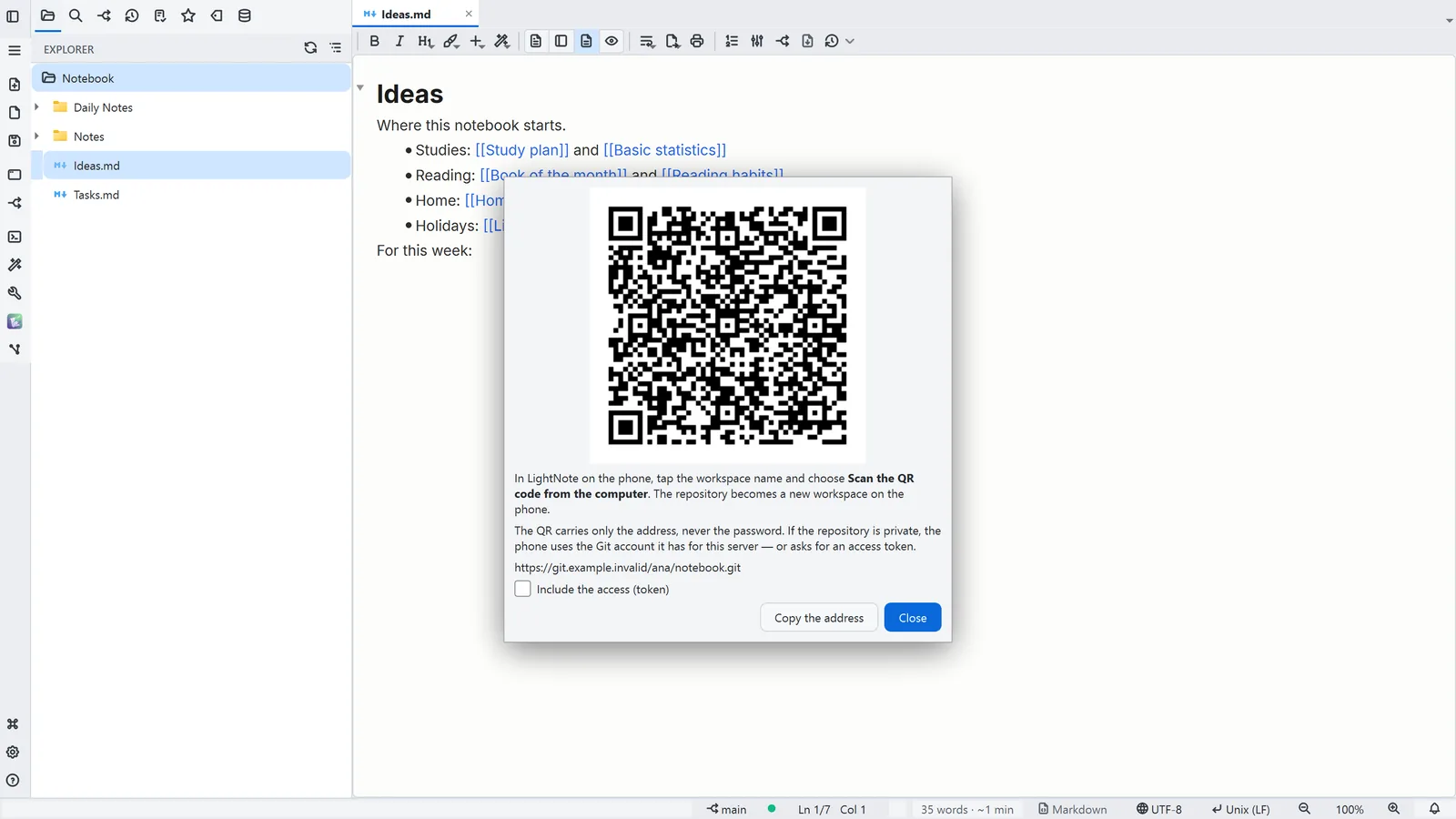 Guide8.1Your notes on your phone
Show the folder's QR code and take it to LightNote for Android.
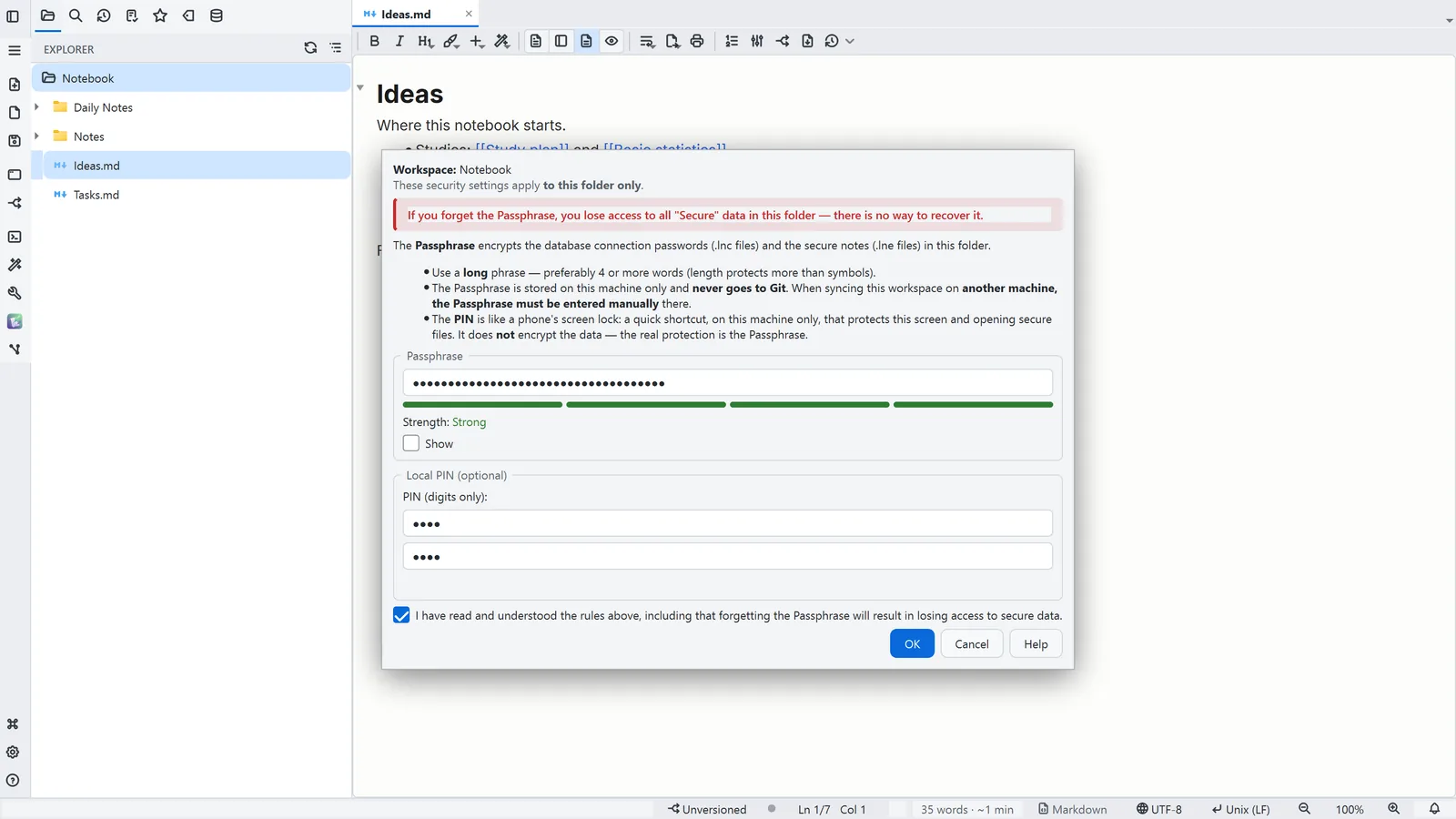 Guide8.2Passphrase and PIN
Set the Passphrase that encrypts the folder's secure data, and a PIN for everyday use.
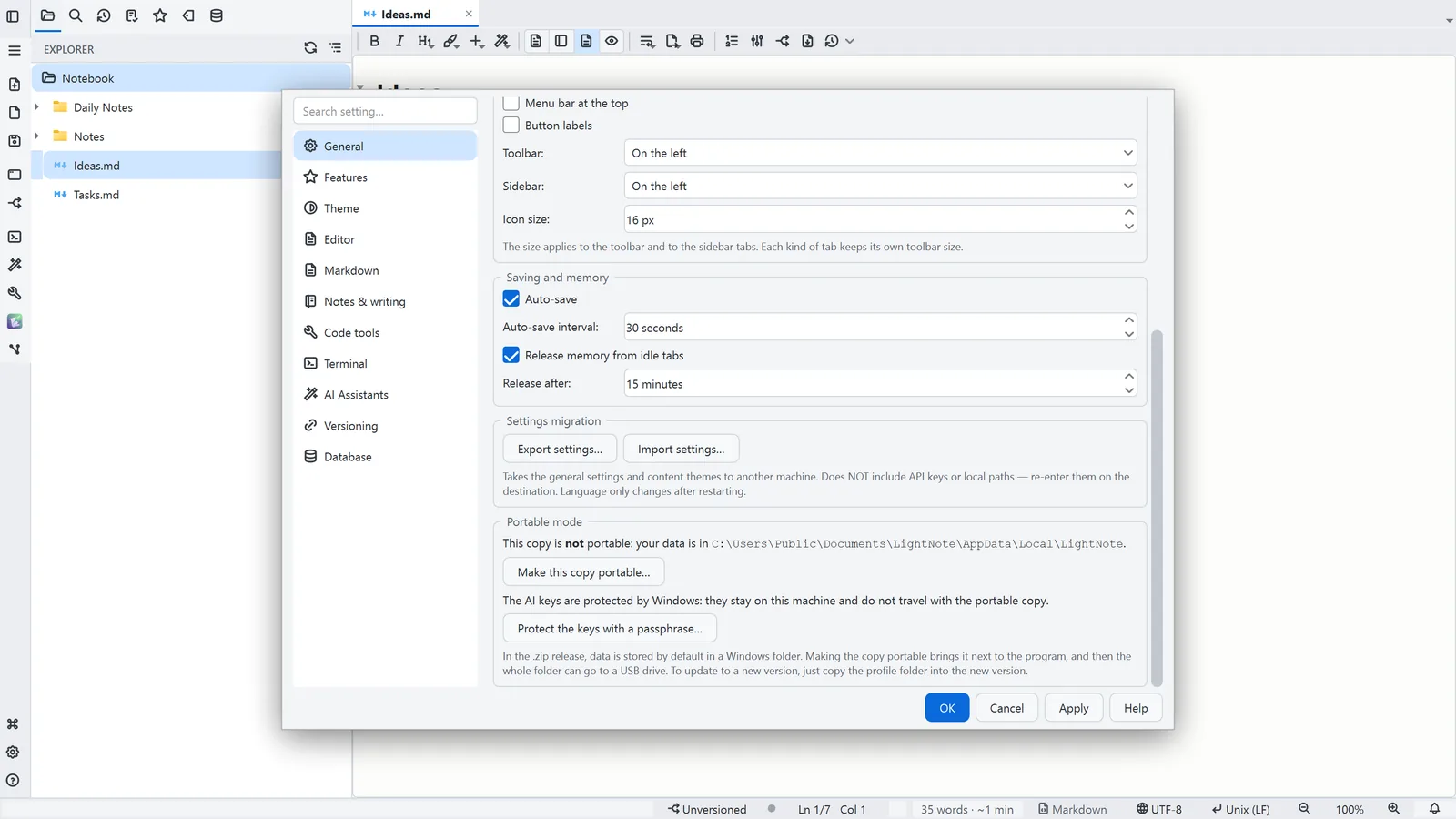 Guide8.3Portable mode
Bring your settings and history next to the program, so everything travels on a USB drive.