Step by step
Each step's number matches the marker on the screenshot; hover over or select a step to highlight it.
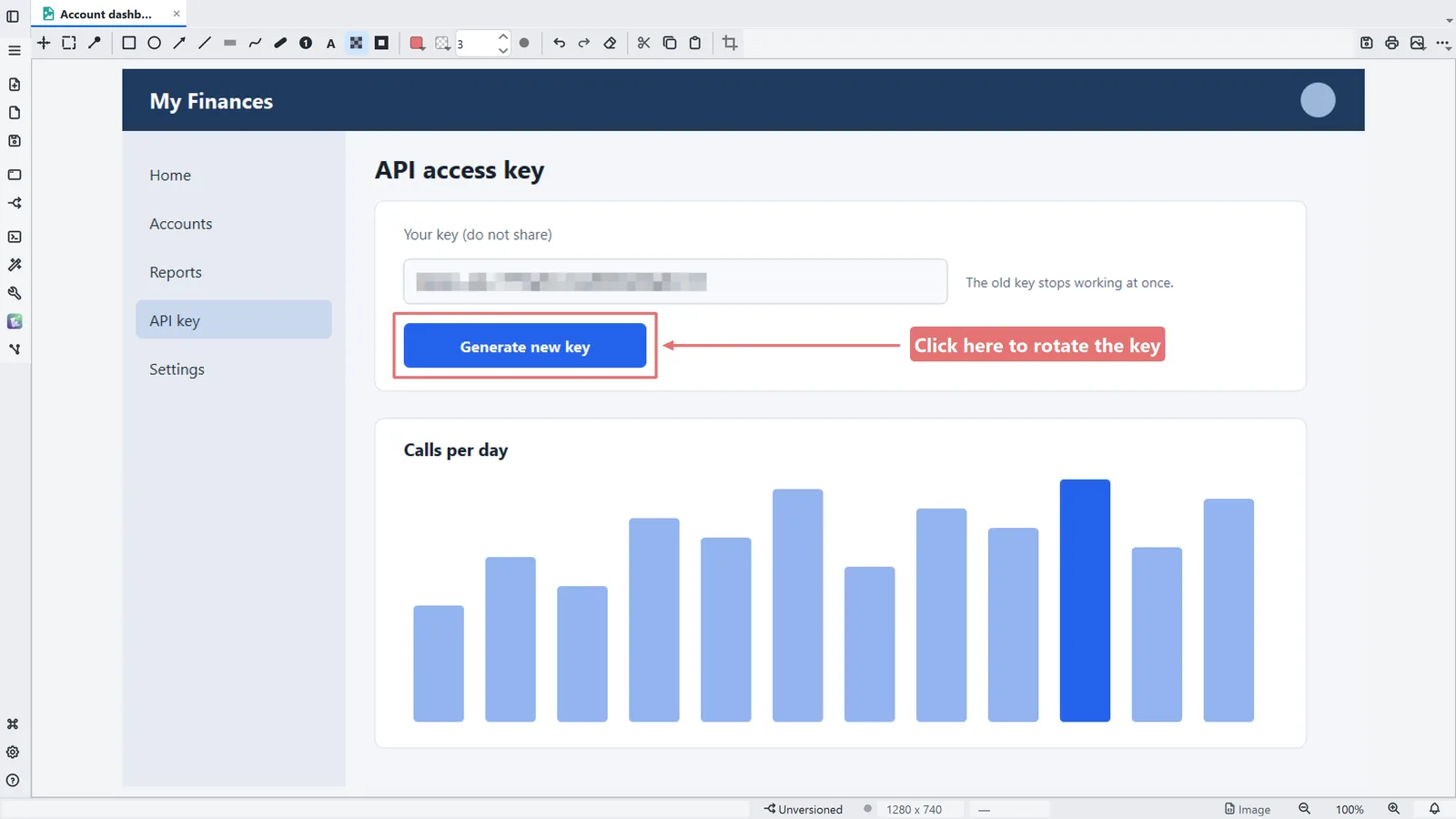
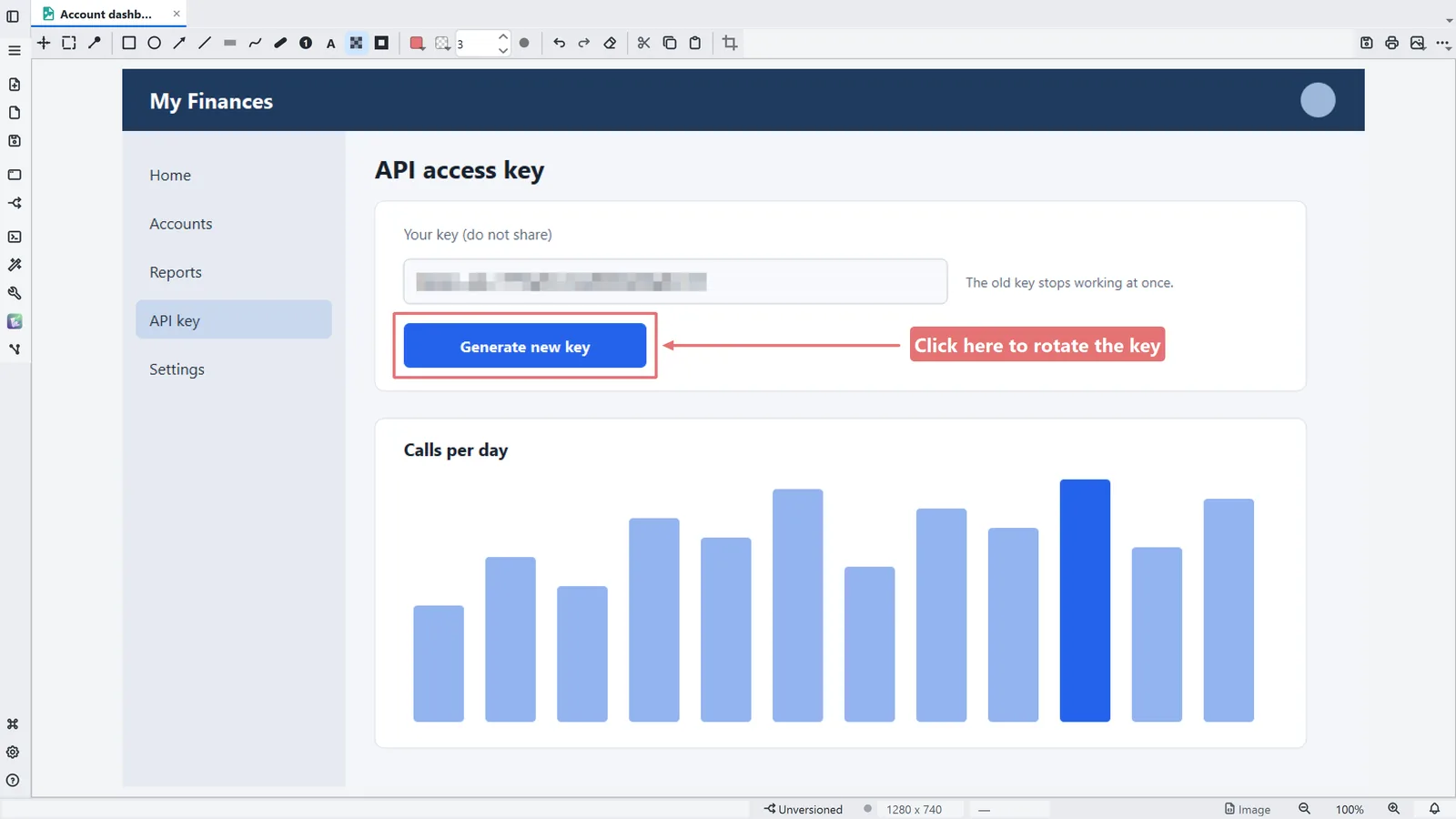
- 1Rectangle frames what matters
- 2Arrow points at it
- 3Text writes a label, with the border colour as its background
- 4Blur hides a key, an e-mail or a path: when you save, those pixels are destroyed
- 5The two colours (border and fill) and the thickness apply to the next mark
- 6Ctrl+Z undoes a mark; Clear markup erases them all
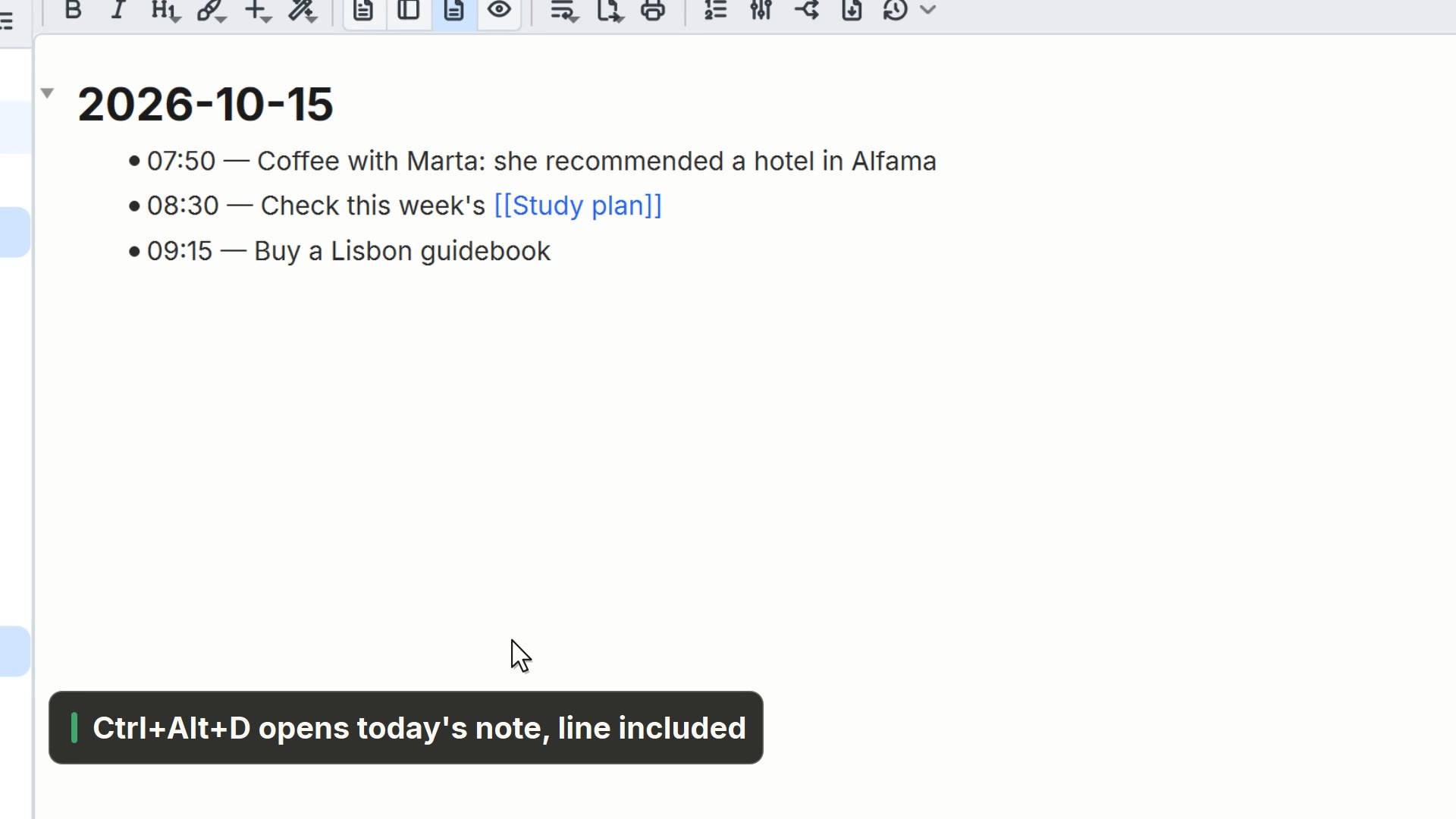
- 7Save writes the marks into the file itself; in the ⋯ menu, Send to today's note puts the PNG in the note
Read more in the HelpThe tools
Other ways
Capture screen
- Menu
- General → Capture → Capture screen...
- Shortcut
- Ctrl+Alt+P
- Command palette
- Capture screen...
- Activity bar
- General → Capture → Capture screen...
Tips
- Ctrl+Alt+P captures the screen: drag to pick the area, and the crop opens in a new tab, ready to mark up
- Numbered step numbers itself (1, 2, 3…), and Spotlight darkens everything except the chosen area