Step by step
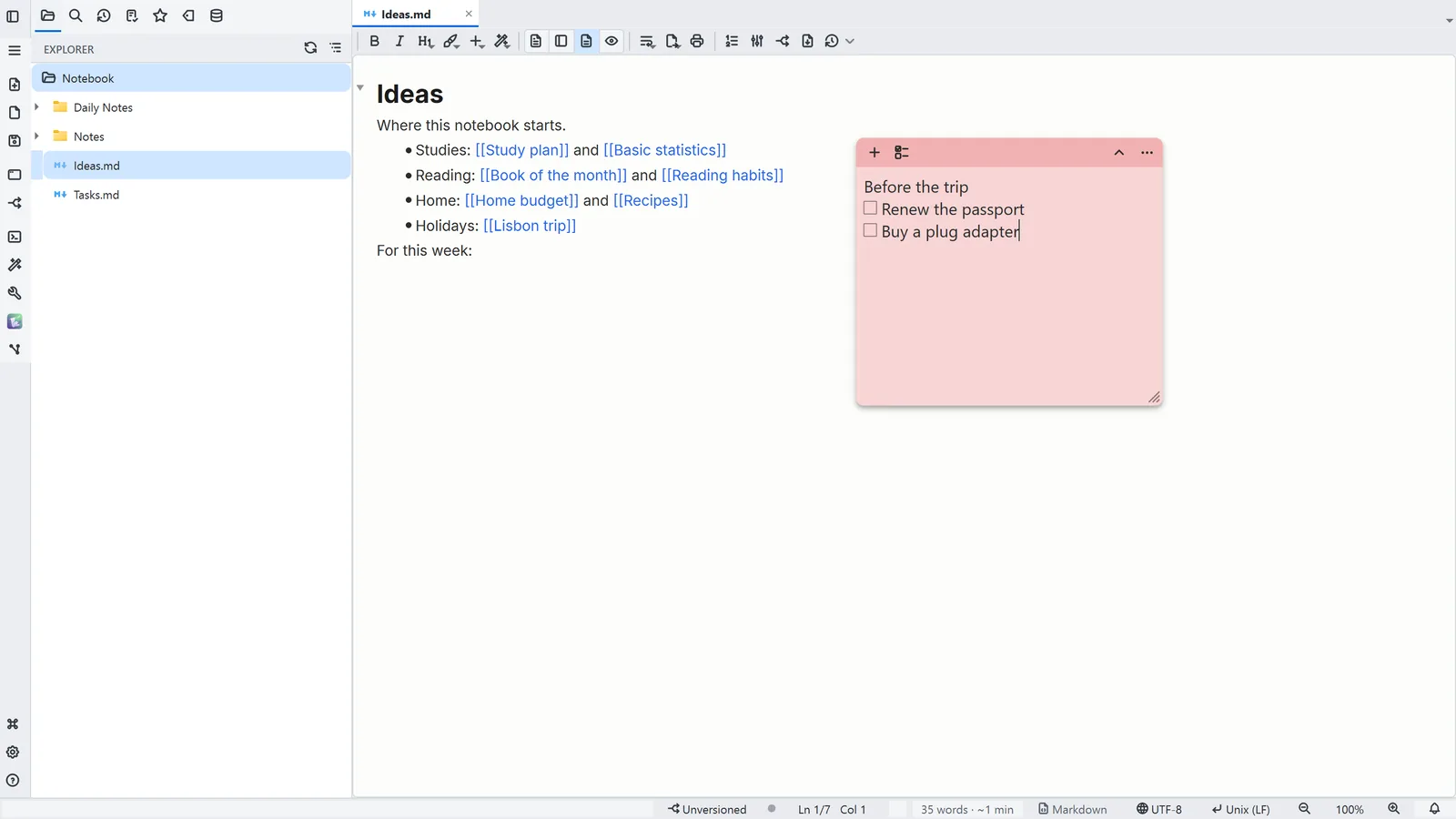
Each step's number matches the marker on the screenshot; hover over or select a step to highlight it.
- 1General → Capture → New sticky note (Ctrl+Alt+S, from anywhere in Windows) creates the note
- 2Plain text, saved automatically; [ ] at the start of a line becomes a checkbox item
- 3The list button turns the selected lines into items; Ctrl+Shift+Enter checks the item
- 4More actions (⋯): change the colour, Send to today's note or Delete
Read more in the HelpSticky notes
Other ways
New sticky note
- Menu
- General → Capture → New sticky note
- Shortcut
- Ctrl+Alt+S
- Command palette
- New sticky note
- Activity bar
- General → Capture → New sticky note
Show/hide sticky notes
- Menu
- General → Capture → Show/hide sticky notes
- Shortcut
- Ctrl+Alt+H
- Command palette
- Show/hide sticky notes
- Activity bar
- General → Capture → Show/hide sticky notes
Tips
- The notes sit on the desktop, outside the window, and come back when you reopen LightNote
- Ctrl+Alt+H shows or hides them all at once; drag by the header to move and by the corner to resize