Step by step
Select a step to jump to that moment in the video.
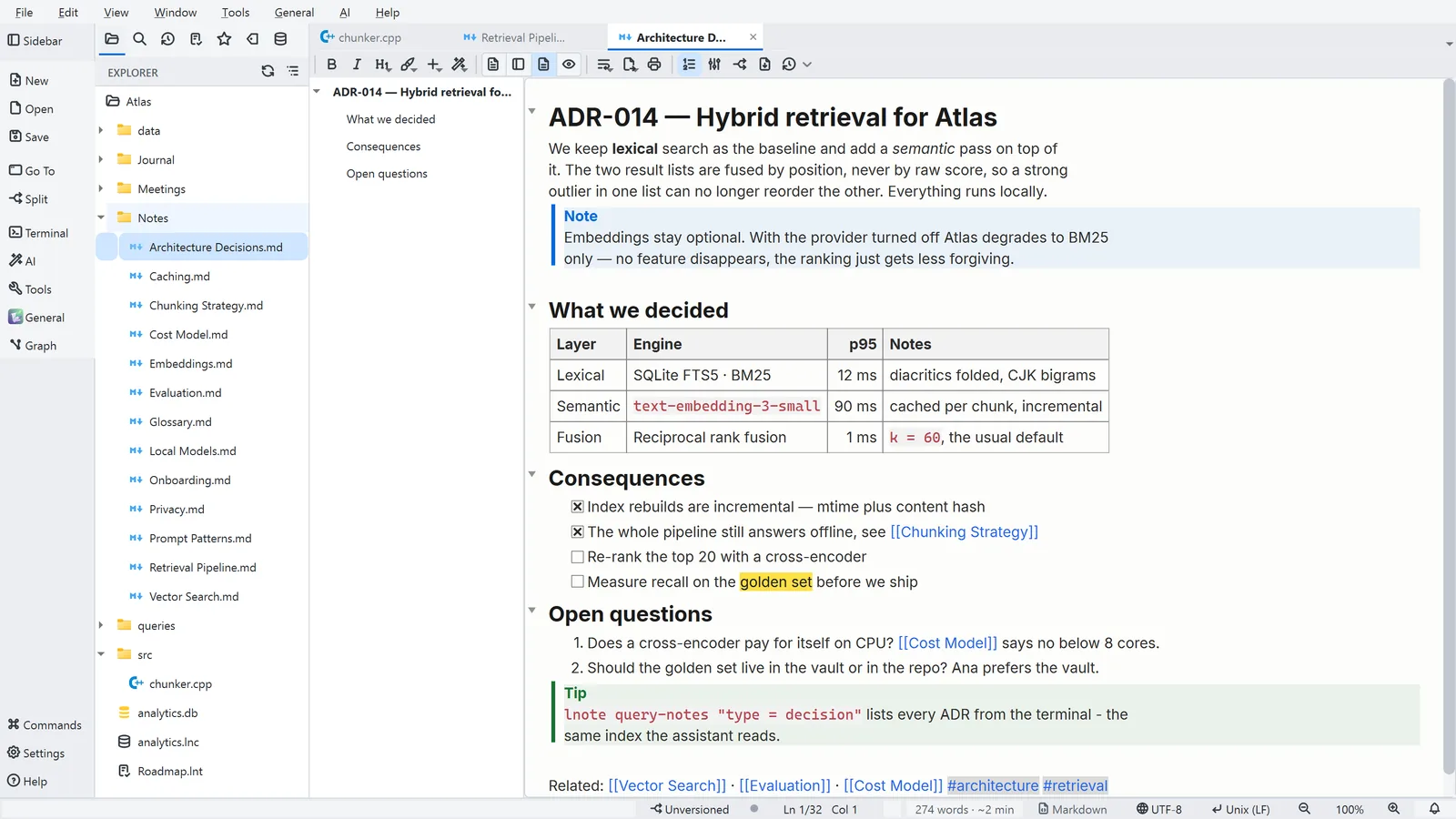
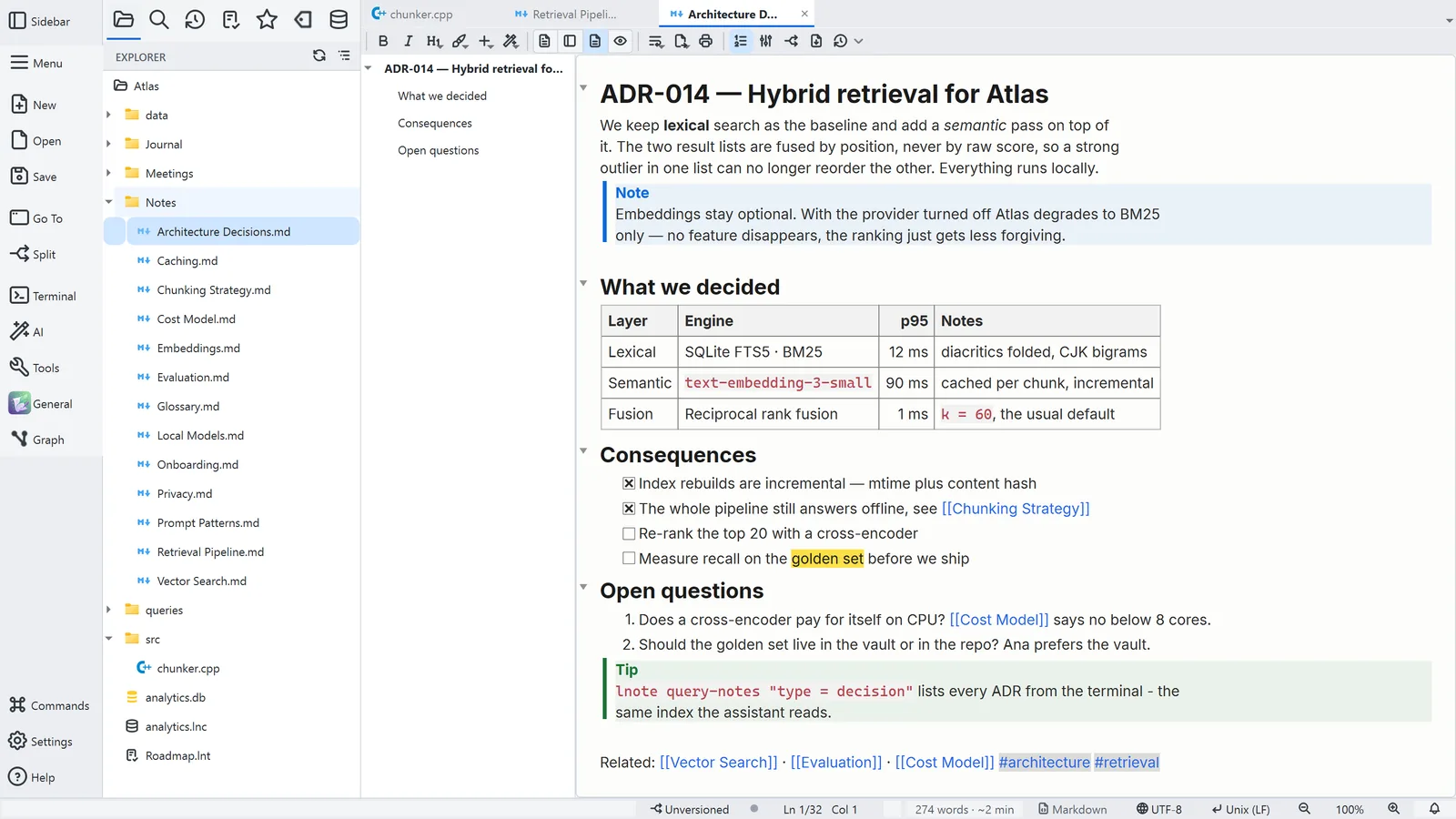
- 00:01Set up the window your way
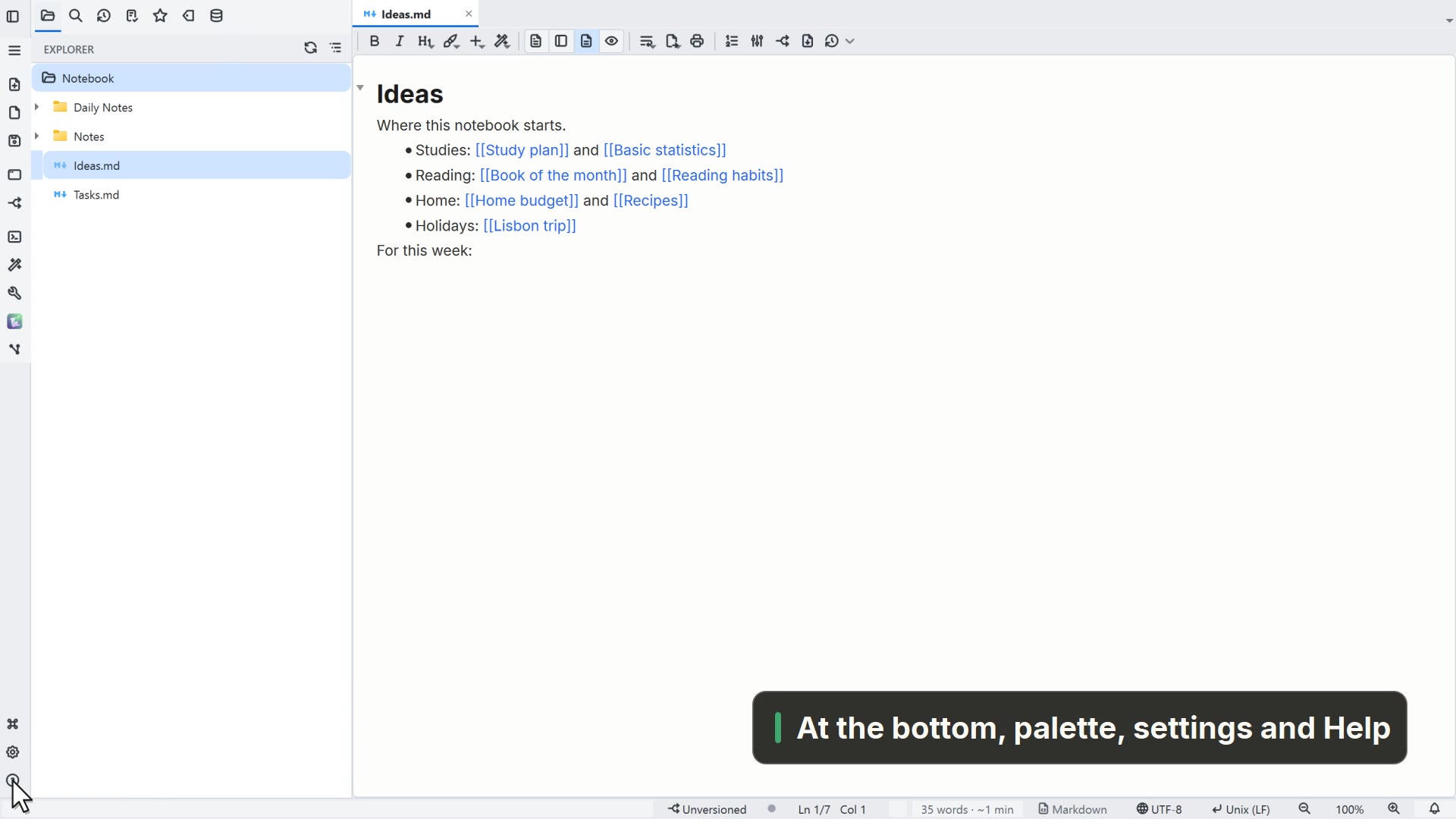
- 00:05Window layout lives under General
- 00:08Classic brings the menu bar and labels
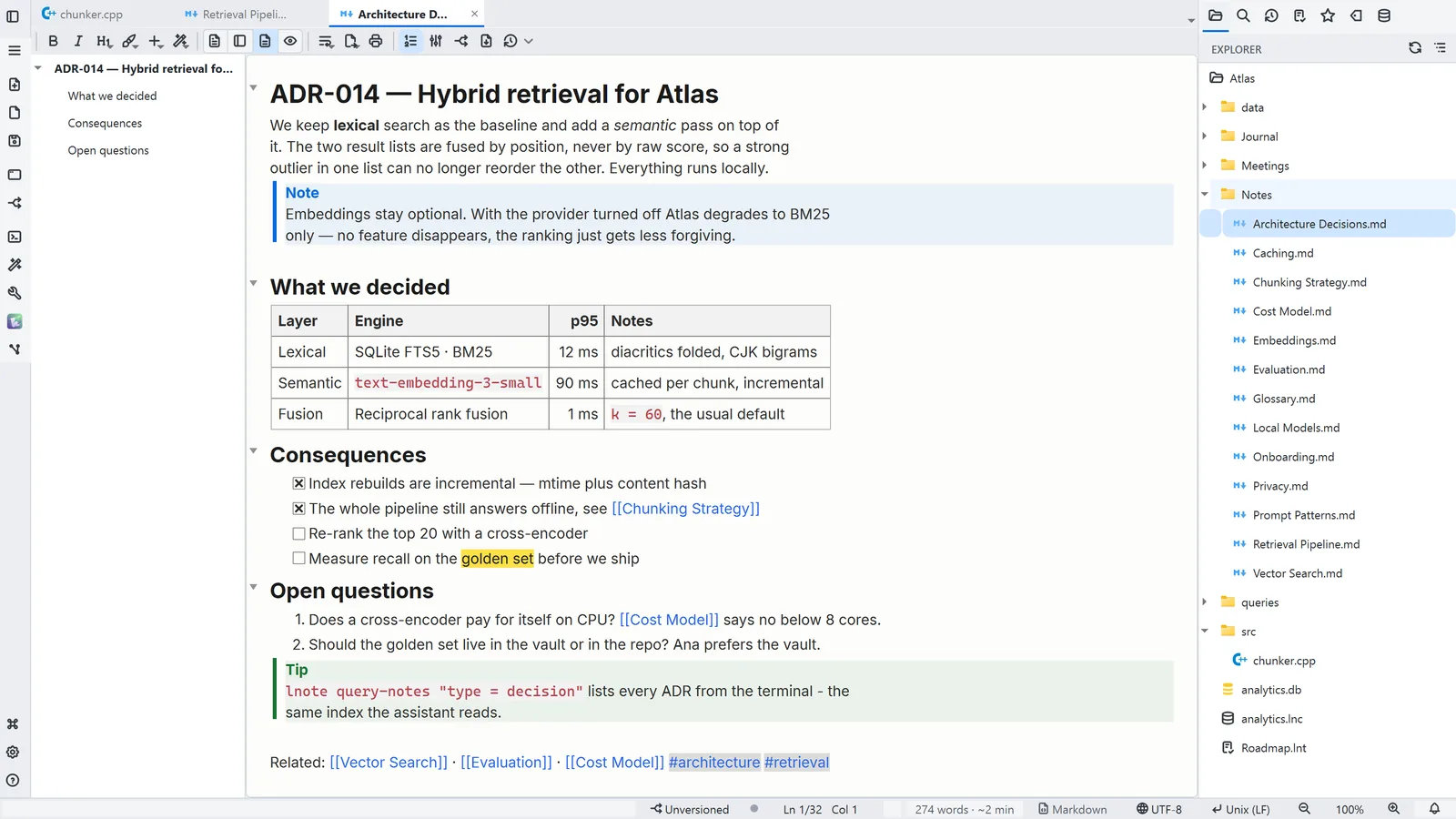
- 00:11The sidebar can move to the right
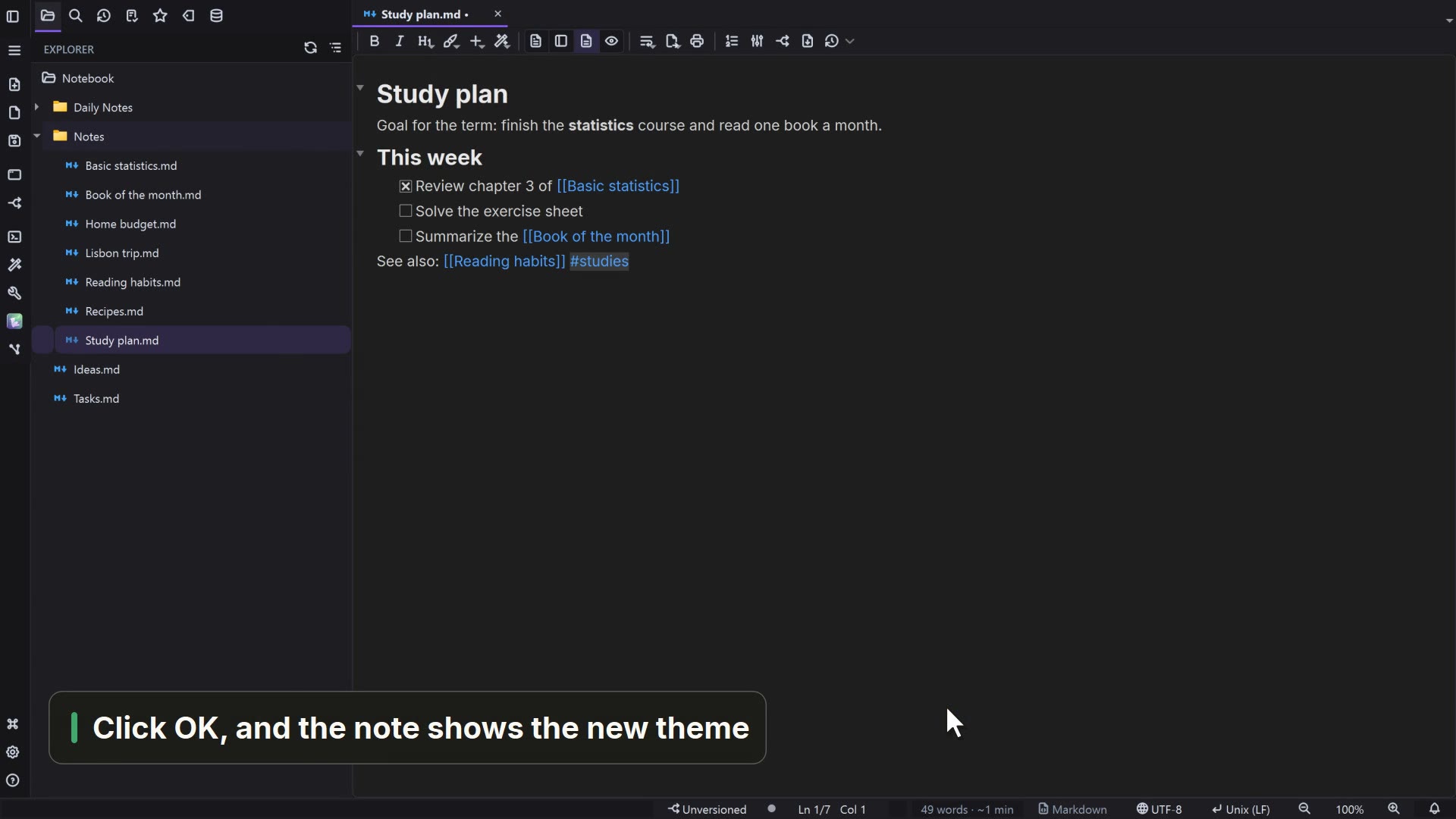
- 00:15Click OK, and the window changes at once
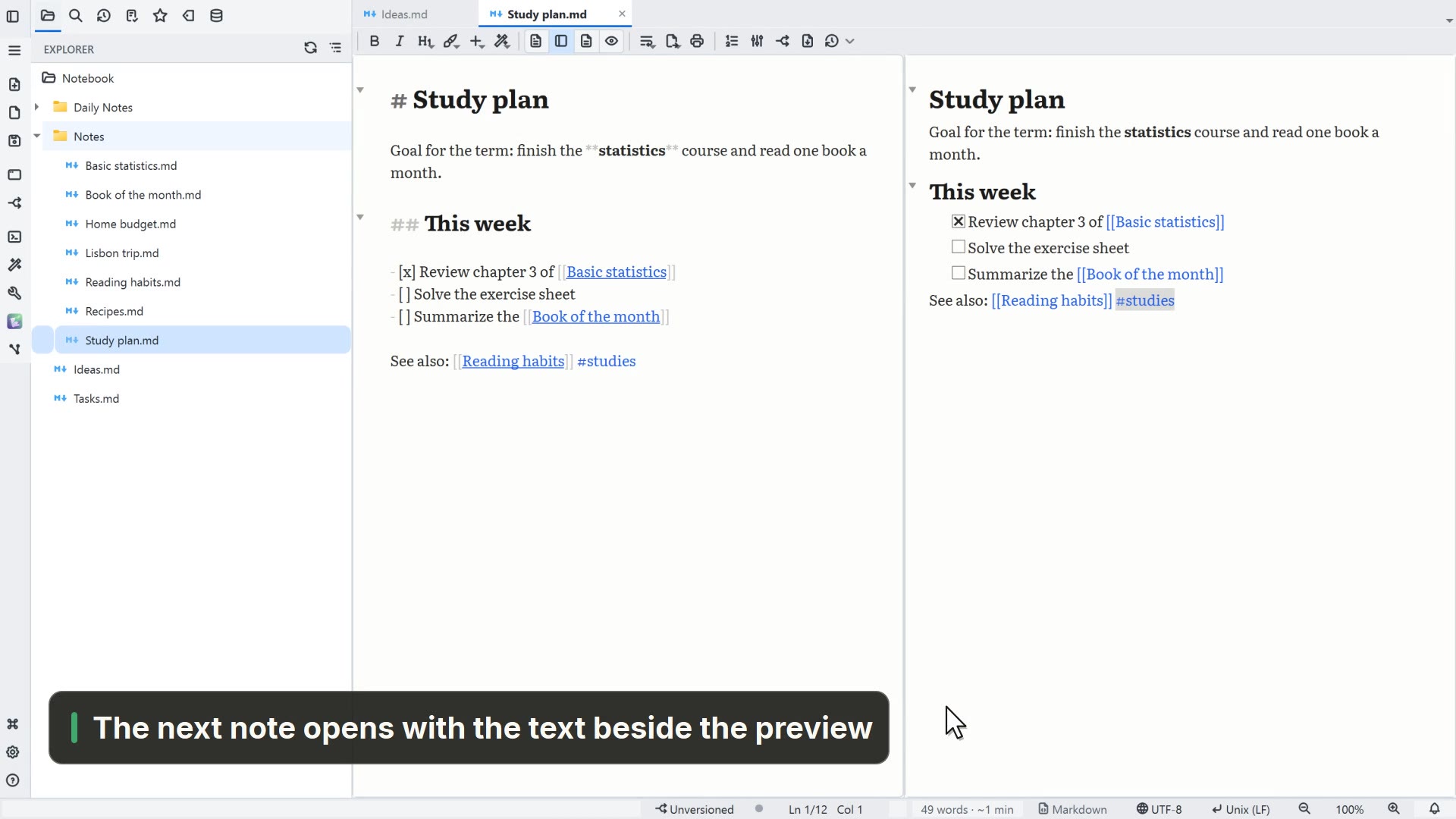
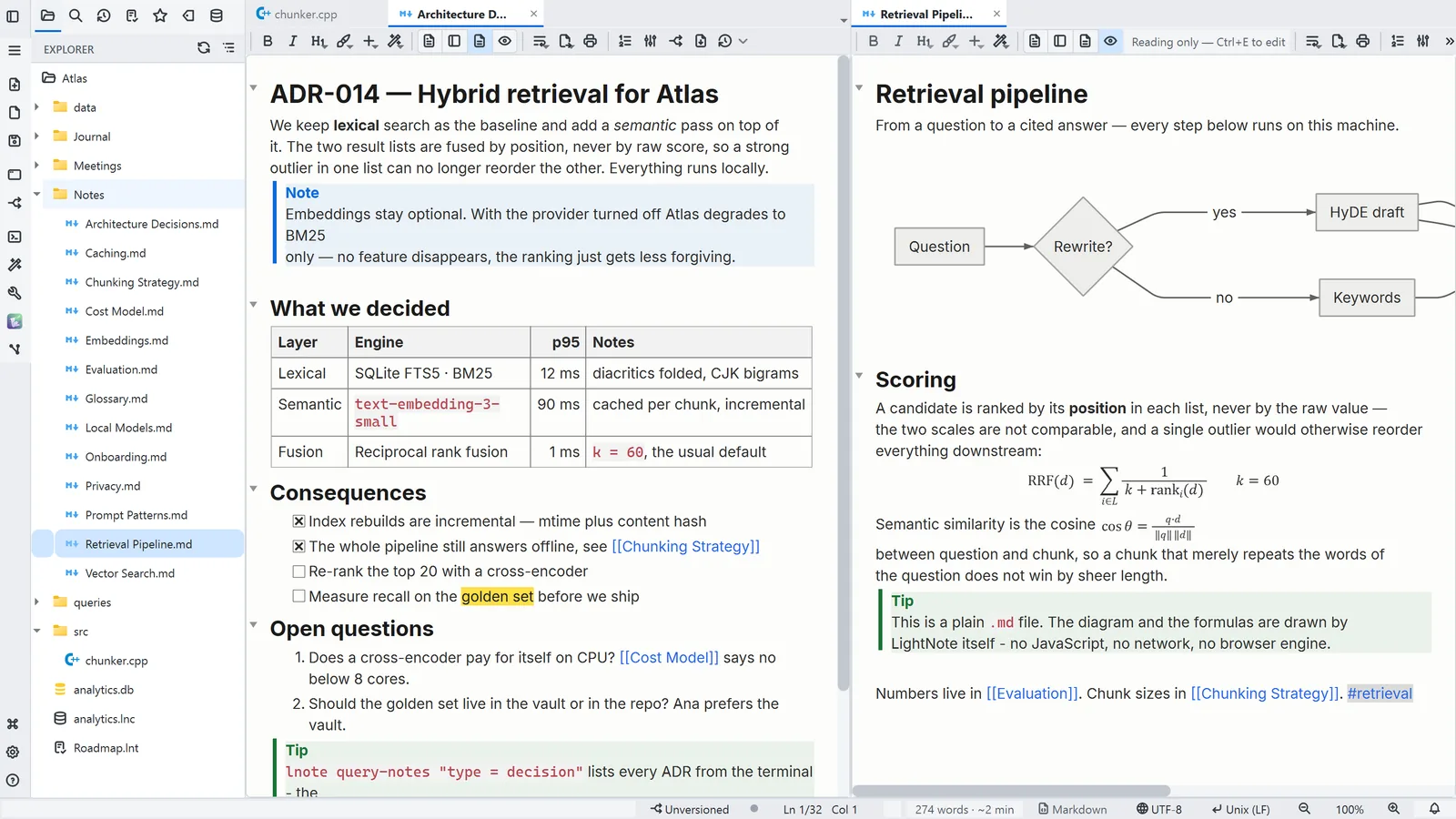
- 00:18Under Split, pick two columns
- 00:22Drag a tab into the new pane
Read more in the HelpTools, title and layout
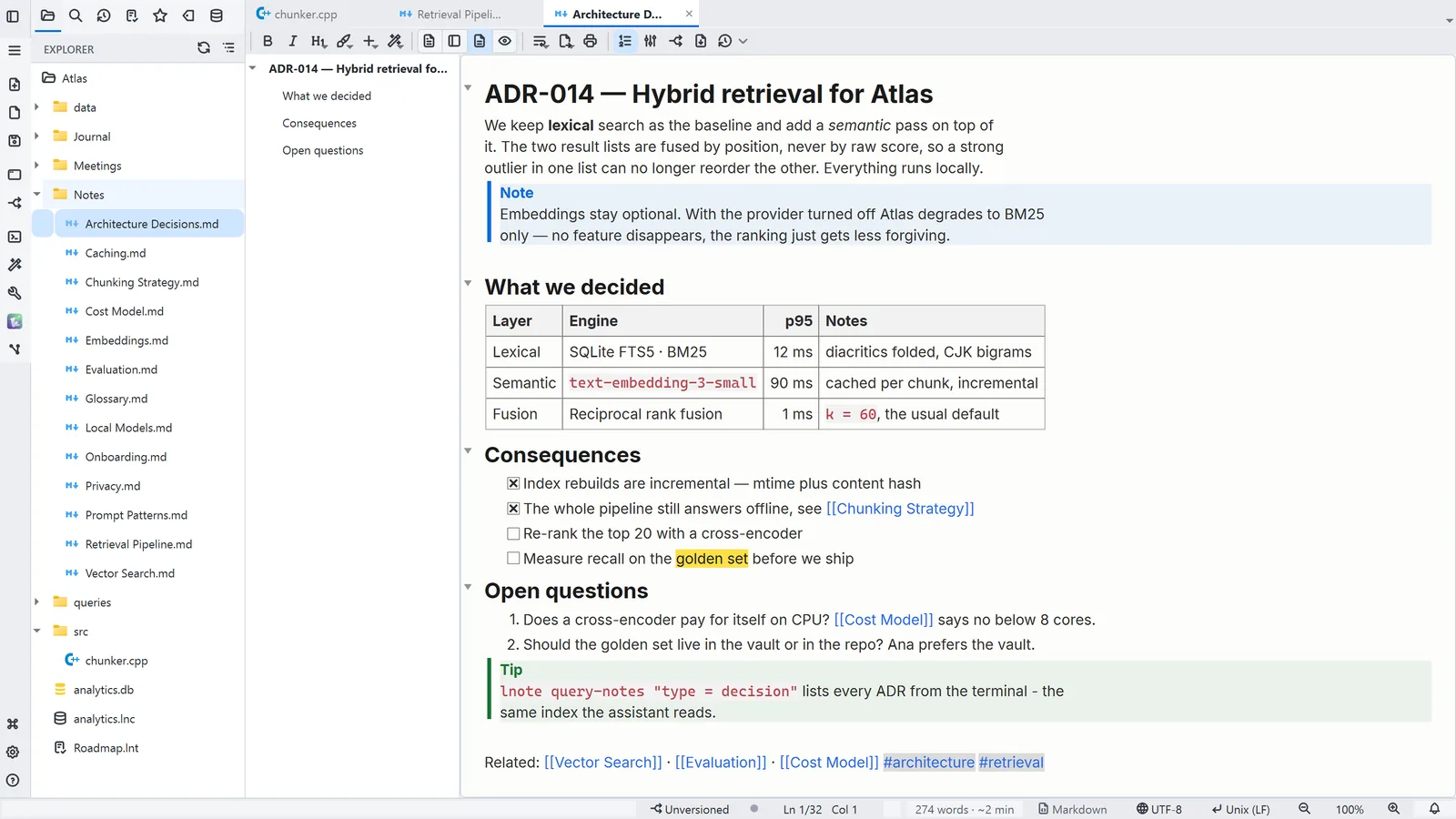
Ways to arrange the window
Other ways
General
- Menu
- General → General Settings... → General
- Command palette
- General Settings...
- Activity bar
- Settings → General settings... → General
2 columns
- Menu
- Window → Layout → 2 columns
- Command palette
- 2 columns
- Activity bar
- Split → Layout → 2 columns
Split Right
- Menu
- Window → Split Right
- Command palette
- Split Right
- Activity bar
- Split → Split Right
Zen Mode
- Menu
- Window → Zen Mode
- Shortcut
- F11
- Command palette
- Zen Mode
Tips
- Double-click a tab for Zen Mode; Esc exits