Mermaid diagrams in a note

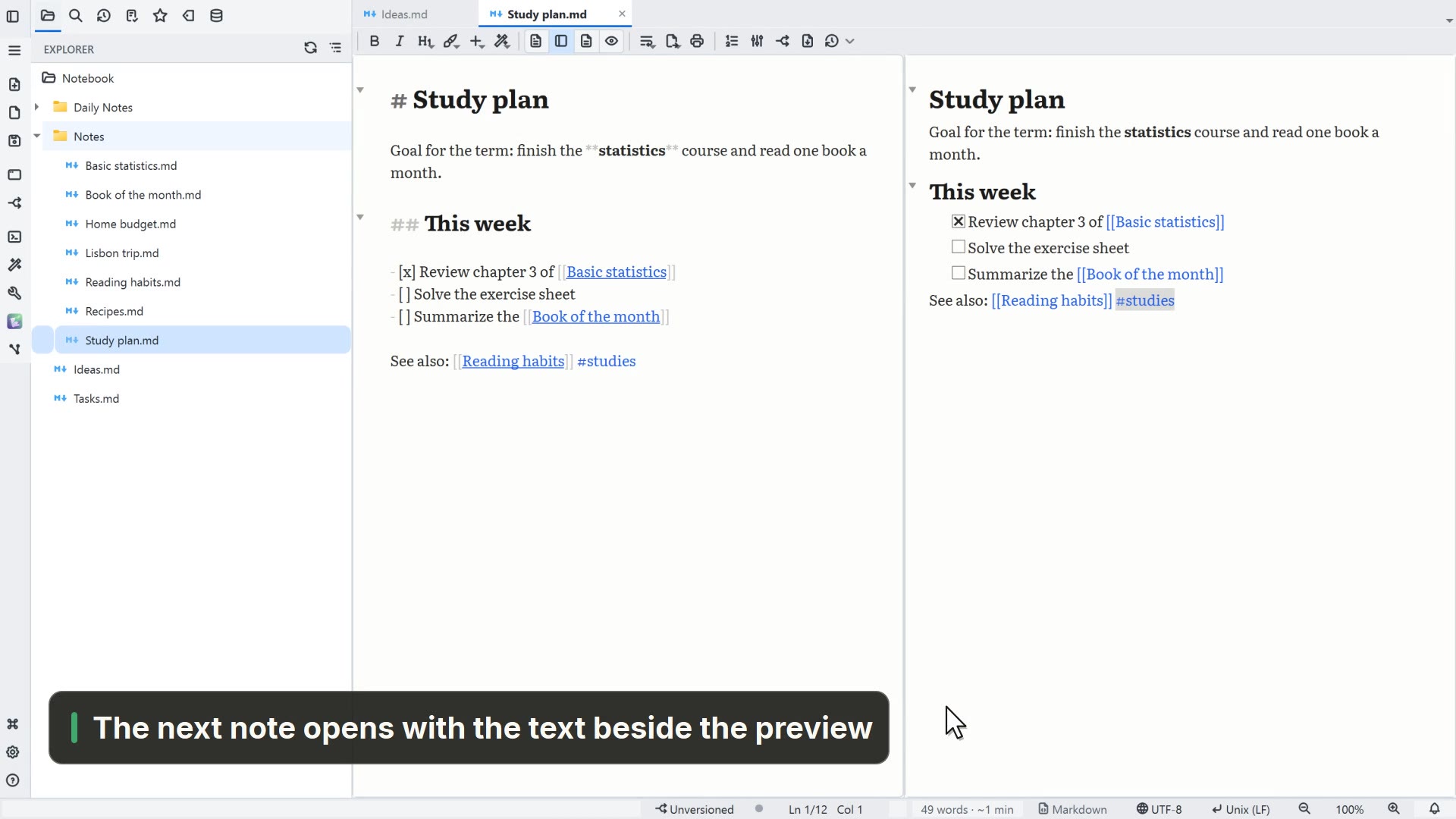
Write a diagram as text and see it drawn next to it, in five types.

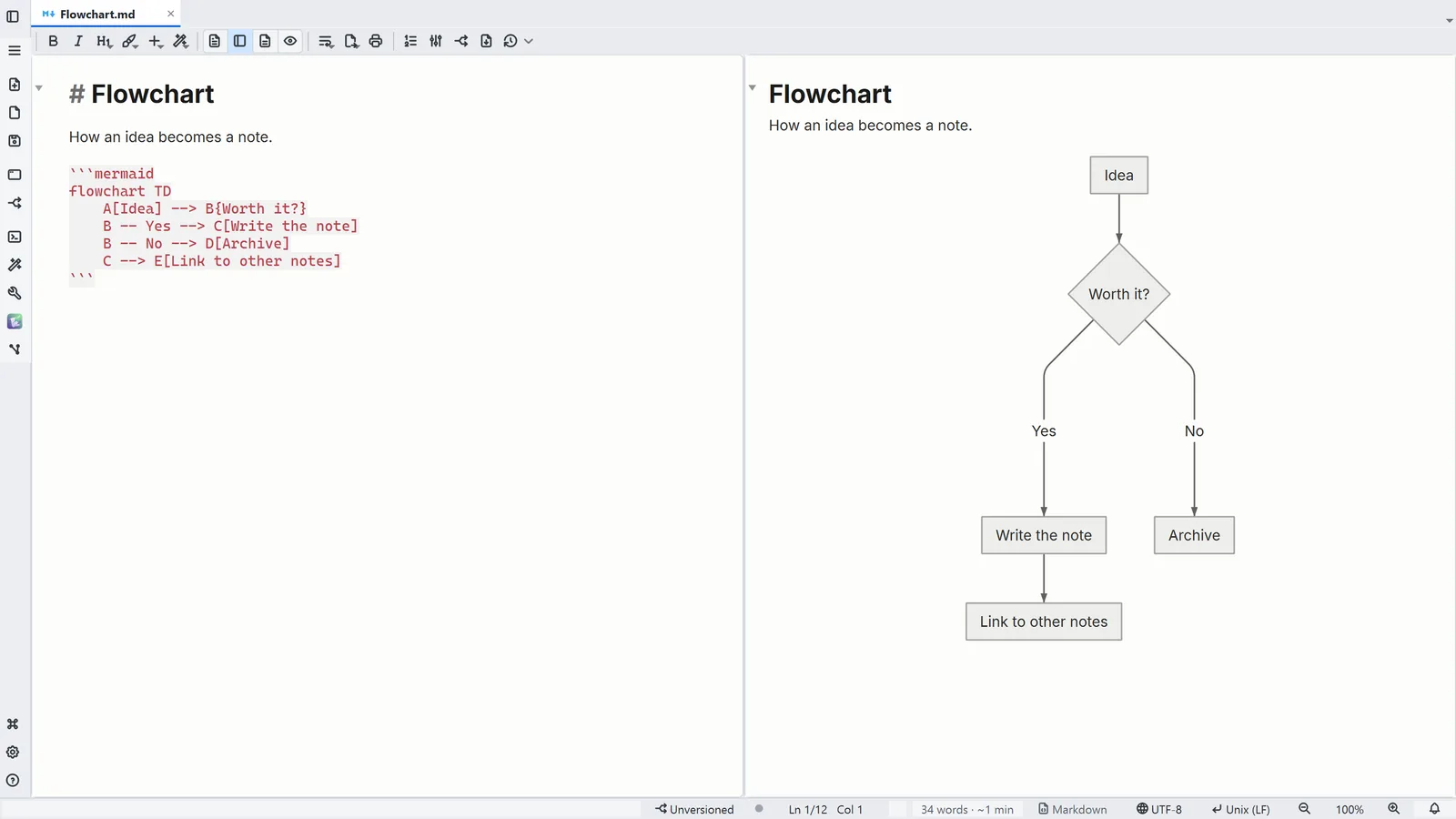
LightNote screenshot: Flowchart: boxes, decision diamonds and labeled arrows
Flowchart: boxes, decision diamonds and labeled arrows
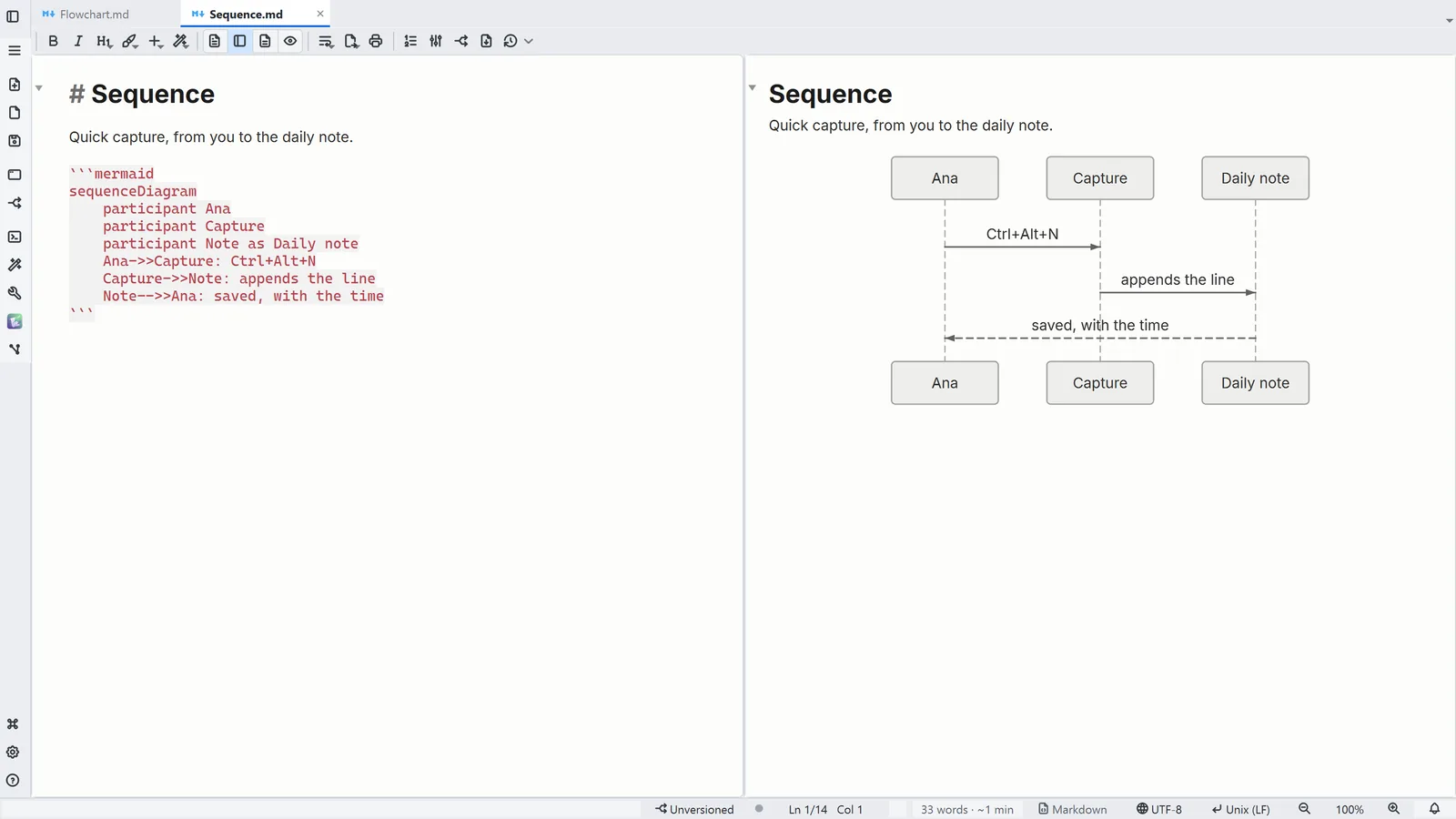
LightNote screenshot: Sequence: who talks to whom, in order
Sequence: who talks to whom, in order
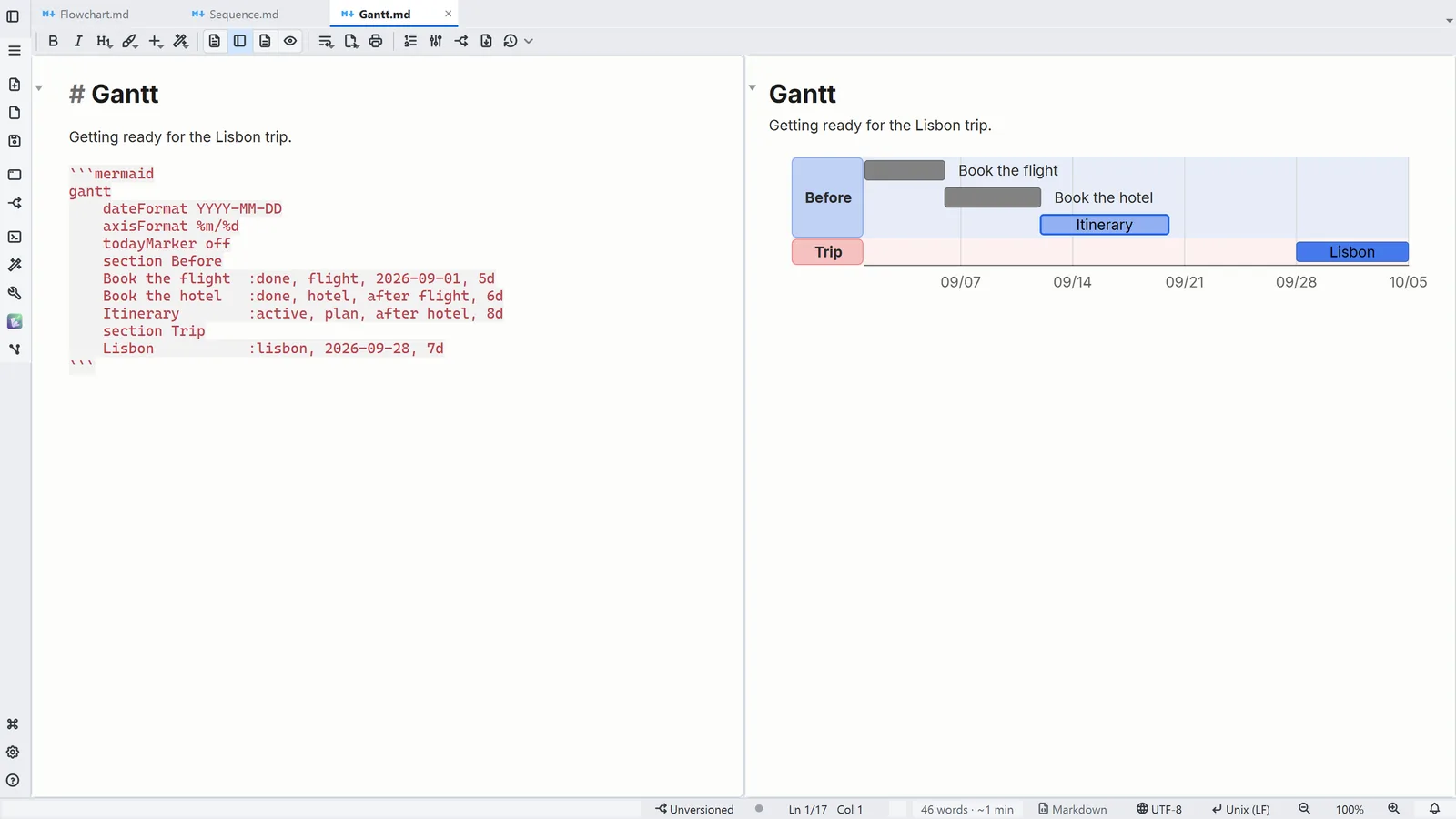
LightNote screenshot: Gantt: tasks on a calendar, by section, with dependencies
Gantt: tasks on a calendar, by section, with dependencies
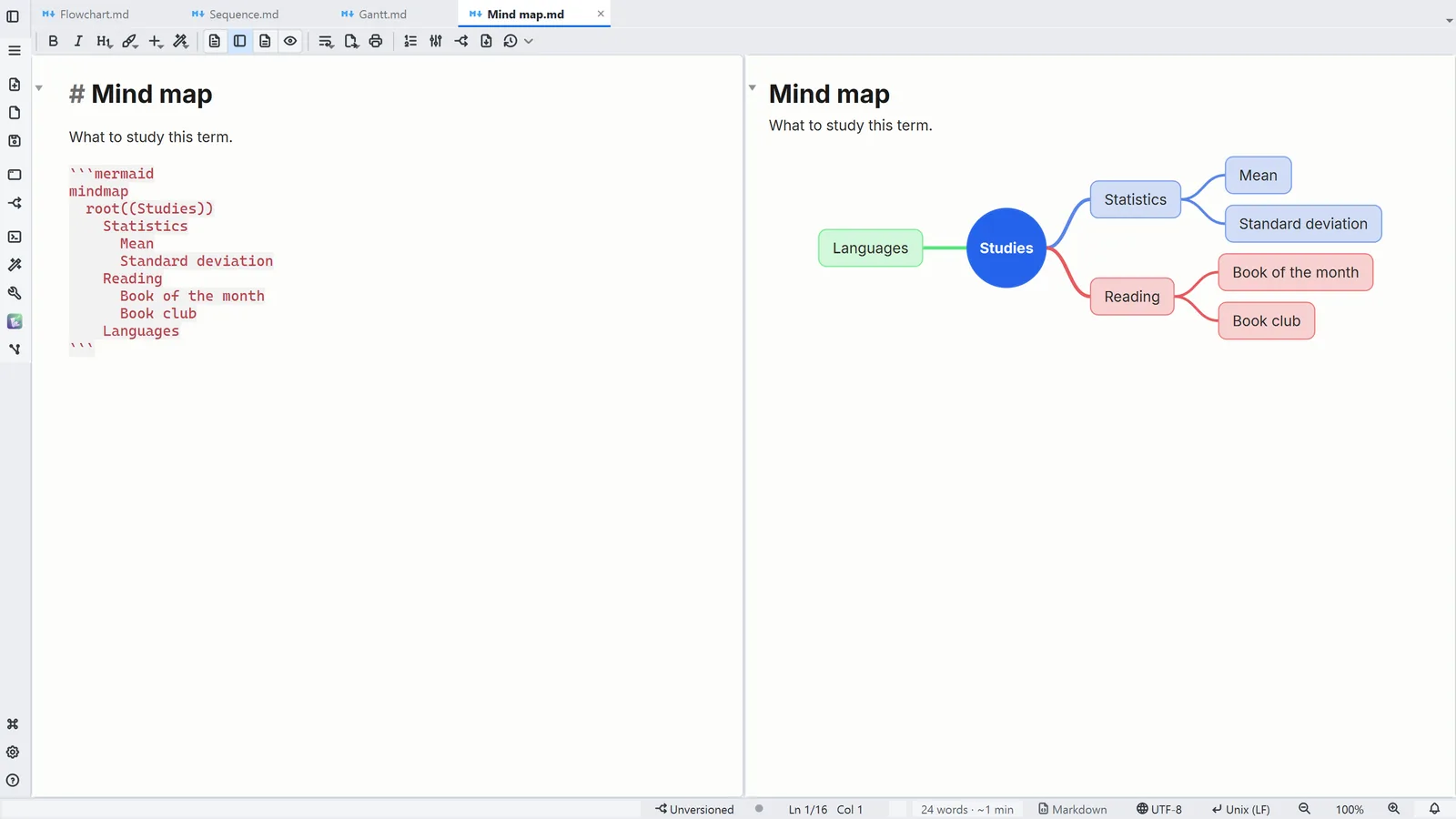
LightNote screenshot: Mind map: the hierarchy comes from the indentation
Mind map: the hierarchy comes from the indentation
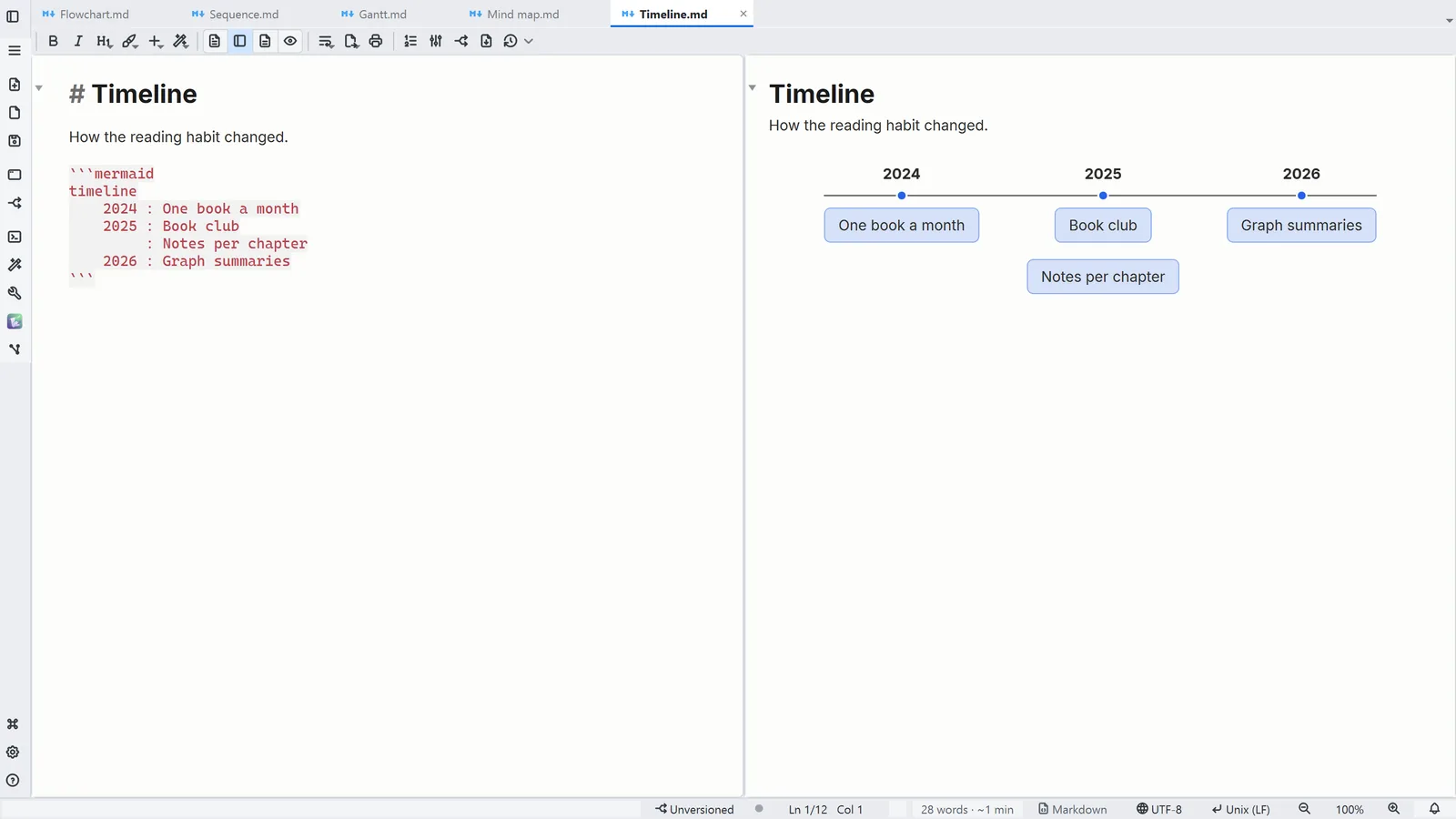
LightNote screenshot: Timeline: periods and the events in each one
Timeline: periods and the events in each one

Step by step

Each step's number matches the marker on the screenshot; hover over or select a step to highlight it.

  1. Write the diagram in a ```mermaid fence in the note
  2. 1Text + reading shows the code and the drawing side by side
  3. 2Insert → Diagram (Mermaid) adds a ready-made skeleton of each type

Read more in the HelpDiagrams (Mermaid)

Tips

  • Ctrl+E cycles the note modes: text, text + reading, formatted editing and reading
  • In formatted editing, Ctrl+Enter on the diagram opens its code for editing
← All tutorials