Simulated in the video: the program and data folders (demo ones).
Step by step
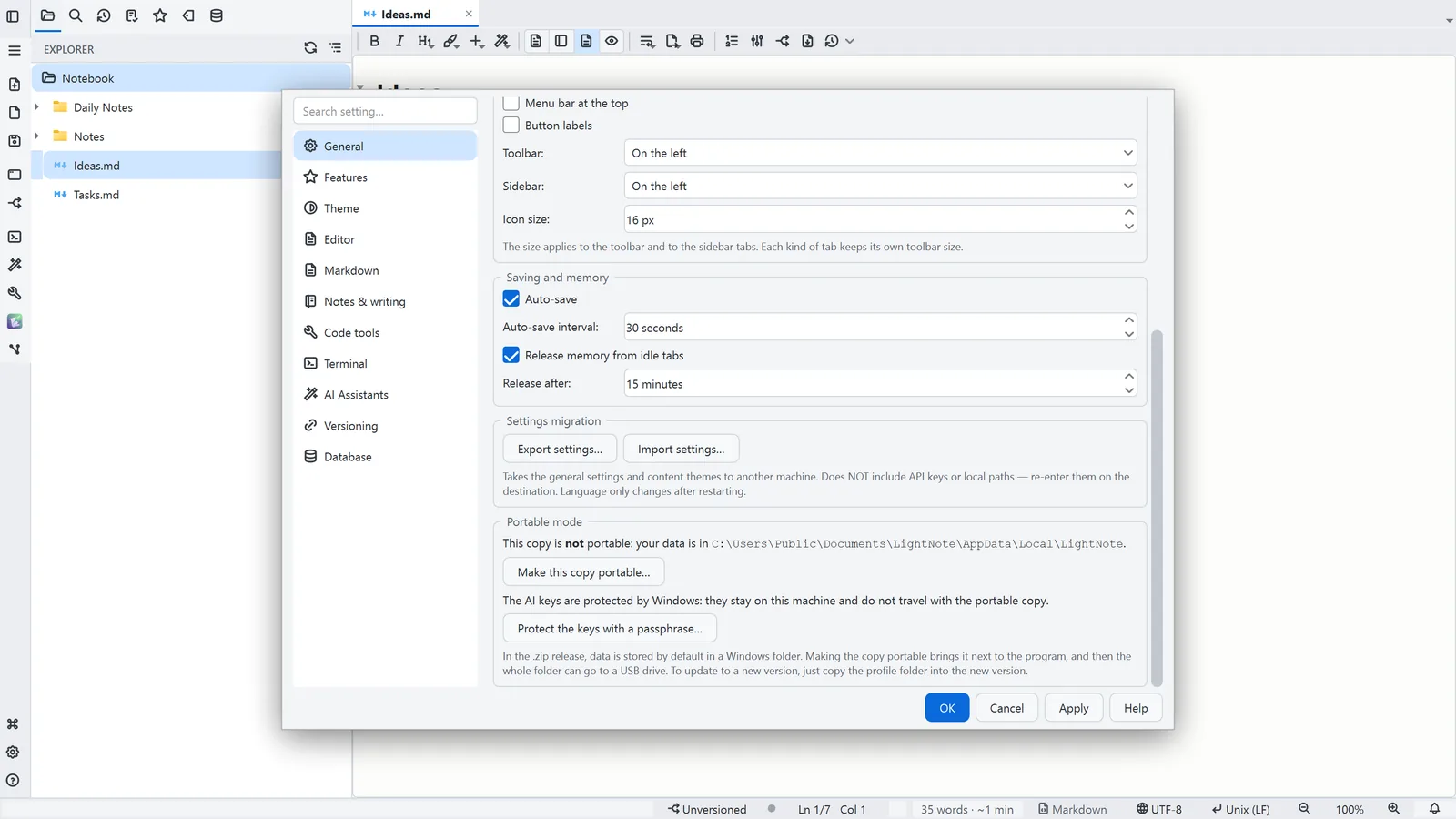
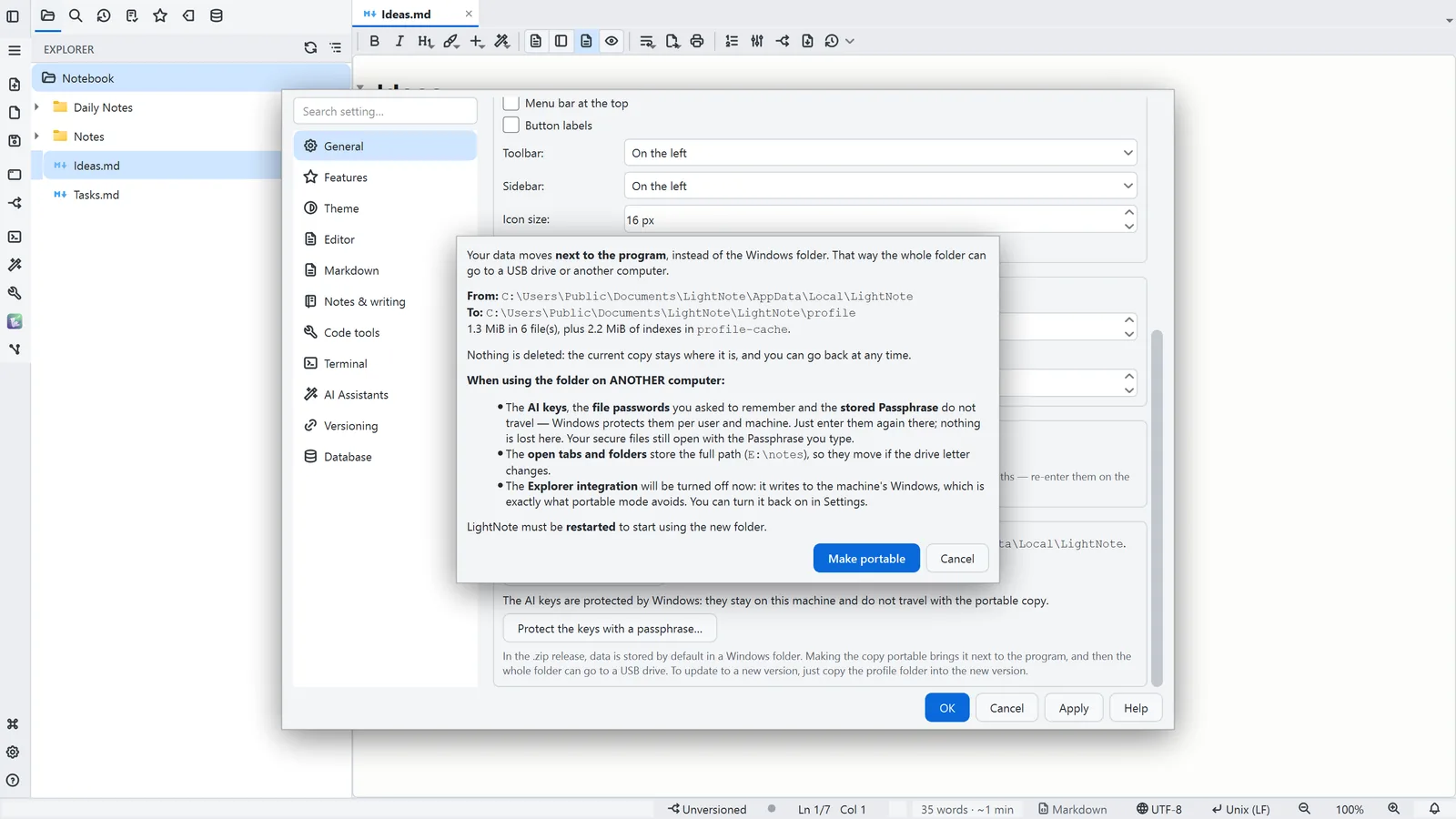
Each step's number matches the marker on the screenshot; hover over or select a step to highlight it.
- 1Settings → General → Portable mode tells you where your data lives today
- 2Make this copy portable… shows where the data comes from, where it goes and how much it weighs
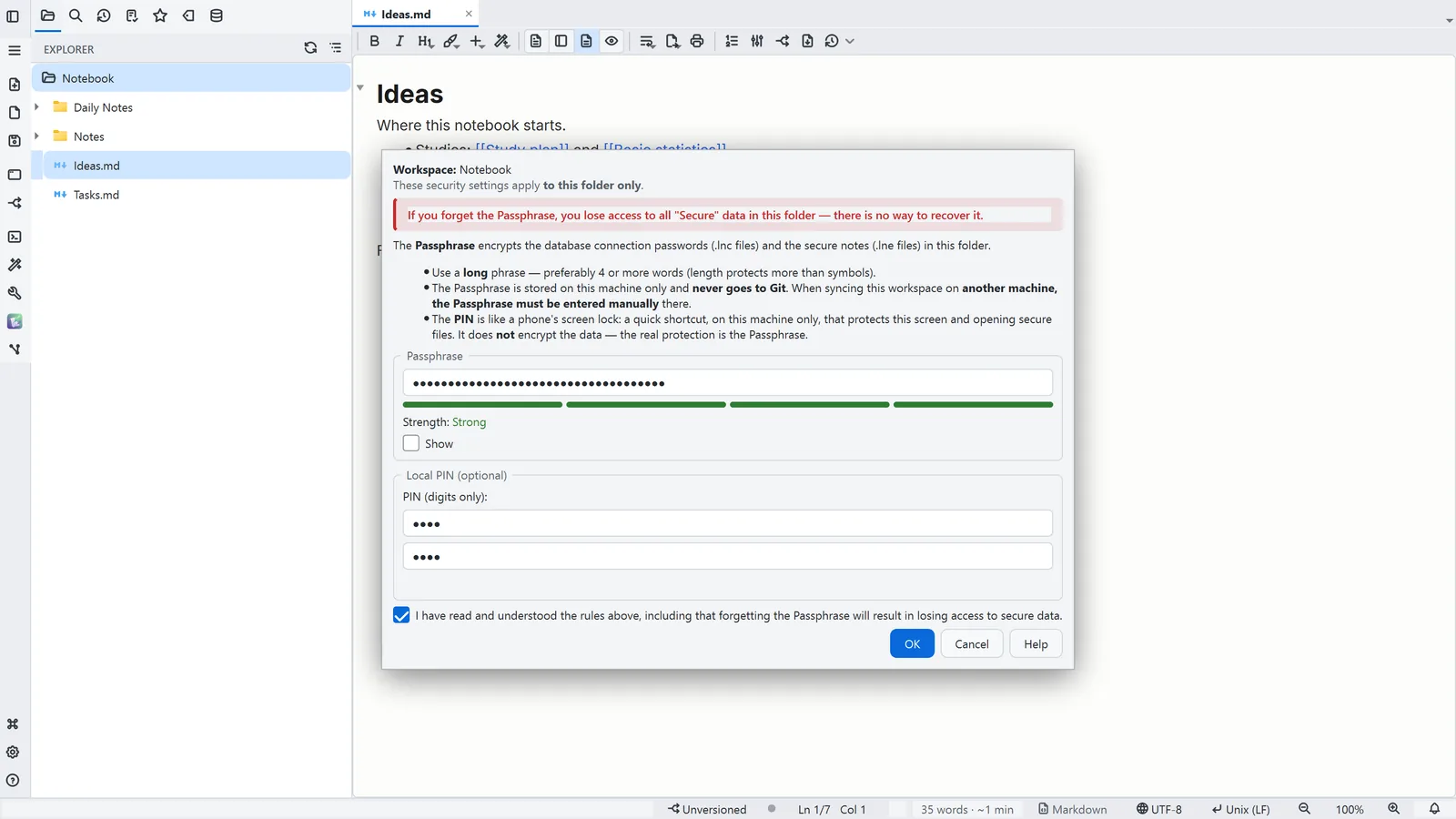
- 3What does not travel to another computer: AI keys, remembered passwords and the stored Passphrase
- 4Make portable copies (never moves) into the profile folder next to the program; then close and reopen LightNote
Read more in the HelpPortable mode: your data next to the program
Other ways
General
- Menu
- General → General Settings... → General
- Command palette
- General Settings...
- Activity bar
- Settings → General settings... → General
Tips
- Portable mode is for the .zip version; the installed copy and the Microsoft Store edition cannot be converted
- To update, extract the new .zip into a new folder and copy the old version's profile folder into it
- With LightNote closed: lnote portable --status, lnote portable --on and lnote portable --off