Step by step
Each step's number matches the marker on the screenshot; hover over or select a step to highlight it.
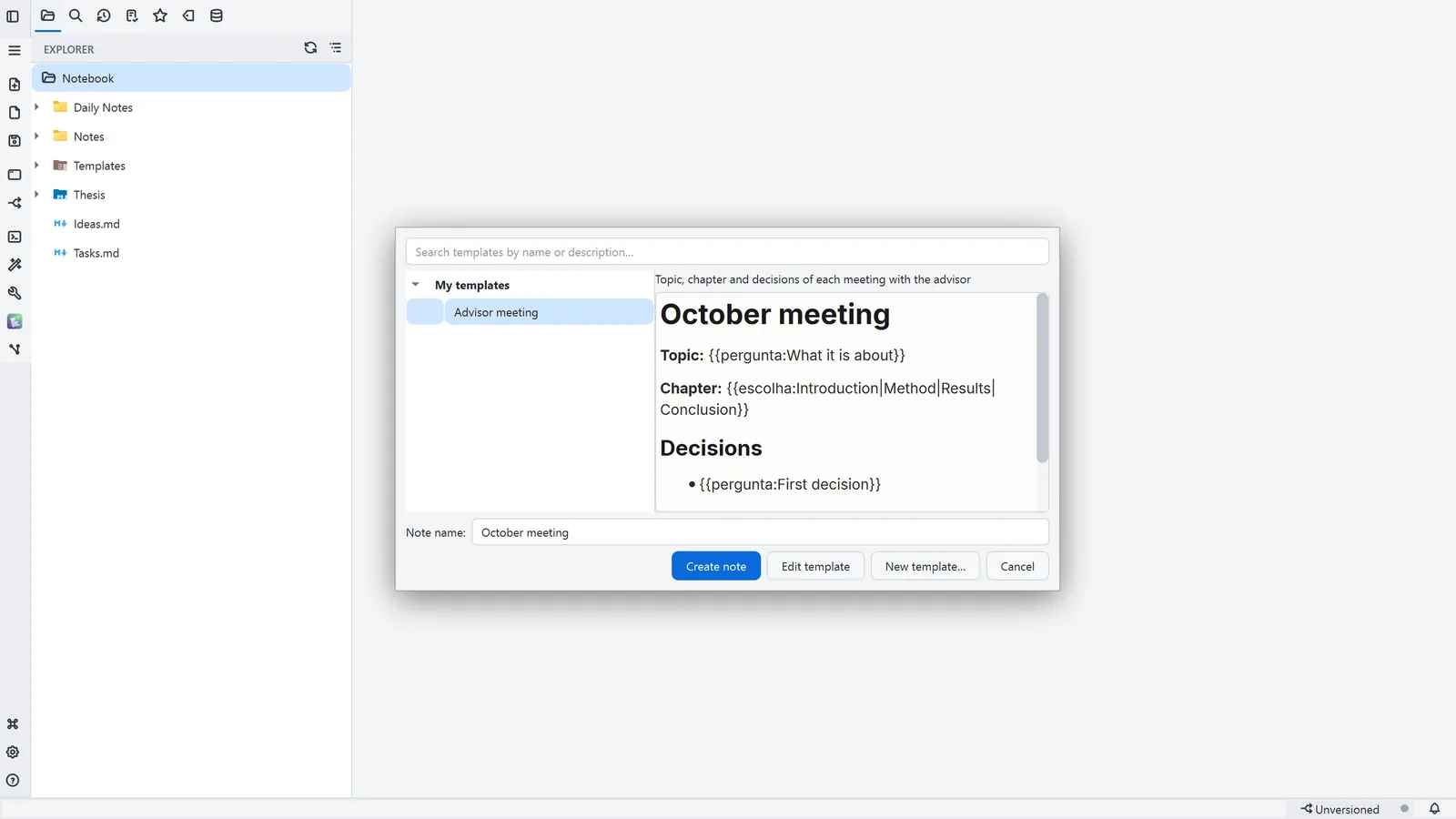
- 1Under New, choose New note from template…
- 2Pick the template; the preview shows the note as it will be created
- 3Name the note right here
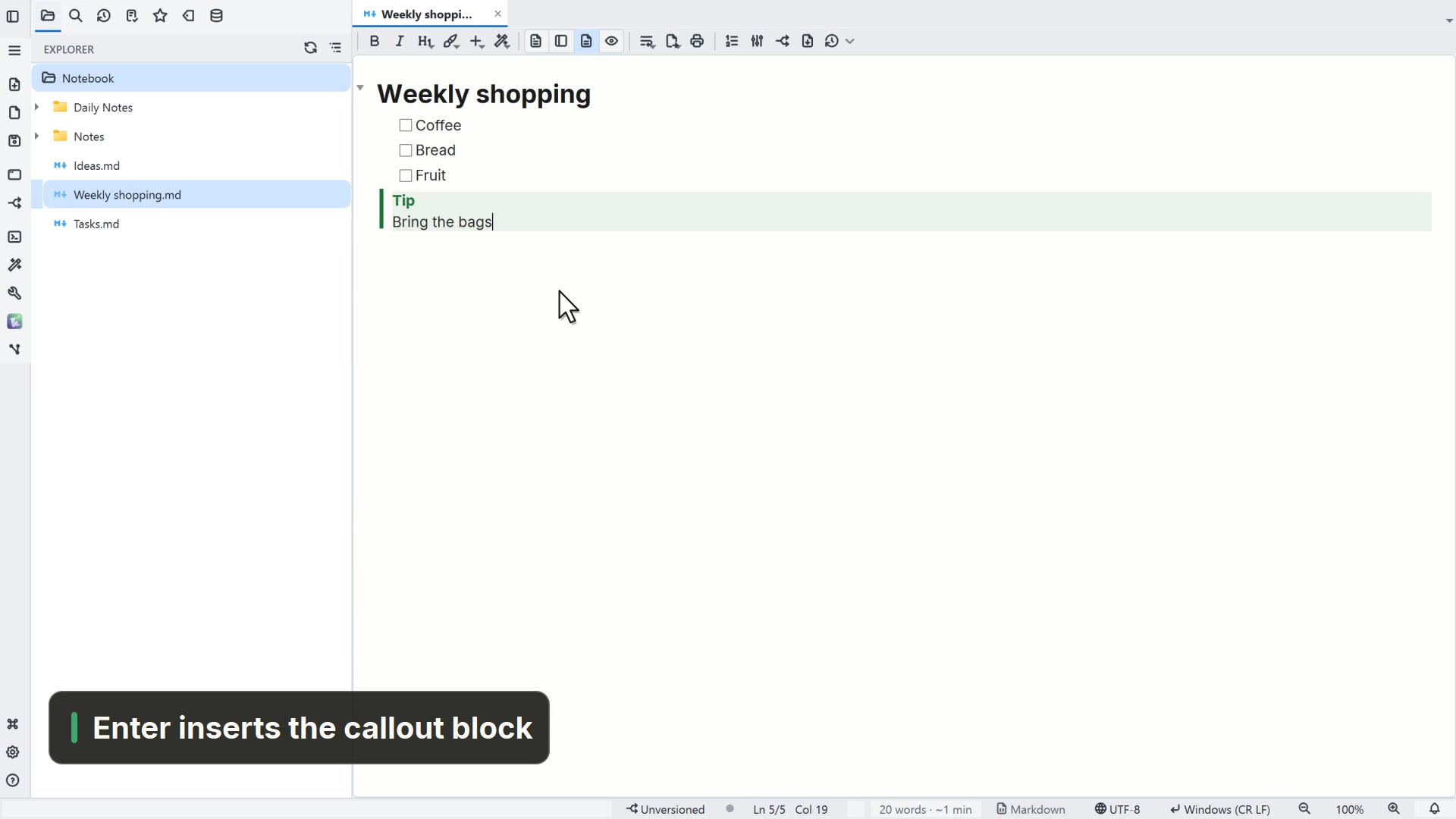
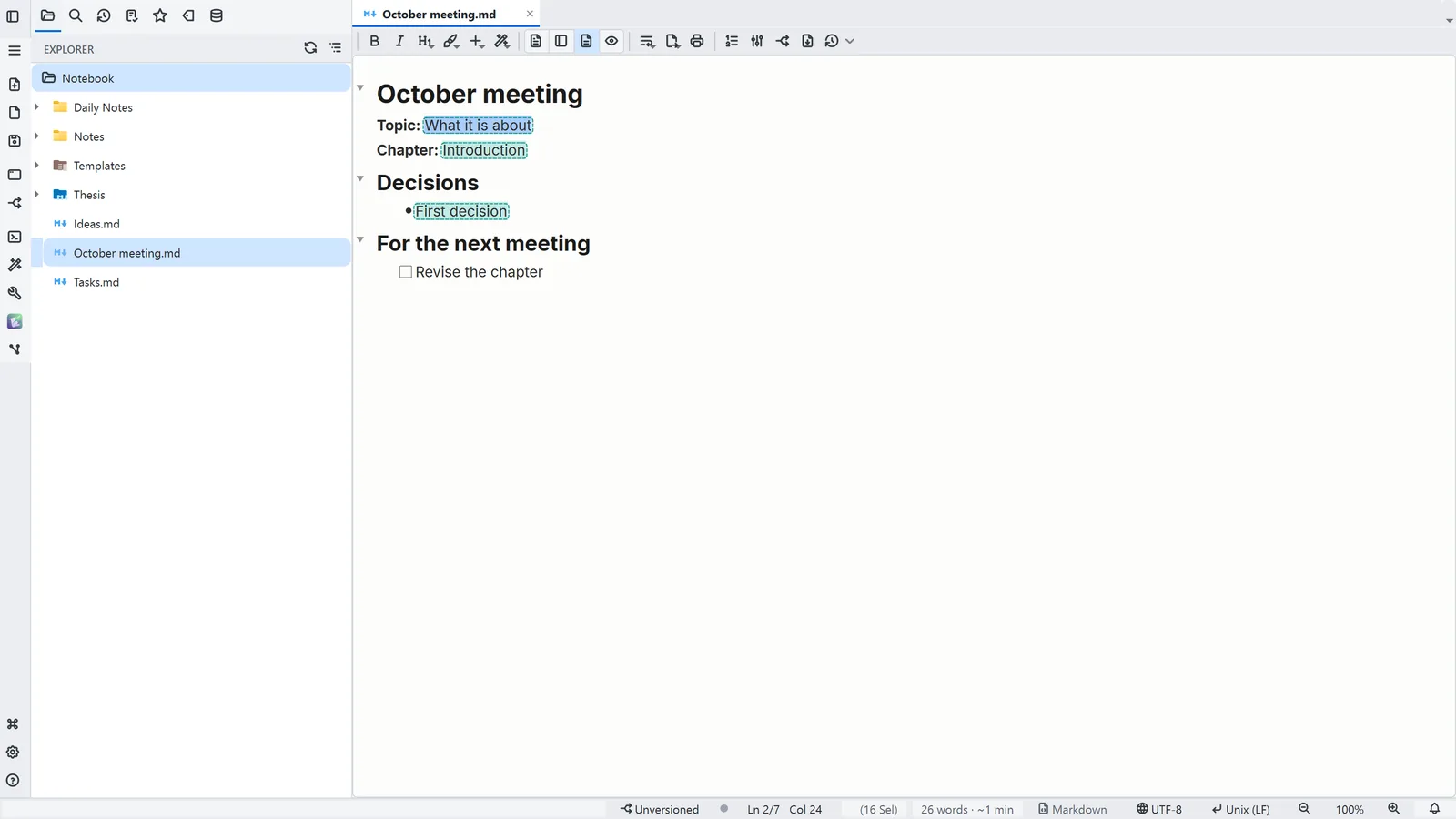
- The note is created with its fields marked, and the cursor is already on the first one
- Tab moves from one field to the next; in a choice field, a click opens the list
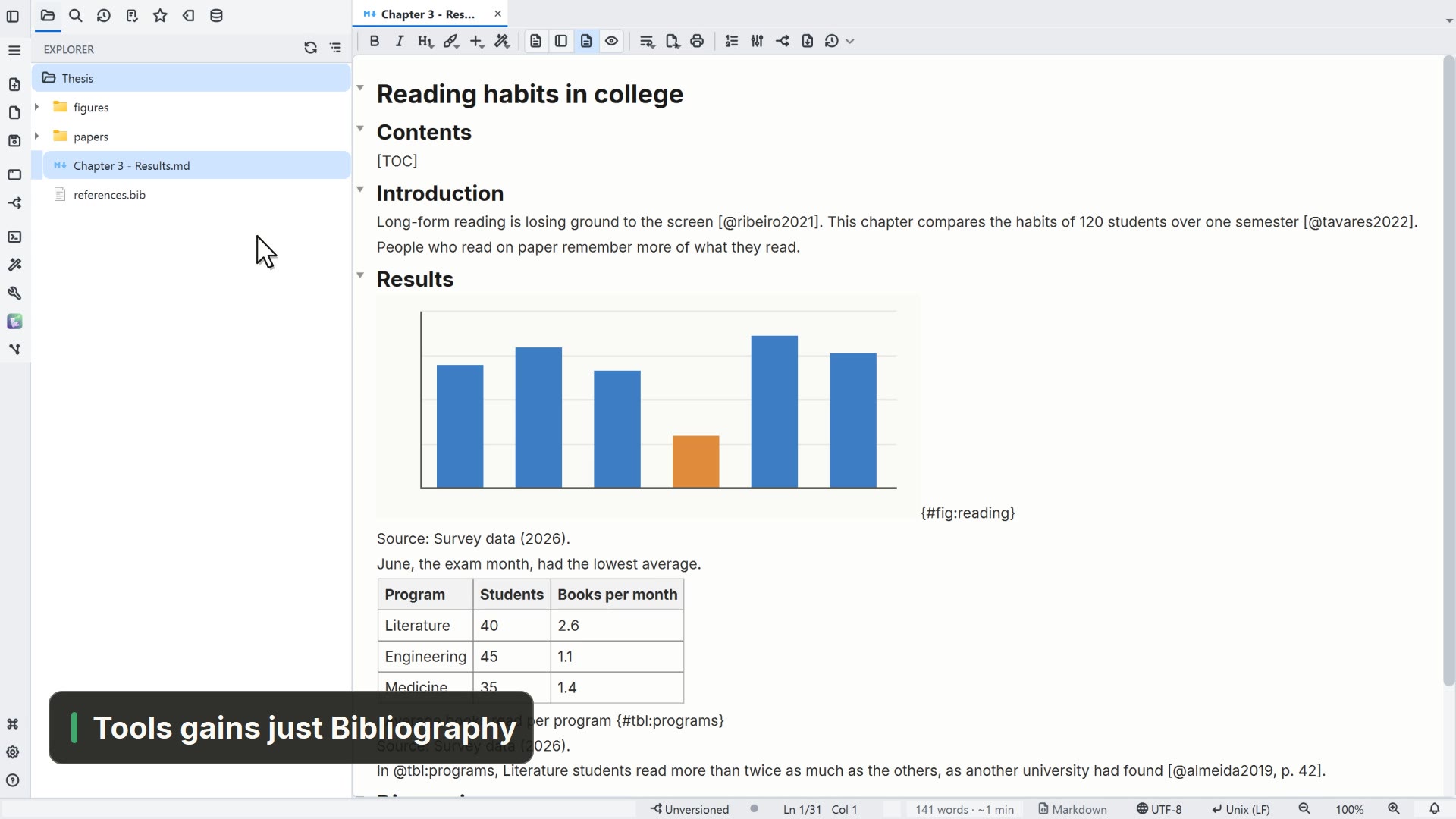
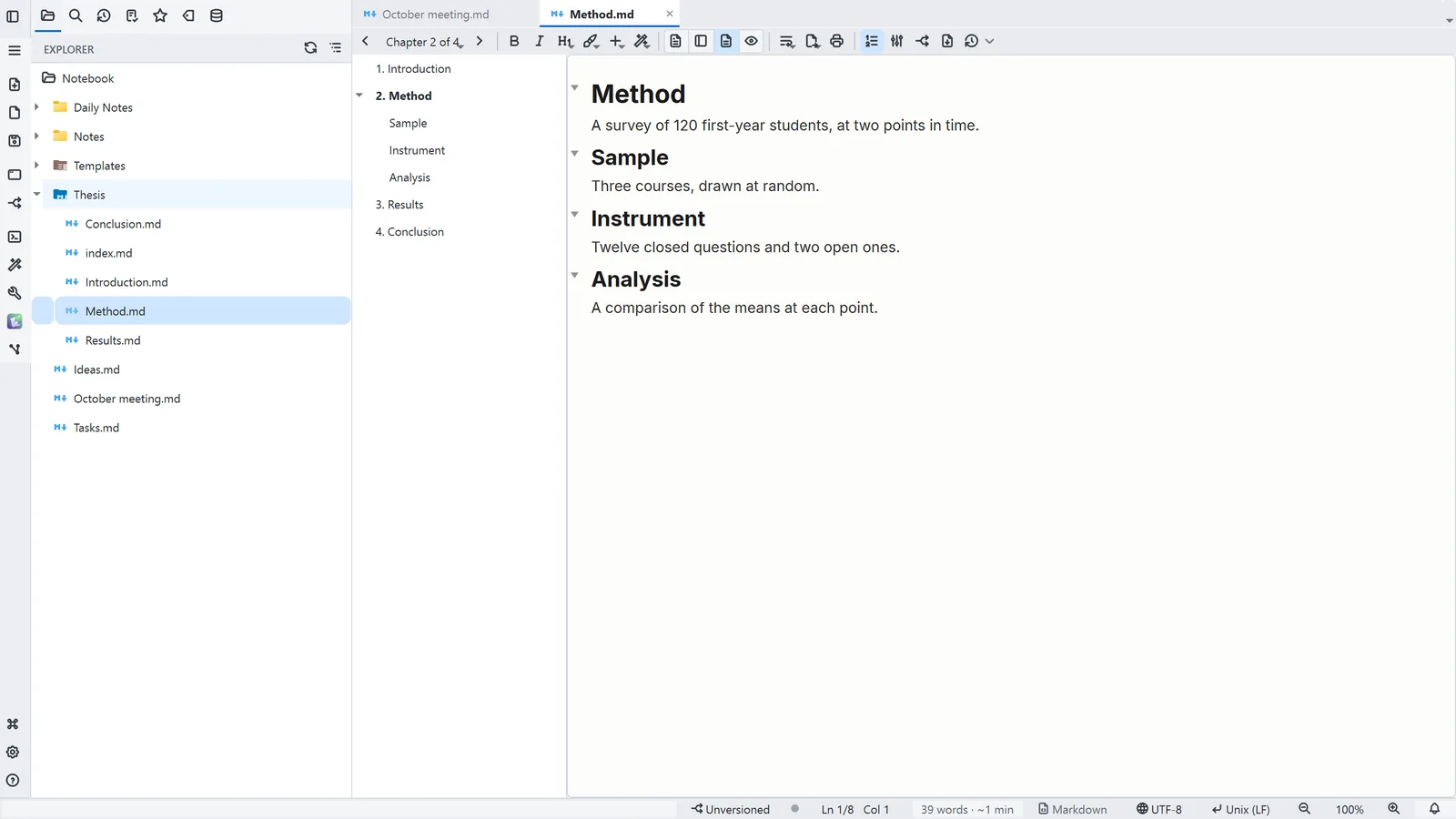
- In a Binder, the folder's index.md lists the chapter order (chapters:)
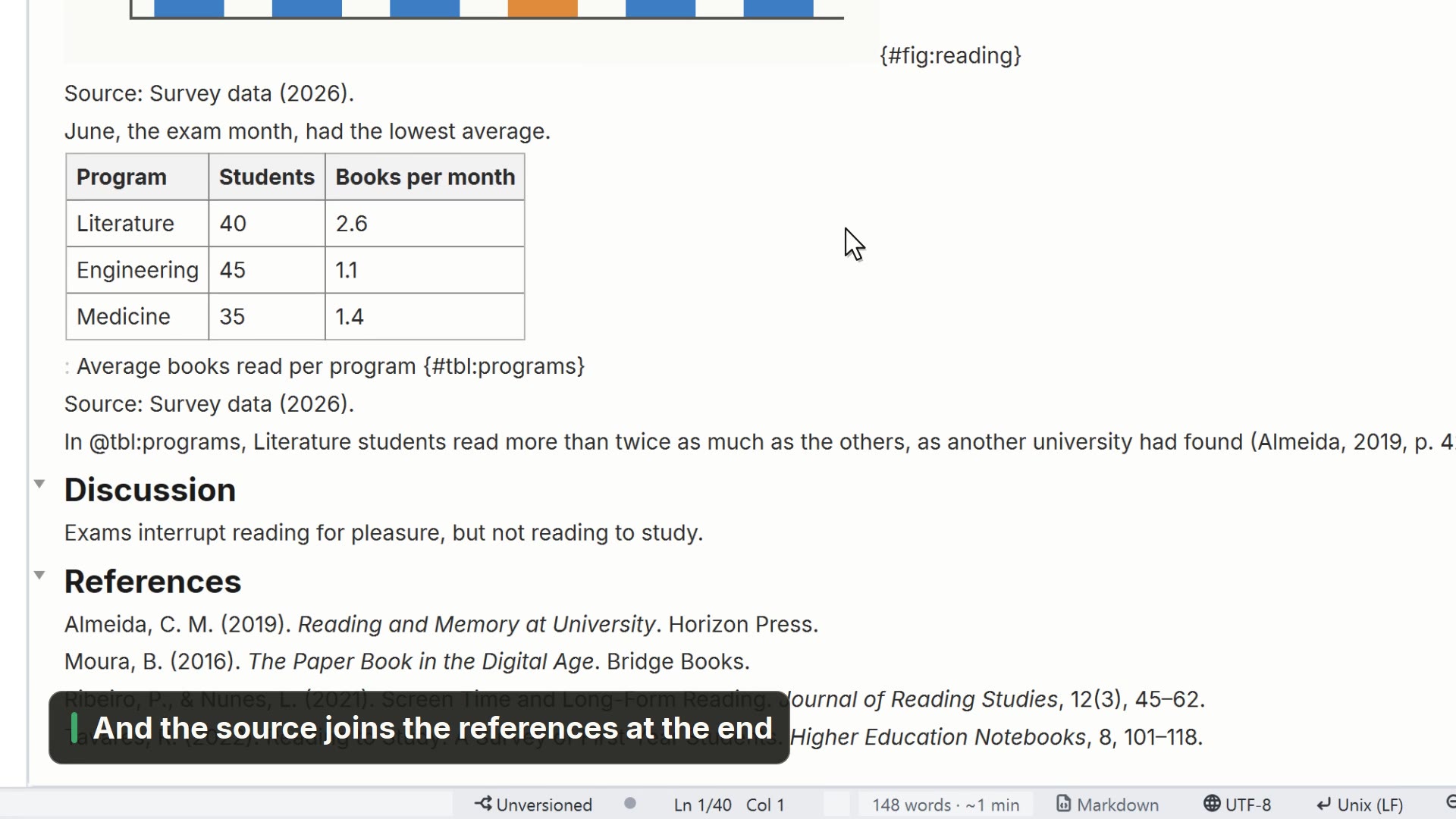
- 4The Outline shows the work's chapters and the headings of the open chapter
- 5The bar tells you which chapter you are in, and the arrows go to the previous and next one
Read more in the HelpThe root folder and the window·Binder: the folder as one work
Other ways
New
- Activity bar
- New
Tips
- A template is a .md note in the Templates folder, at the root of the workspace
- {{pergunta:…}} leaves a free field and {{escolha:a|b|c}} a list of options
- In a folder's context menu, Turn into a Binder puts the notes in order