A Markdown note becomes a Word document or a PDF in four ways: Pandoc on the command line, an editor extension, an online converter, or printing the preview to PDF. This guide covers each, what usually breaks in the conversion (tables, images, math, diagrams, footnotes) and how LightNote exports straight to DOCX, ODT, PDF, HTML, LaTeX and EPUB.
How do I convert Markdown to Word and PDF with Pandoc?
Pandoc is the most widely used document converter for this: free, command line, available on Windows, macOS and Linux. Once installed, converting to Word is one line:
pandoc note.md -o note.docxPandoc picks the format from the output file extension: .docx, .odt, .epub, .html, .pdf and more. A few options cover most cases:
| Option | What it does |
|---|---|
--reference-doc=template.docx | Uses the styles, margins, page size and header of your own .docx (it works for .odt too). This is how you apply a school or company template. |
--toc | Adds a table of contents to the document (with -s for HTML and similar formats). |
--pdf-engine=xelatex | Chooses the program that produces the PDF. Valid values include pdflatex, xelatex, lualatex, typst, weasyprint and wkhtmltopdf. |
--resource-path=.:images | Tells Pandoc where to look for the images the note refers to (on Windows, separate the paths with ;). |
For PDF, Pandoc does not lay out the page itself: the default route goes through LaTeX, so you need a distribution installed (MiKTeX or TeX Live). Without one, the PDF conversion fails. You can swap the engine with --pdf-engine, for example to Typst, which is much lighter. To get a Word template of your own, run pandoc -o my-template.docx --print-default-data-file reference.docx once, open the file, adjust the styles and pass it to --reference-doc. Every option is in the Pandoc manual.
What other ways are there to convert Markdown to PDF or DOCX?
- Editor extensions. In VS Code there are extensions that export the open note to PDF, HTML or an image (search for "Markdown PDF" or "Markdown Preview Enhanced"). They are convenient, but many rely on a browser engine underneath to produce the PDF, and the result depends on the extension handling your particular note.
- Printing the preview to PDF. Open the Markdown preview in your editor or browser and use Print → Save as PDF. It is the fastest way and works well for simple notes. The result inherits the preview's theme, and page breaks are left to the browser.
- Online converters. You paste the text or upload the file and download the result. Fine for a throwaway file, but the content of your note passes through a server you do not control. For work, personal notes or client material, prefer a local tool.
What usually breaks when converting Markdown?
- Tables. A table with long text in its cells overflows the page width in a PDF produced through LaTeX, and complex tables (merged cells, lists inside a cell) do not exist in plain Markdown.
- Images with relative paths.
only works if the conversion runs in the right folder or you pass--resource-path. In a printed preview, an image outside the folder simply disappears. - Math. LaTeX math (
$E = mc^2$) becomes an equation in Word with Pandoc, but in a printed preview it only shows up if the preview can draw it. - Mermaid diagrams. They are text inside a code fence; a converter that cannot draw them exports the diagram's source code instead of the picture. With Pandoc you need a separate filter.
- Footnotes. They usually survive Word and PDF, but check where they land: at the end of the document or at the foot of each page, depending on the converter.
- Special characters. Through LaTeX, emoji and some symbols can drop out if the font does not have the character.
Whichever route you take, open the result and check tables, images and formulas before sending the file to someone.
How does LightNote export Markdown to Word, PDF and other formats?
LightNote is a free notes and code editor for Windows and Linux, no account needed, with local files. Export is built in, with no Pandoc and no LaTeX: with the note open, use File → Export note (or the export button on the tab's own toolbar) and pick the destination. Word, OpenDocument, LaTeX, Typst and EPUB are written by LightNote itself, with nothing to install. What each one contains:
- DOCX and ODT: headings, lists, tables, footnotes, images and formulas as editable equations (Word's or LibreOffice Math's). A Mermaid diagram and a chemical structure go in as an image.
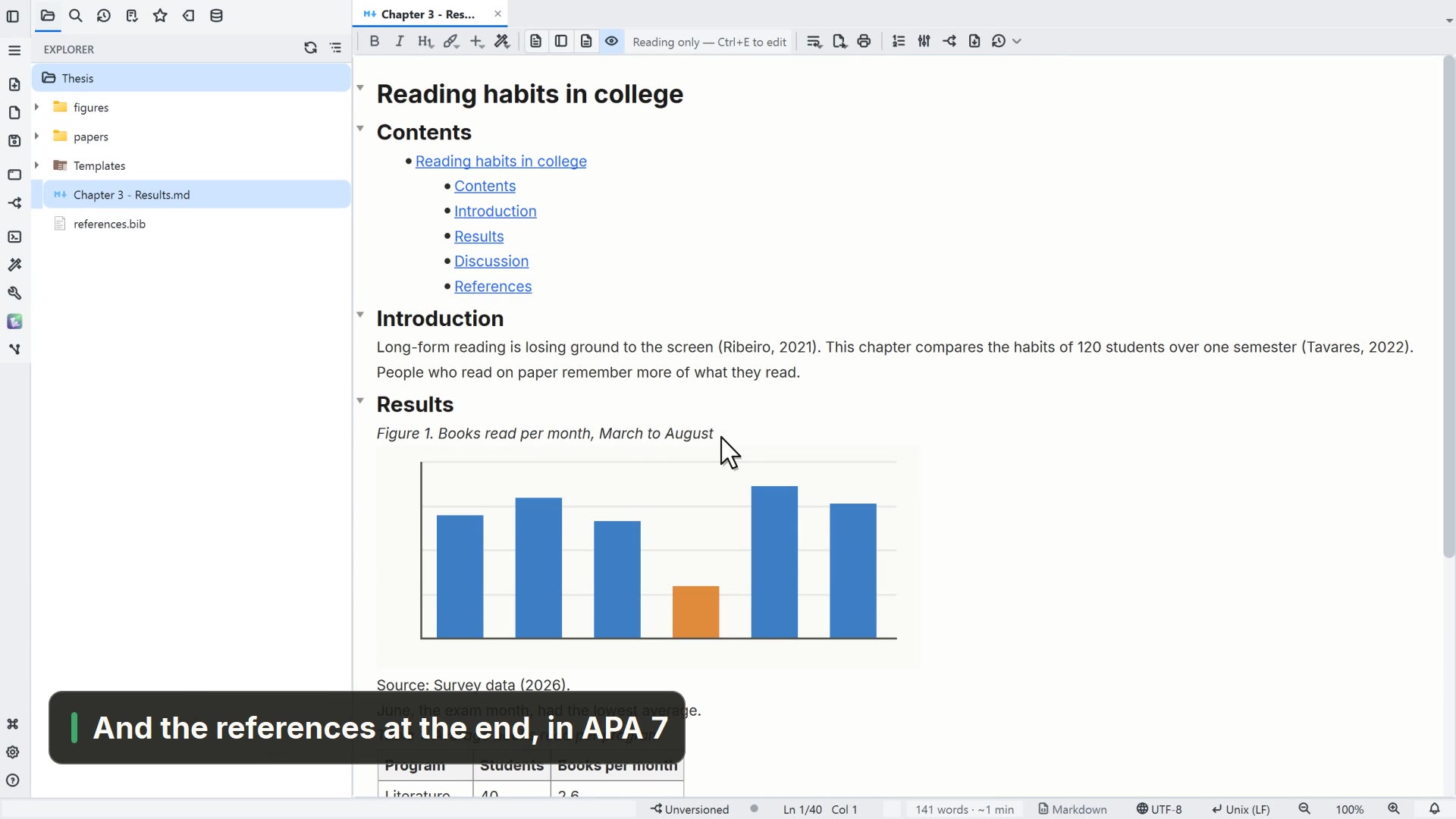
- PDF: generated from the same document as reading mode, with table of contents and transclusions, vector and searchable text. The PDF always goes on light paper, even if your theme is dark.
- HTML: a single self-contained file (local images are embedded), with formulas in MathML, which is real text.
- LaTeX (
.tex): with the full preamble, it compiles in pdfLaTeX, XeLaTeX and LuaLaTeX. With a bibliography in the folder and the Academic section turned on, citations come out live (\autocite) and arefs.bibis written next to the file. - Typst and EPUB: Typst is the light alternative to LaTeX; the EPUB comes out with one chapter per level 1 heading.
Export with options… opens a dialog that lists every destination and shows only the options that apply to the one you choose: table of contents at the start, document language, citations, A4 or Letter paper for the PDF, and the Word template. To use your institution's Word template, point at its .docx in Workspace settings → Citations and references → Word template; the exported file comes out with the template's styles, paper size, margins and header. When a destination has no equivalent for something in the note, LightNote says so at the end of the export. RTF is the exception: it goes through Pandoc, which LightNote offers to install if you want that format.
The whole folder can be exported too: File → Export folder... turns the notes into an HTML site or a set of .docx or .odt files, with the links between notes adjusted.
What about printing, or handing in a paper that follows a style standard?
File → Print… (Ctrl+P) opens a paginated preview with margins, page breaks and a Page X of Y footer, reproducing what reading mode shows. For academic papers, turn the feature on in Settings → Features → Academic → Academic paper formatting (standard) and download the standard you use from Tools → Academic paper standard (the list includes ABNT NBR 14724, APA 7, Chicago/Turabian and ISO 7144). The standard gives the page the form your committee checks (margins, font, line spacing, headings, captions and numbering) in the PDF, in printing, in Word and in Typst. In Word, accept the prompt to update fields when you open the file so the table of contents shows page numbers.