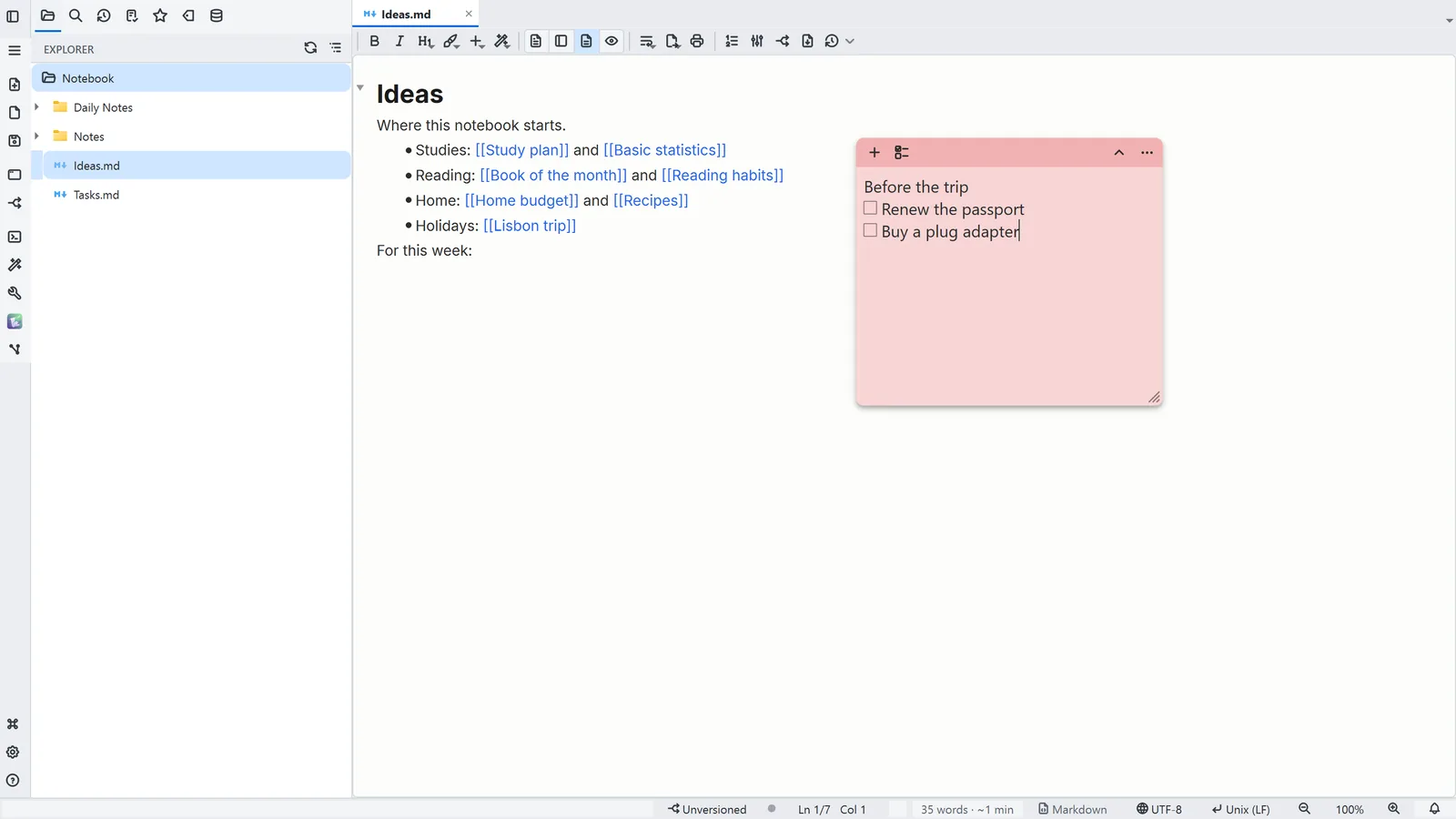
If you are looking for desktop sticky notes with a checklist on Windows, the short answer is that the built-in Sticky Notes app handles text and basic formatting but its documentation does not list checkboxes. This guide covers what people usually want from a desktop checklist, what Windows Sticky Notes does and does not offer, the other ways to get one, and how LightNote's sticky notes work if you want checkable items on the desktop.
What do people want from sticky notes on the desktop?
Searches such as “sticky notes with checklist on desktop” and “desktop sticky notes app Windows” usually mean the same thing: a small note that is always one glance away, with items you can tick off, and that is still there after a restart. Three details decide whether a tool is good enough:
- Checkboxes you can click, not just a bullet list you edit by hand.
- A fast way to create and hide notes, ideally from the keyboard, so the note is not a window you have to hunt for.
- Notes that survive: they come back after you close the app or restart the computer.
What does Windows Sticky Notes offer?
Sticky Notes comes with Windows and is a perfectly good scratchpad. According to Microsoft's support pages, a note supports bold, italic, underline, strikethrough and bullets, you cannot change the font or the size of the text, and notes can sync through a Microsoft account. The page lists no checkbox or checklist feature.
The keyboard shortcuts page confirms the usual formatting keys:
| Action | Shortcut in Sticky Notes |
|---|---|
| New note | Ctrl+N |
| Strikethrough | Ctrl+T |
| Bulleted list | Ctrl+Shift+L |
| Bold, italic, underline | Ctrl+B, Ctrl+I, Ctrl+U |
| Delete the note | Ctrl+D |
In practice, a to-do list there is a bulleted list where you select a finished line and press Ctrl+T to strike it through. That works, but you do not get a box to click. Microsoft's pages describe Sticky Notes features by Windows version, and the app changes over time, so check the version you have if a feature seems to be missing.
What are the other ways to get a checklist on the desktop?
- A to-do or notes app with checkboxes that you keep open in a small window. You get real checkboxes, but the window is an ordinary app window rather than a sticky note.
- A desktop widget or a customization tool that draws a list on the desktop. Flexible, but usually more setup, and the list often lives in a separate file you edit by hand.
- A plain text or Markdown file with
- [ ]lines. It is future-proof and easy to back up, but it needs an editor that turns those lines into clickable boxes. - A sticky-notes program with checkboxes, which is the closest to what the searches ask for. LightNote is one of these.
How do checklist sticky notes work in LightNote?
LightNote is a free editor for Windows and Linux. It needs no account and keeps your files on your computer. Its sticky notes are small colored plain-text boxes that float over the desktop, in the style of the Windows Sticky Notes app, with a checklist built in. This is what the Help describes:
- Create and hide. From the tray menu, New sticky note creates a box, with the global shortcut Ctrl+Alt+S. Show sticky notes (Ctrl+Alt+H) shows or hides all of them at once. “Global” means the shortcut works from any program. Each note also has a + button to create another.
- Move, resize, color. Drag the header to move a note and the corner grip to resize it. The ⋯ menu changes the color.
- Checklist. The list button in the header, next to the +, turns the current line, or the selected lines, into items with a checkbox; a second click undoes it. You can also type
[ ]and a space at the start of a line ([x]creates an item already checked). - Check and strike through. Click the checkbox, or press Ctrl+Shift+Enter, and the item is checked and struck through. Do it again to uncheck. In LightNote, the strikethrough comes from completing an item; it is not a free formatting command like Ctrl+T in Windows Sticky Notes.
- Keep typing. Enter creates the next item; Enter on an empty item, or Backspace at its start, goes back to plain text. Remove completed items, in the note's menu, deletes all the checked ones at once, and Ctrl+Z brings them back.
- Saved automatically. Notes are saved as you type and reappear when you reopen LightNote. Items are stored as Markdown tasks (
- [ ] item). - Send to today's note. This item in the ⋯ menu writes the note's text as a bullet in today's note and discards the box; each checklist item arrives as a task. It is how a scribble on the desktop becomes part of your notes.
On Linux there are no global shortcuts: sticky notes open from the tray or from the app menu instead of Ctrl+Alt+S and Ctrl+Alt+H.
The boxes hold plain text only: no bold, no pictures, no tables. For anything longer, a regular note in the editor is the better place, and the sticky note stays for the short list you want in sight.