You have a CSV with millions of rows and Excel can't cope, or your text editor freezes. This guide shows what happens when you open a file like that, the ways around it (splitting, Power Query, pandas, SQL) and how to query the CSV with SQL without importing it.
Why a CSV file is too big for Excel
An Excel worksheet holds at most 1,048,576 rows by 16,384 columns, according to Microsoft's Excel specifications and limits page. A CSV bigger than that does not fit, and Excel warns you: "This data set is too large for the Excel grid. If you save this workbook, you'll lose data that wasn't loaded." If you accept, it loads only the first 1,048,576 rows and the rest is left out.
The dangerous part is the one Microsoft stresses in What to do if a data set is too large for the Excel grid: if you save, you lose the rows that were not loaded. Never save over the original file; if you must save, use File → Save a Copy and give it a name that makes clear it is a truncated copy.
Why text editors choke too
Many editors load the whole file into memory and keep track of every line. With a CSV of a few gigabytes, that means waiting, a window that stops responding, or the program closing. And even when the file opens, staring at millions of comma-separated lines does not answer the question you have: how much did we sell per state, which rows are wrong. What you want is to query the file, not read it.
How to open and analyze a large CSV: the options
| Option | Good for | Watch out for |
|---|---|---|
| Split the file into parts | Opening each part in Excel | Only the first piece has the header; summing the whole is still your job |
| Excel Power Query and the Data Model | People who live in Excel and want a PivotTable over the whole set | It is done in desktop Excel, and the file does not go into the grid |
| Python with pandas, in chunks | People who code | You write the aggregation code |
| DuckDB / SQL straight on the CSV | Filtering, grouping and counting without importing | Command line, unless there is an interface on top |
| Dedicated CSV viewers | Browsing large files | Check whether they query or only display |
| Online tools | A small file with nothing sensitive in it | You upload the file to a third-party server |
Splitting the file
On Linux, macOS and Git Bash for Windows, the split command cuts by number of lines:
split -l 1000000 sales.csv part_Every piece stays under Excel's limit, but only the first one carries the header row; the others need it added by hand. It works for looking at parts, not for answering questions about the whole set.
Power Query and the Data Model
For these cases Microsoft recommends opening the file in desktop Excel through Get Data (Power Query), loading the complete data set and analyzing it with PivotTables. Data → Get Data → From File → From Text/CSV imports the file; on the load screen, instead of sending it to the worksheet, choose to create only a connection and add it to the Data Model. The Text/CSV connector is available in Excel according to the Power Query connectors index.
Python with pandas, in chunks
pandas' read_csv accepts chunksize, which reads the file in pieces instead of all at once. To sum per state without exhausting memory:
import pandas as pd

chunks = pd.read_csv("sales.csv", chunksize=1_000_000)
partials = (c.groupby("state")["amount"].sum() for c in chunks)
total = pd.concat(partials).groupby(level=0).sum()
print(total.sort_values(ascending=False))
How to query a CSV with SQL without importing it
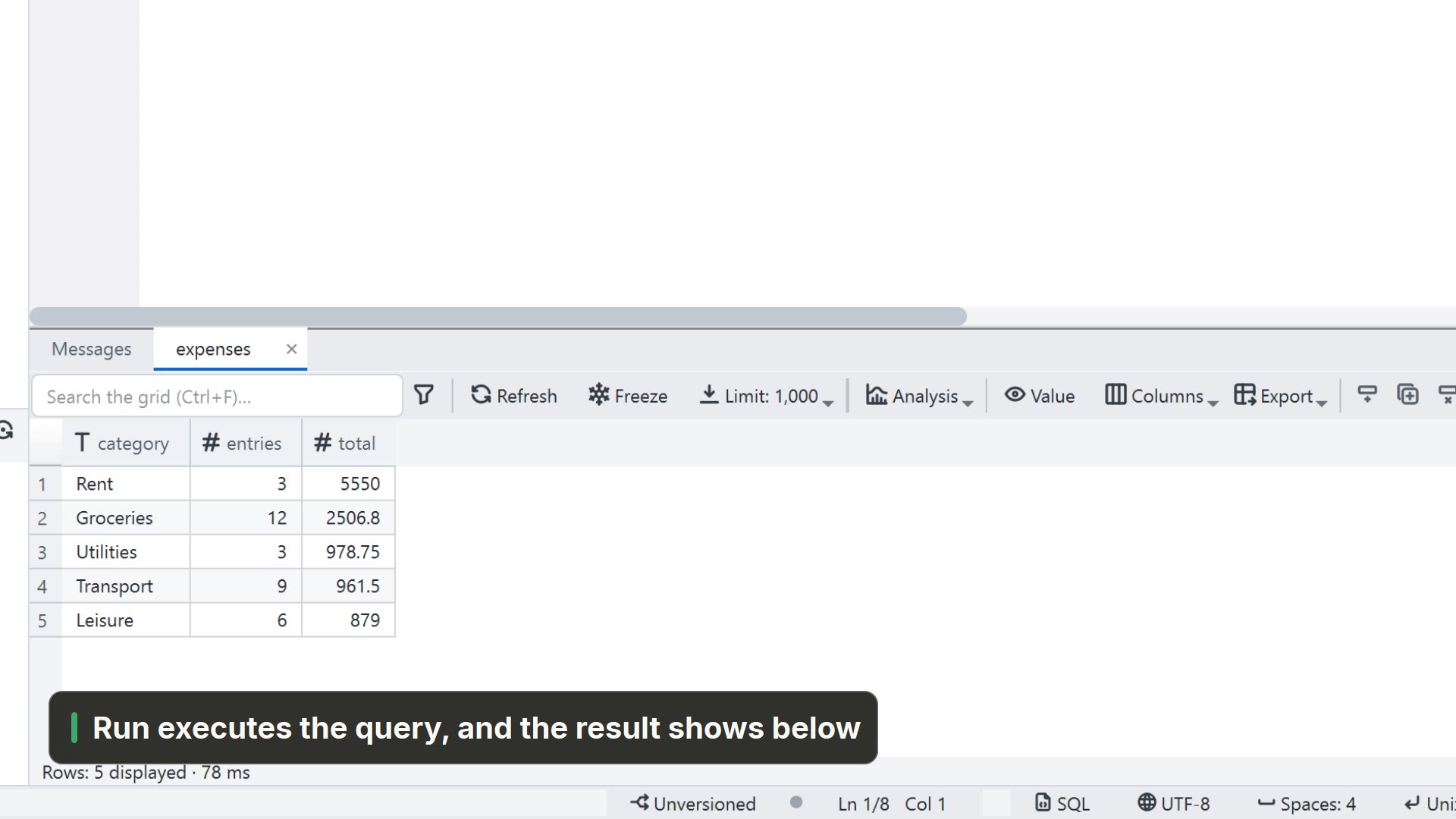
DuckDB reads the CSV straight from disk and answers an SQL query, with no database to create and nothing to import. The syntax of SELECT * FROM 'file.csv' and read_csv(...) is in the DuckDB CSV documentation. Download the executable from duckdb.org, open a terminal in the file's folder and run (or type duckdb and use the console):
1. How many rows the file has:
duckdb -c "SELECT COUNT(*) FROM 'sales.csv'"2. Total per state, largest first:
duckdb -c "SELECT state, SUM(amount) AS total FROM read_csv('sales.csv') GROUP BY state ORDER BY total DESC"3. Extract only the slice that fits in Excel:
duckdb -c "COPY (SELECT * FROM 'sales.csv' WHERE date >= '2026-01-01') TO 'slice.csv' (HEADER, DELIMITER ',')"The third query is the most useful day to day: instead of taking the whole file to Excel, you take the already filtered or aggregated result, which fits in a worksheet. If your CSV uses semicolons, pass that to read_csv, for example read_csv('sales.csv', delim=';'); with a decimal comma, add decimal_separator=','.
Open a large CSV in LightNote
LightNote is a free code and notes editor for Windows and Linux, with no account, working on local files. It uses the same engine as the previous section, DuckDB, but with a table, filters and charts on top. According to its Help, the flow is:
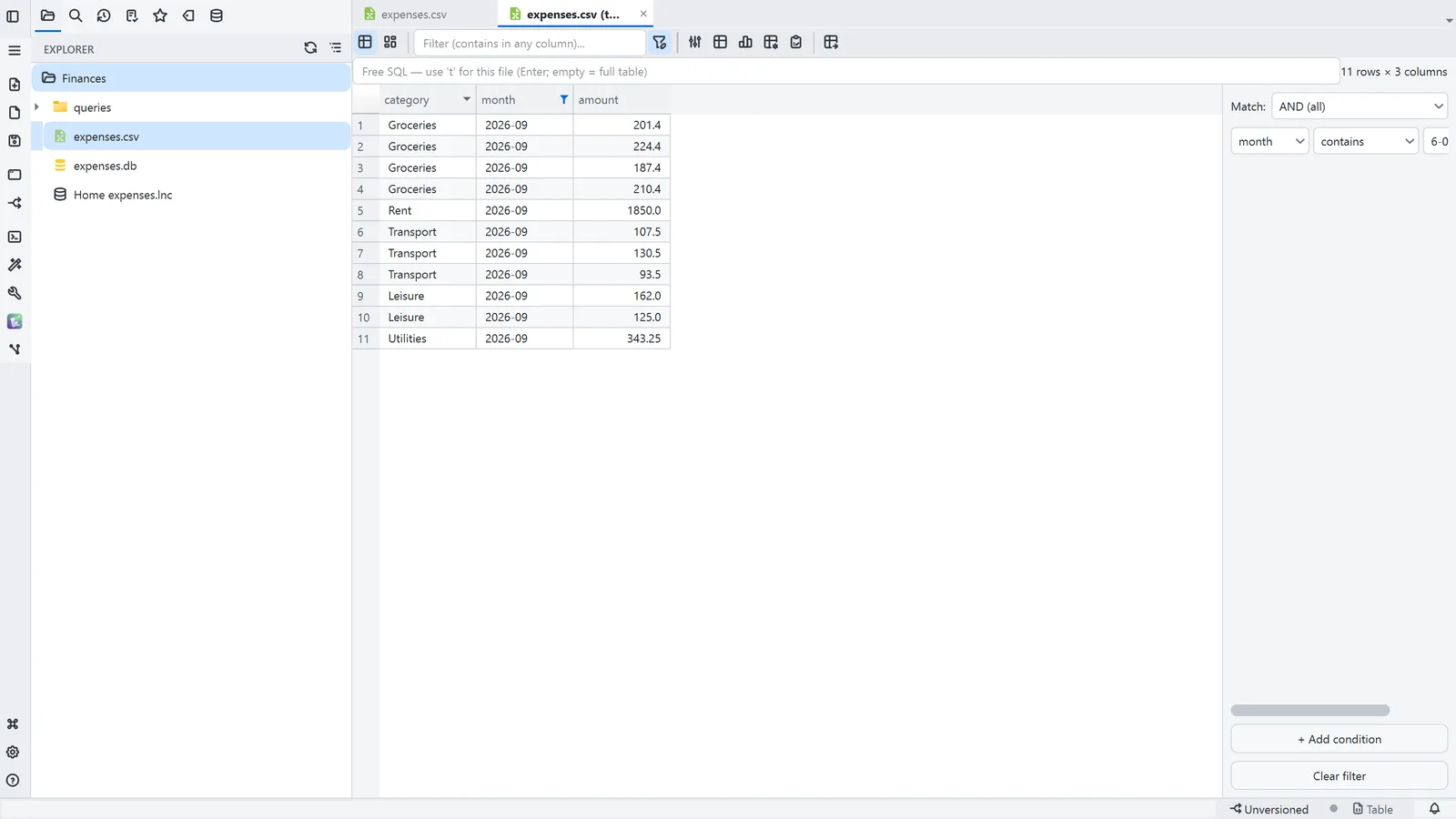
- Open as table. In the file tree, right-click the
.csvand choose Open as table. Reading is paginated, on demand, through DuckDB, and sorting (click the header) and filtering are pushed down to the engine instead of loading everything. - Understand the file. The Structure button shows columns, types and row count. The quick filter (Ctrl+F, "contains in any column") shows how many rows are left.
- Free SQL. The bar at the top of the table accepts any DuckDB query, and the view
tstands for the opened file:SELECT state, SUM(amount) AS total FROM t GROUP BY state ORDER BY total DESC. - Quality. The Quality button shows, per column, rows with a value, empty and null rows, distinct values, the most frequent values and outliers, over the whole set with the filter in effect (not a sample). It helps you find the dirty row before it turns into a wrong number.
- Analysis. The Data and Analysis buttons in the bar switch to a board with charts and pivot tables over the same file. The aggregation runs in DuckDB and comes back already reduced. The analysis is saved as a JSON next to the data file, in an open format.
When the separator fools it
Sometimes the separator is not recognised (rows with differing column counts usually cause this) and the table comes back with a single column, the whole line inside it. LightNote then shows a bar above the table saying how many columns the file seems to have, and offers the tolerant read: it reads line by line without requiring equal columns, and it filters, sorts and has chart, pivot table and Analysis area, but no free SQL. For text that is not saved yet, or to choose the delimiter by hand, use View → View as delimited file….
Taking the result away
The Export button writes the current view (CSV, Parquet or JSON). Copy as, in the table's context menu, pastes the selection already formatted (a table for Excel, Markdown, CSV and others), but it is refused above 1 million cells; to take everything, use the export. A filtered or aggregated CSV with a few rows opens in Excel without the problem described at the start of this guide.
LightNote's Help gives no timings or maximum file sizes for CSV, so this guide does not promise any either: test with your own file.