Claude Code is Anthropic's coding tool that runs inside the terminal: you chat with it in a project folder, and it reads your files, proposes changes and runs commands. Opening it always works the same way: go to the project folder in a terminal and type claude.
The short answer
- Install it once (the command for your system is right below).
- Open a terminal in the project folder.
- Type
claudeand press Enter. The first time, it opens your browser so you can sign in to your account.
Claude Code needs a Claude Pro, Max, Team or Enterprise account, or a Console account (billed through the API). The free claude.ai plan does not include Claude Code.
1. Install Claude Code
The official installer does not ask for administrator rights and keeps itself up to date. Use the command for your system:
| System | Command |
|---|---|
| Windows (PowerShell) | irm https://claude.ai/install.ps1 | iex |
| Windows (Command Prompt) | curl -fsSL https://claude.ai/install.cmd -o install.cmd && install.cmd && del install.cmd |
| macOS, Linux and WSL | curl -fsSL https://claude.ai/install.sh | bash |
There is also WinGet (winget install Anthropic.ClaudeCode) and Homebrew (brew install --cask claude-code). With those two, updates are not automatic: you update through the package manager itself.
On Windows, Claude Code runs directly in PowerShell or Command Prompt; WSL is not required. Git for Windows is recommended: with it, Claude Code uses Git Bash for the commands it runs.
Do not mix up the two commands: 'irm' is not recognized as an internal or external command means you pasted the PowerShell command into Command Prompt; The token '&&' is not a valid statement separator means the opposite.
2. How do I open a terminal in the project folder?
Claude Code works in the folder it was started in, so open the terminal already inside the project:
- Windows 11: in File Explorer, right-click the folder and choose Open in Terminal. Or, in a terminal that is already open, run
cd C:\path\to\project. - macOS: open the Terminal app and run
cd ~/path/to/project(you can typecdand then drag the folder into the Terminal window). - Linux: in most file managers, right-clicking the folder offers Open in Terminal; otherwise,
cd ~/path/to/project.
3. Run claude and sign in
With the terminal in the folder, type:
claudeThe first time, Claude Code opens your browser so you can sign in. If the browser does not open, press c to copy the login address and paste it into the browser; if a code appears, paste it back into the terminal. When it finishes, you see Login successful.
It also asks whether you trust the folder. That happens the first time in each folder, because it is going to read and edit files there. After that, you just write your request, as in a conversation.
The everyday commands
| Command | What it does |
|---|---|
claude | Opens an interactive session in the current folder. |
claude "explain this project" | Opens with a first request already in place. |
claude -c | Continues the most recent conversation in this folder. |
claude -r | Resumes an earlier conversation, picked from a list. |
claude -p "question" | Answers and exits, without opening the session (good for scripts). |
claude update | Updates to the newest version. |
claude --version | Shows the installed version. |
claude doctor | Checks the installation and points out what is wrong. |
Inside the session, /login and /logout switch accounts.
“claude: command not found” or “claude is not recognized”
This is the most common problem right after installing. The message depends on the shell: PowerShell says The term 'claude' is not recognized as the name of a cmdlet, function, script file, or operable program, Command Prompt says 'claude' is not recognized as an internal or external command, and bash or zsh say command not found. The cause is the same in all of them. Try this, in order:
- Close and reopen the terminal. The terminal you installed from still has the old PATH and cannot see the new command.
- Check that the file exists. The installer puts the program at
%USERPROFILE%\.local\bin\claude.exeon Windows and at~/.local/bin/claudeon macOS and Linux. In PowerShell:Test-Path "$env:USERPROFILE\.local\bin\claude.exe" - Add the folder to your PATH. On Windows, from PowerShell (it applies to your user; open a new terminal afterwards):
On macOS and Linux, add$current = [Environment]::GetEnvironmentVariable('PATH', 'User') [Environment]::SetEnvironmentVariable('PATH', "$current;$env:USERPROFILE\.local\bin", 'User')export PATH="$HOME/.local/bin:$PATH"to the end of~/.zshrcor~/.bashrc. - Look for more than one copy.
where.exe claude(Windows) orwhich -a claude(macOS and Linux) lists them all; an old npm install may be sitting in front.
If you use the Claude Code extension for VS Code, note that it does not put the claude command on your PATH: to use it in the terminal, install the tool with the command above.
Can I open Claude Code without leaving my editor?
Switching between the terminal and the editor to check what the agent changed is the tiring part. In LightNote, a free code and notes editor for Windows and Linux, Claude Code opens as a tab next to your files:
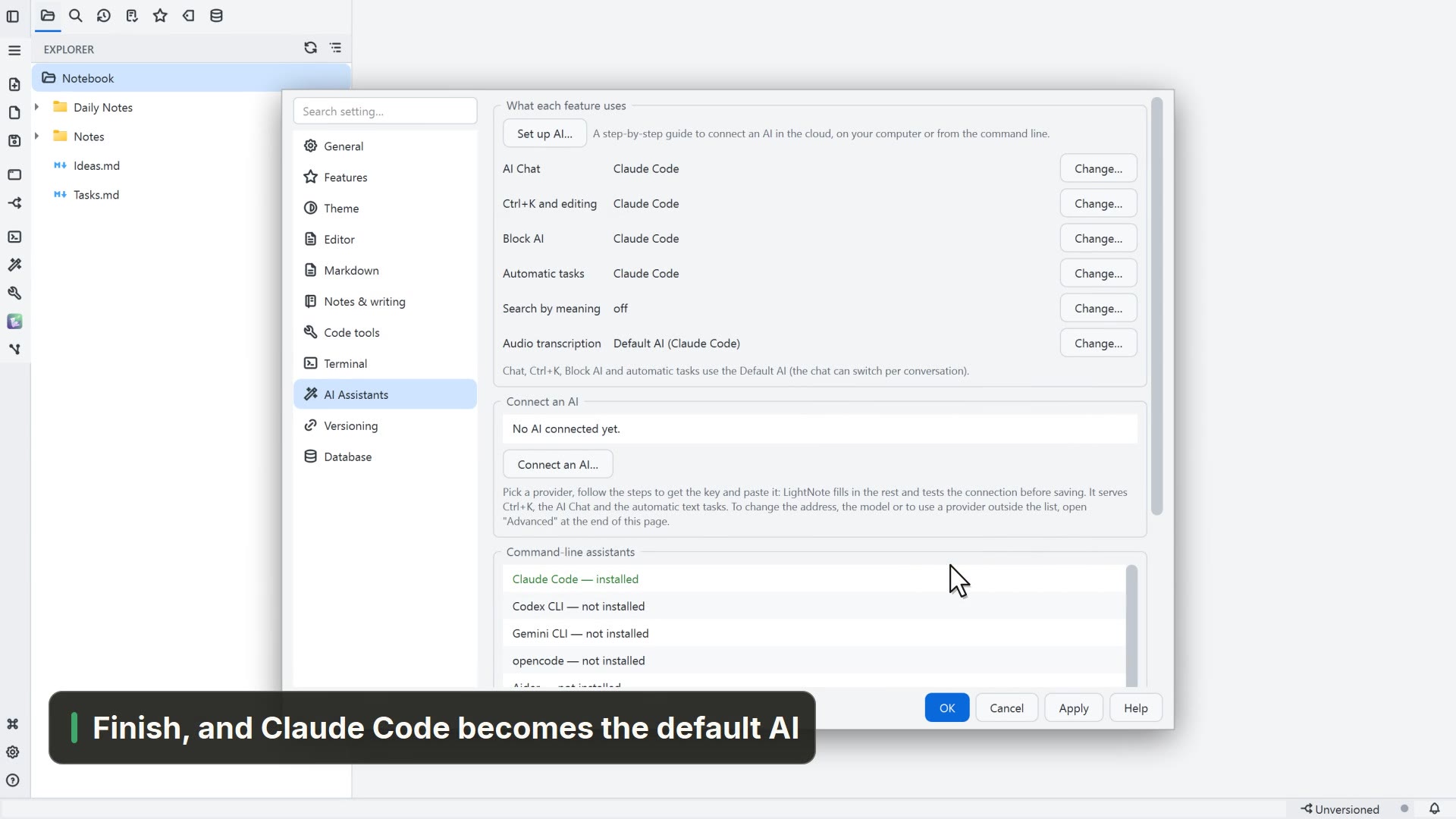
- Open the project folder and, in the AI button, choose Claude Code (or look for “Claude Code” in the command palette). It opens already in the project folder, with its usual colors and interface.
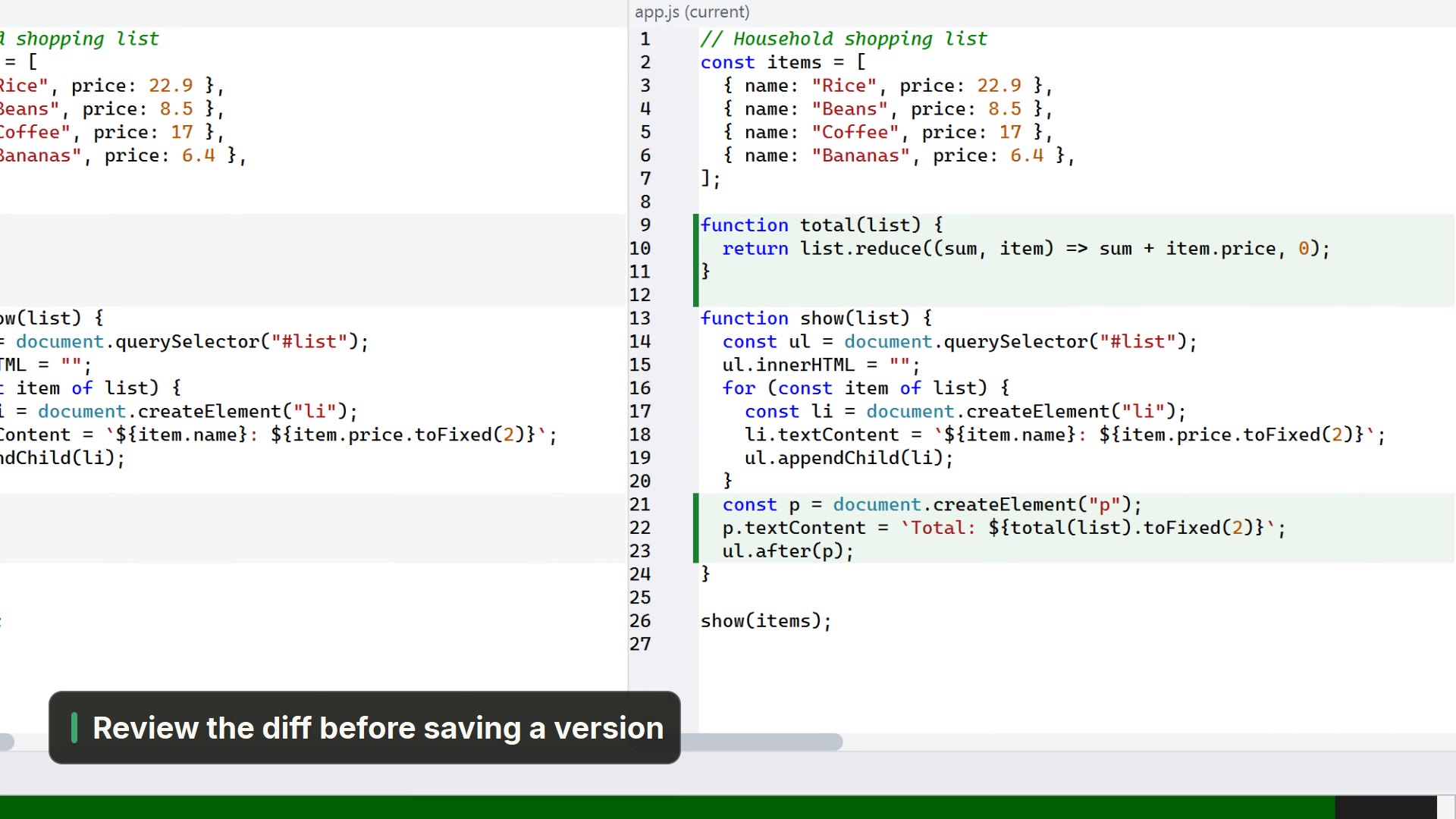
- The Versioning (Git) panel (Ctrl+Shift+G) immediately lists the files it changed, and you review the diff before saving a version.
- When the agent finishes its turn and the tab is not in focus, LightNote lets you know: a notice appears and the tab is highlighted.
- Hit the usage limit? In the terminal's right-click menu, Schedule send… sends the “continue” message at the time the limit resets.
- The Sessions panel (Ctrl+Shift+I) lists your AI terminal sessions across windows, and you can keep Claude Code, Codex and Gemini CLI open at the same time.
LightNote finds Claude Code through the PATH, so install it first with step 1.