Someone sent you a .parquet file, you double-clicked it, and nothing useful happened. This guide explains what the format is, why Excel can't read it, and the ways to open, query and convert the file to CSV or Excel.
What is a Parquet file, and why did you get one?
Parquet is a file format for large tables, built for data analysis. Instead of storing data row by row like a CSV, it stores it column by column (a columnar format), compresses each column and remembers each column's type (number, text, date). The file is usually much smaller than the equivalent CSV, and a query that needs two columns reads only those two.
It is the format that comes out of data pipelines, tools such as Spark and pandas, data lake exports and many public datasets. If a data engineer or analyst sent you the file, that is why: Parquet is simply their default, and the inconvenience falls on you.
Why Excel can't open a Parquet file
Excel does not list Parquet among the formats you can open with File → Open. There is a nuance: Power Query, the import engine built into Excel, has a connector called Parquet. But Microsoft's Power Query connectors index, as of November 2026, shows Parquet as available in Power BI and Power Query Online and not available in Excel. The Parquet connector page lists only Power BI (semantic models) and Power Query Online under "Products".
In practice: unless you have Power BI or a third-party ODBC driver, the route is to convert the file to CSV (or open it with another tool) and only then bring the result into Excel. Keep in mind that an Excel worksheet holds at most 1,048,576 rows by 16,384 columns, according to Microsoft's Excel specifications and limits, and a large Parquet file can exceed that.
How to open a Parquet file: your options
| Option | Good for | Watch out for |
|---|---|---|
| Python with pandas | People who already code; cleaning and transforming | You need Python, pandas and pyarrow installed |
| DuckDB command line | Querying with SQL and converting without writing a program | It is a terminal, no graphical interface |
| A Windows viewer (such as ParquetViewer) | Just looking at the contents | Usually view-only; querying and charts are up to you |
| An online Parquet viewer | A small file with nothing sensitive in it | You upload the file to a third-party server |
| An editor with a table view (such as LightNote) | Opening, filtering, querying and exporting in one place | See the section below |
Python with pandas
pandas reads Parquet with read_parquet, which needs an engine installed: pyarrow (or fastparquet), as the pandas documentation says.
pip install pandas pyarrow

import pandas as pd
df = pd.read_parquet("data.parquet")
print(df.head())
print(df.dtypes)
DuckDB on the command line
DuckDB reads the file directly by name, as if it were a table. Download the executable from duckdb.org, open a terminal in the file's folder and run:
duckdb -c "SELECT * FROM 'data.parquet' LIMIT 20"
duckdb -c "DESCRIBE SELECT * FROM 'data.parquet'"
Without -c, duckdb opens a console where you type queries. The SELECT * FROM 'file.parquet' syntax is in the DuckDB Parquet documentation.
Viewers and online tools
There are free Parquet viewers for Windows; ParquetViewer, published on GitHub, is a well-known example. They are good for a quick look: they show rows and columns, and some export to CSV. To sum, group or join data you will need another tool.
Some websites open Parquet in the browser. For a file with customer, financial or health data, avoid them: you are uploading the file to another company's server. If a site claims it processes everything in your browser, check that claim before sending anything you cannot afford to leak.
How to convert Parquet to CSV or Excel
Excel opens CSV without trouble, so the simplest conversion is Parquet to CSV. With DuckDB:
duckdb -c "COPY (SELECT * FROM 'data.parquet') TO 'data.csv' (HEADER, DELIMITER ',')"With pandas, CSV and .xlsx take one line each (to_excel needs the openpyxl package):
df.to_csv("data.csv", index=False)
df.to_excel("data.xlsx", index=False)
Two traps. First, the 1,048,576-row limit: if the Parquet file is bigger, convert only what you need, with a WHERE or a LIMIT in the query. Second, CSV loses the types: dates and numbers come back as text, and Excel decides on its own how to read them, which can mangle codes with leading zeros.
Going back: CSV to Parquet
If you have a big CSV and want to keep it in a more compact format that is faster to query, the conversion is also one line:
duckdb -c "COPY (SELECT * FROM 'data.csv') TO 'data.parquet' (FORMAT parquet)"In pandas: pd.read_csv("data.csv").to_parquet("data.parquet"). On that route pandas loads the whole CSV into memory before writing.
Open Parquet in LightNote, no coding
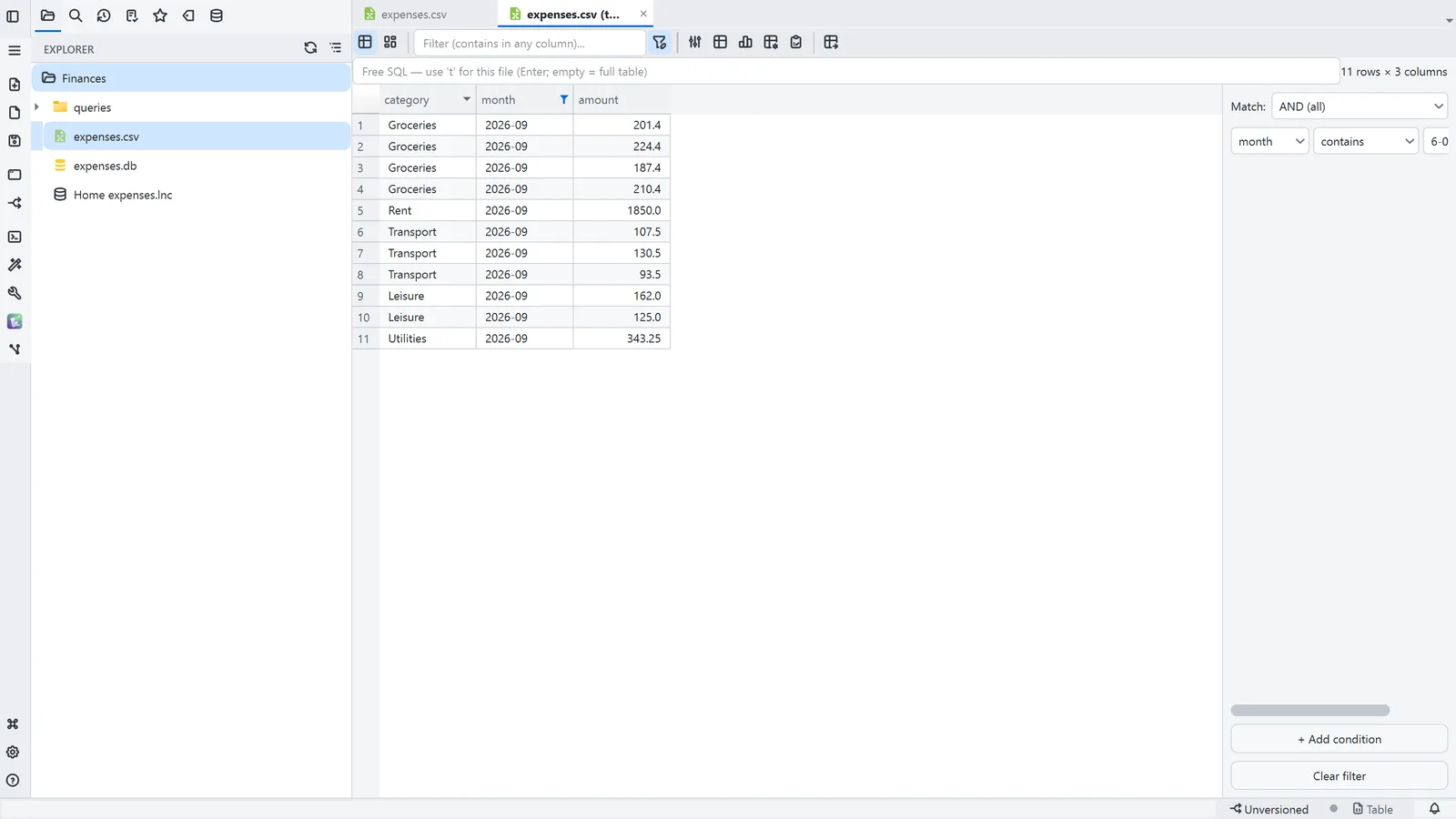
LightNote is a free code and notes editor for Windows and Linux, with no account, working on local files. According to its Help, a .parquet file opens as a table, like any other file in the folder you opened:
- Open it: click the
.parquetin the file tree. Reading is paginated, on demand, through DuckDB, and the view is read-only: your original file is not changed. - Understand the file: the Structure button shows columns, types, row count and, for Parquet, the row-groups and compression.
- Sort and filter: click a header to sort; Ctrl+F focuses the quick filter ("contains in any column"), and a counter shows how many rows are left.
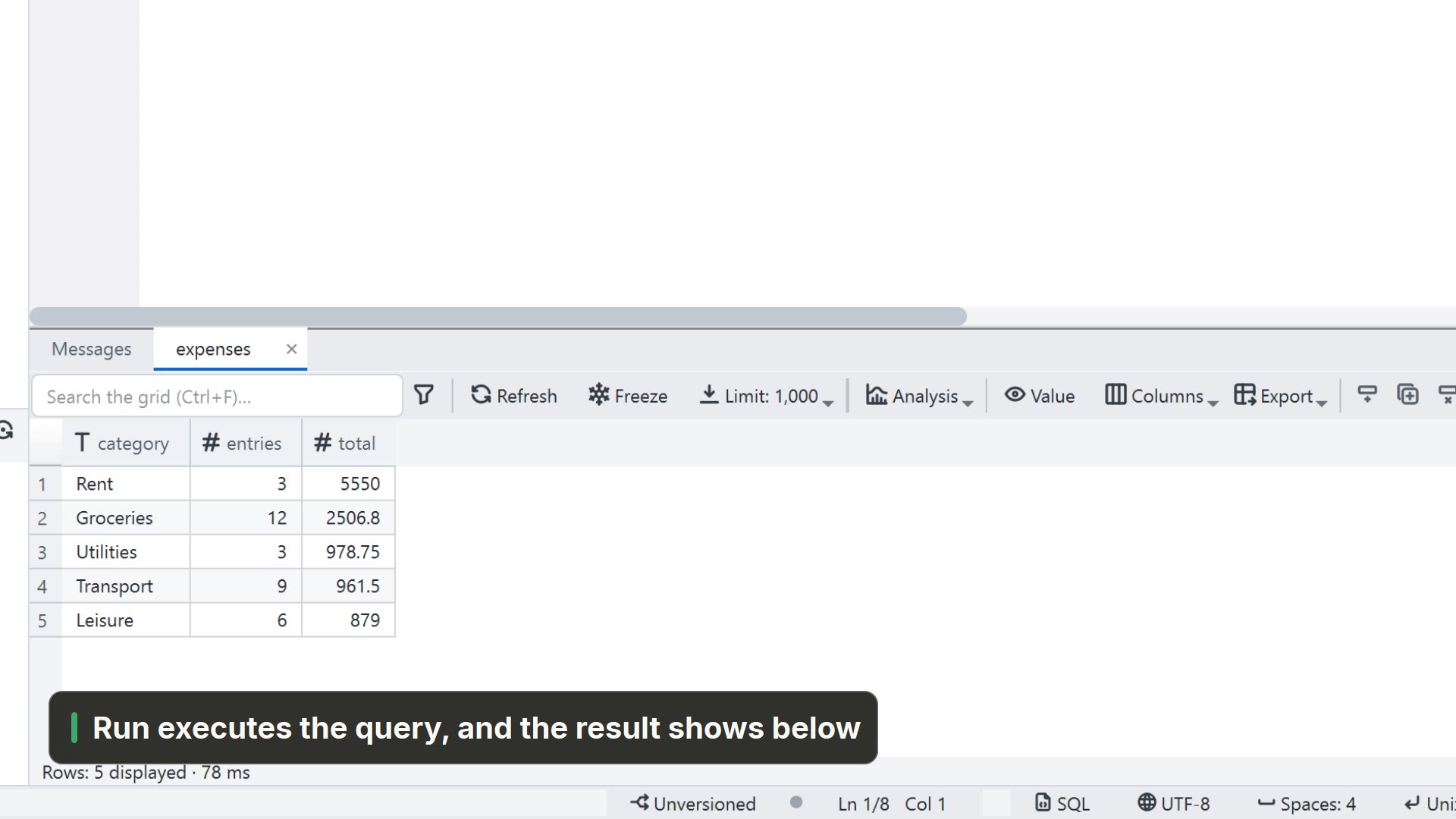
- Free SQL: the bar at the top of the table accepts any DuckDB query, and the view
tstands for the opened file. For example,SELECT state, SUM(amount) FROM t GROUP BY state. - Chart and pivot table: the Data and Analysis buttons in the bar switch to a board with as many charts and pivot tables as you like. The aggregation runs in DuckDB and comes back already reduced; the Help says a Parquet file with tens of millions of rows stays workable. The analysis is saved as a JSON next to the file (
sales.parquet.analysis.json). - Data quality: the Quality button shows, per column, how many rows have a value, how many are empty or null, how many distinct values there are and the most frequent ones.
- A whole folder: in a folder's context menu, Open folder as table reads every file of the same format as a single table, which helps when the Parquet came split into parts.
Taking it to Excel or CSV
- From the table's menu you can export the current view (already filtered) as CSV, Parquet or JSON. And from the file tree's menu there is an option to convert a tabular file to another format.
- To paste straight into a spreadsheet, select the cells and use Copy as → Formatted table (Teams, Outlook…): it pastes as a real table into Excel, Word and Teams. The copy is refused above 1 million cells; to take everything, use the export.
The table export the Help describes is CSV, Parquet and JSON; for Excel, the route is CSV or the formatted copy. In exchange, LightNote does not ask you to install Python or open a terminal, and the table, the SQL, the chart and the export live in the same window.