A text file or log of a few hundred megabytes will freeze Notepad and a lot of other editors. This guide explains why, shows how to read, search and follow a huge file without any editor, lists the editors that cope and what LightNote does with large files, including its limits.
Why does Notepad freeze on a huge text file?
Most text editors were designed for files of a few kilobytes. They read the whole file into memory, split it into lines and measure every line so they can size the scroll bar. With a multi-gigabyte log that means waiting for the full read, using memory on the order of the file size (or more, since editors keep extra structures for undo, syntax highlighting and search), and in the worst case Windows starts paging to disk and the window stops responding.
Very long lines are the worst case. Minified JSON, a CSV exported without line breaks or a one-line debug dump can put tens of megabytes on a single line, and the editor has to measure and wrap that whole line just to show the visible part. That is why a 200 MB file with short lines can open fine while a 50 MB file with one giant line hangs.
Whatever the tool, the fix is the same: do not load the whole file. Either read only the part you need (the end of the log, the lines that contain an error), or use a program that reads the file piece by piece and builds a line index in the background.
How do I open a huge log file without an editor?
If you only want to see the end of a log, find a line or watch what is being written, the tools built into the system do the job without loading the file.
| What you want | Windows (PowerShell) | Linux and macOS |
|---|---|---|
| See the start | Get-Content app.log -TotalCount 50 | head -n 50 app.log |
| See the end | Get-Content app.log -Tail 100 | tail -n 100 app.log |
| Follow new lines | Get-Content app.log -Tail 20 -Wait | tail -f app.log |
| Search for text | Select-String -Path app.log -Pattern "ERROR" | grep -n "ERROR" app.log |
| Page through it | more app.log (in Command Prompt) | less app.log |
On Linux, less is the best terminal viewer for a big file: it opens instantly, scrolls both ways and searches with /, and less +F app.log follows the end like tail -f. On Windows, avoid type and a bare Get-Content (no -Tail or -TotalCount) on a huge file: they dump the entire file to the screen or into memory.
To filter and keep the result, chain the commands. For example, to save the last 500 error lines into a small file any editor can open:
Select-String -Path app.log -Pattern "ERROR" | Select-Object -Last 500 | ForEach-Object Line | Set-Content errors.txtCan I split a huge file into smaller ones?
Yes, and it is a sensible fix when the file has to be opened in an ordinary editor. On Linux, macOS, WSL or Git Bash on Windows, split cuts by line count:
split -l 500000 -d app.log part_This produces part_00, part_01 and so on, each with 500,000 lines. The cost is losing the file as a whole: an error that spans two parts is cut in half, and searching everything now means searching several files. If the problem is one giant line, splitting by lines does not help.
Which editors can open a large text file on Windows?
It helps to separate three families, because they solve different problems:
- Ordinary editors (Notepad, and to a good extent VS Code): fine up to a point. VS Code turns off heavy features when it detects a large file (the setting is called
editor.largeFileOptimizations), but it is still a general-purpose editor built for normal-sized files. - Notepad++ opens much larger files than Notepad, but it has limits. The release notes for version 8.3 (2022) say the 2 GB file-size restriction was removed from the 64-bit build, and users report opening files of about 3 GB. Very long lines are still a problem: a developer notes that Scintilla (the editing component) cannot handle lines longer than INT_MAX characters (about 2 billion). Plugins and syntax highlighting also weigh in. Treat any number as a rule of thumb, not a guarantee.
- Editors built for big files: EmEditor (commercial) is known for this use, and klogg (the free successor to glogg) is a log viewer: read-only, indexes the file in the background and filters lines with regular expressions. Both are good picks if you read logs all day; klogg cannot edit, since it is read-only.
None of them is "the right one" for everything. What changes is whether you need to edit the file or only read and filter it, and whether it has short lines or one giant line.
How does LightNote open large files?
LightNote is a free code and notes editor for Windows and Linux, no account needed. It does not try to load a big file into the regular code editor: above roughly 1 MB the file opens in a virtualized lightweight editor that loads only the chunks visible on screen instead of the whole file. In practice that is the second route from the start of this guide, inside an editor. What it does and does not mean:
- It switches automatically: there is nothing to configure. A file above ~1 MB goes to the lightweight editor; to force it on a smaller file, use Open → Open in Lightweight Editor....
- You can edit and save: edits are made on top of the original file without loading it, and saving writes the file out in pieces instead of reading everything at once.
- No syntax highlighting: the lightweight editor shows plain text. That is the price of not processing the whole file.
- The line index is built in the background. If there is not enough memory to index every line, the editor's bar warns you and only the first lines are available. LightNote does not promise to open any file of any size.
- Recorded limitations: editing near the start of a multi-gigabyte file is slow, because the line index is rebuilt from that point onward, and this editor has no undo.
- Following a log: the code editor has a Monitor (tail -f) button on the tab's toolbar that shows new lines as the file is written.
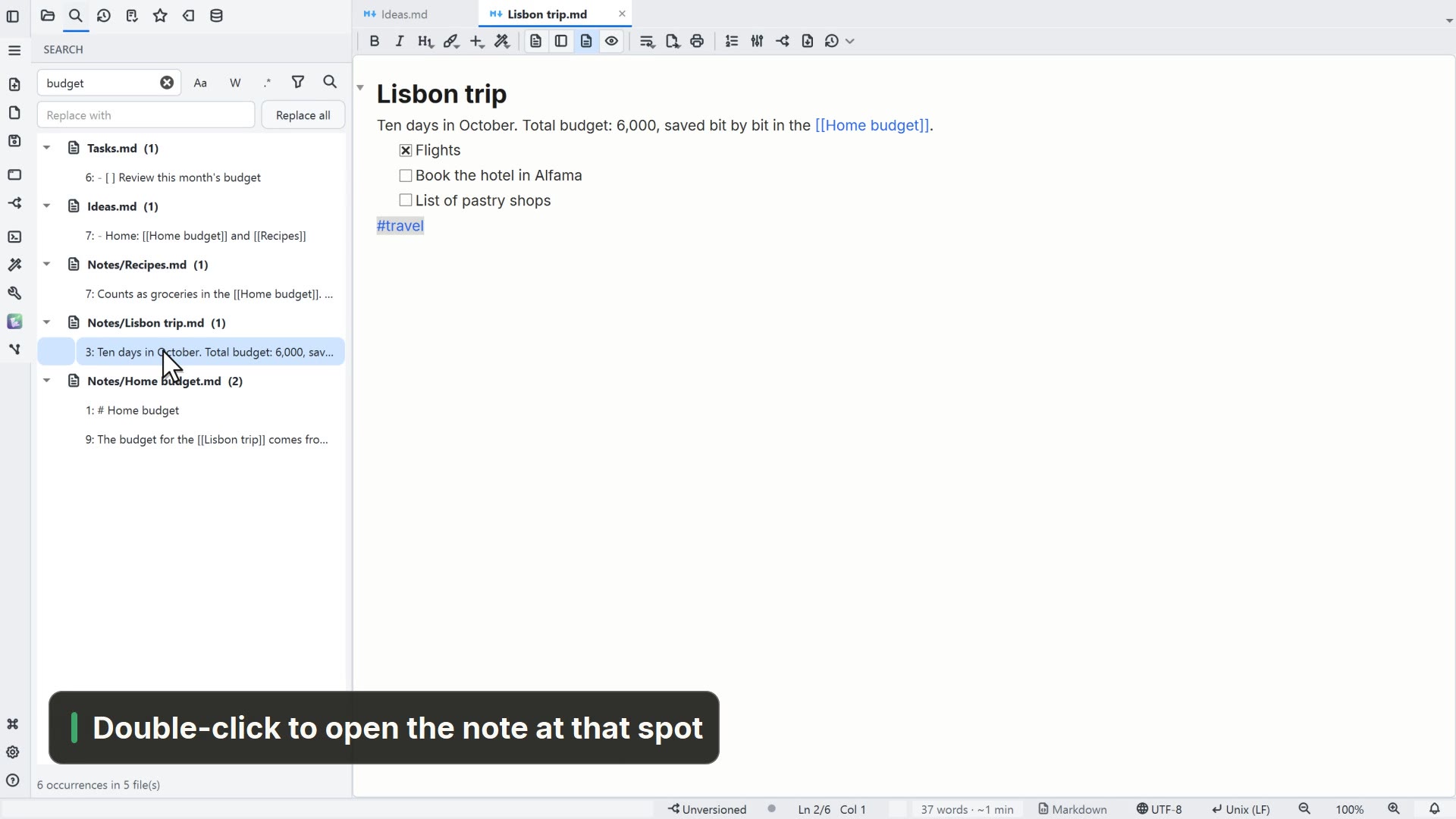
- Finding a line: the global search (Ctrl+Shift+F, the Search tab of the sidebar) is powered by ripgrep, supports regex and lists matching files and lines across the whole folder, from where you open the one that matters.
If all you need is the end of a log or a filter over millions of lines, tail and grep are still faster. The lightweight editor is worth it when you want to read at your own pace, scroll and occasionally fix the file without switching programs, in the same place as your notes and code.