Running two or three coding agents at once, such as Claude Code, Codex and Gemini CLI, is simpler than it sounds: each one is a terminal program, and nothing stops you from opening several. What takes care is keeping them from getting in each other's way. This guide covers the ways to do it and the problems you will run into.
Why run multiple AI coding agents at once?
There are two main reasons:
- Comparing answers. Each model has different strengths. Giving the same problem to two agents and reading both solutions is a cheap way to find a better approach, or to catch a mistake one of them missed.
- Parallel tasks. While one agent writes the tests, another refactors a module that has nothing to do with them. Instead of waiting for each turn to finish, you switch between sessions.
The best-known terminal agents are Claude Code, Codex CLI, Gemini CLI, opencode, Aider and Amp. They all work the same way: you open them in a project folder, type a request, and they read and edit the files there.
What are the ways to run several agents side by side?
Several terminal tabs or panes
The most direct route is one terminal per agent. In Windows Terminal each tab is a session, and you can split the window into panes (the tab menu has a split option, and Alt+Shift+D duplicates the current pane). On Linux, macOS and WSL, tmux does the same: tmux new -s agents creates a session, Ctrl+b then % splits the screen into two columns, and Ctrl+b then " splits it into two rows. The advantage of tmux is that the sessions keep running if you close the terminal window.
One git worktree per agent
This is the problem that hurts most: two agents in the same folder edit the same files, and one overwrites or undoes the other's work. Git's answer is the worktree: a second (or third) working folder of the same repository, each on its own branch.
git worktree add ../project-agent-a -b agent-a
git worktree add ../project-agent-b -b agent-b
git worktree list
Each command creates a new folder next to the project, already on the branch named after -b, starting from where you are. Open one agent in each folder; they share the same Git history but not the files being edited. When one finishes, you review its branch and merge it with git merge (or throw it away). To clean up: git worktree remove ../project-agent-a.
Dedicated tools
Some programs are built specifically to manage several coding agents, with a session dashboard, isolated copies and change review. It is worth trying whichever fits your workflow; the ideas behind them are the same ones described here (one terminal per agent, one worktree per task, and one place to review the result).
What goes wrong when you run several agents?
| Problem | How to avoid it |
|---|---|
| Two agents editing the same files | One worktree per agent, or tasks in different parts of the code. Never two agents loose in the same folder at the same time. |
| Usage limits | Each service has its own limit, and sessions on the same account usually draw from the same allowance. When an agent stops because of the limit, someone has to send “continue” after it resets. |
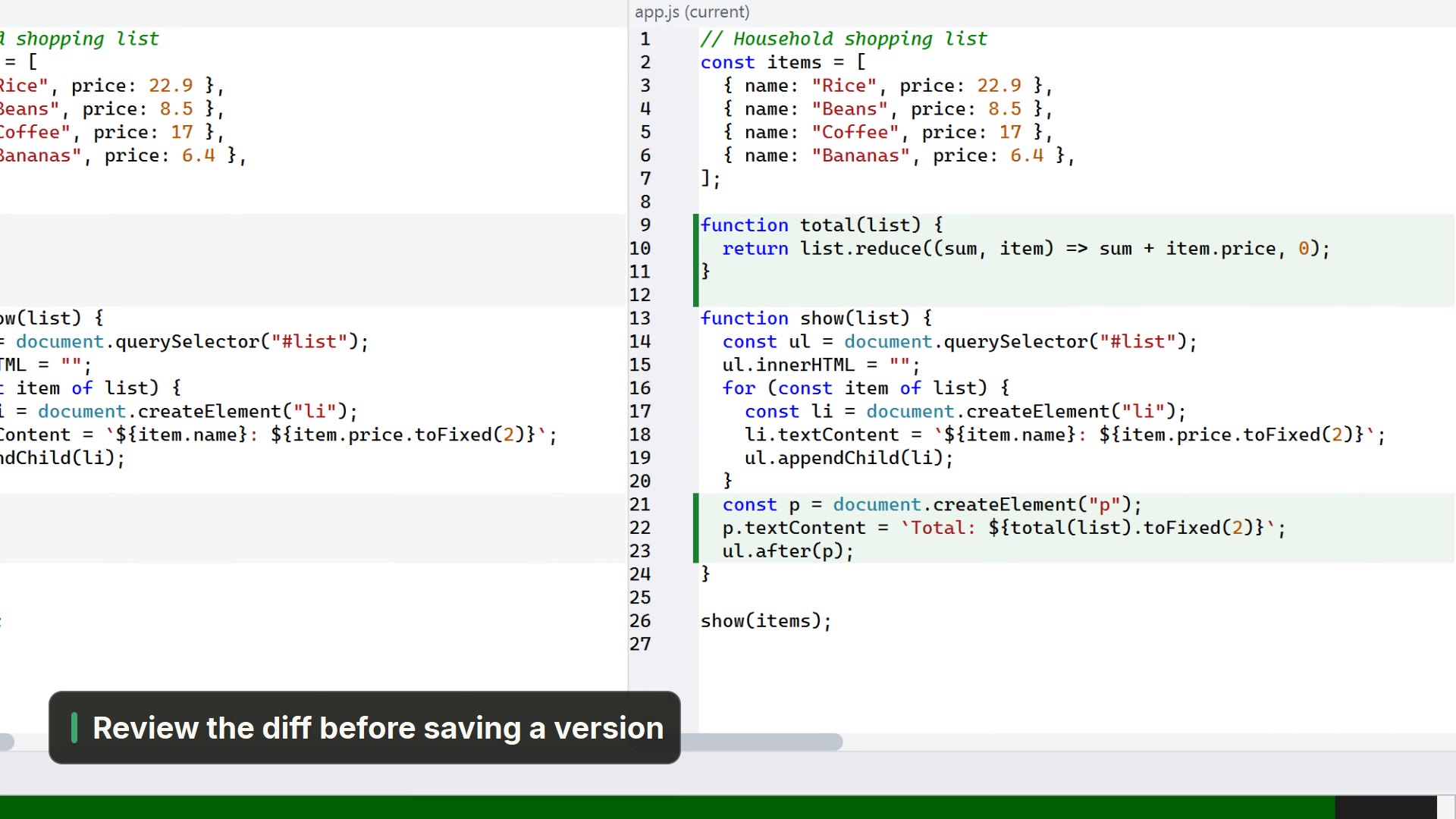
| Reviewing what each one did | Two agents produce twice the diffs. Read each branch's diff before merging, and save a Git version before you start so you can go back. |
| Missing the end of a turn | With many tabs it is easy to leave an agent waiting for you for a long time. A “finished” notice helps. |
| Different context in each session | A project context file (such as CLAUDE.md or AGENTS.md) gives all of them the same instructions. |
How do I do this inside LightNote?
LightNote is a free code and notes editor for Windows and Linux, and it already includes much of this workflow, in the same place as your files:
- The AI CLIs you have installed show up on their own. It detects, on your PATH, the ones in its catalog: Claude Code, Codex CLI, Gemini CLI, opencode, Aider, Amp and Antigravity. From the AI button (or the New terminal menu) you open each one as a tab, already in the project folder. To install the CLIs, see the guide to opening Claude Code in the terminal.
- One tab per agent, one list of all of them. AI → Sessions panel… (Ctrl+Shift+I) shows one card per AI CLI session open in any window, with each one's status and badges for whatever needs attention. Double-click takes you to the terminal.
- Turn-completion notice. When an agent falls silent and its tab is not in focus, a notice appears, and the tab blinks and stays highlighted until you open it. You can adjust it under Settings → Terminal → AI turn-completion notice.
- Usage limits. In the terminal's right-click menu, Schedule send… sends an Enter or some text at a time you choose, after a number of minutes or when the terminal goes idle, and keeps the computer awake until then. Use it to resume the agent when the limit resets, without watching the clock.
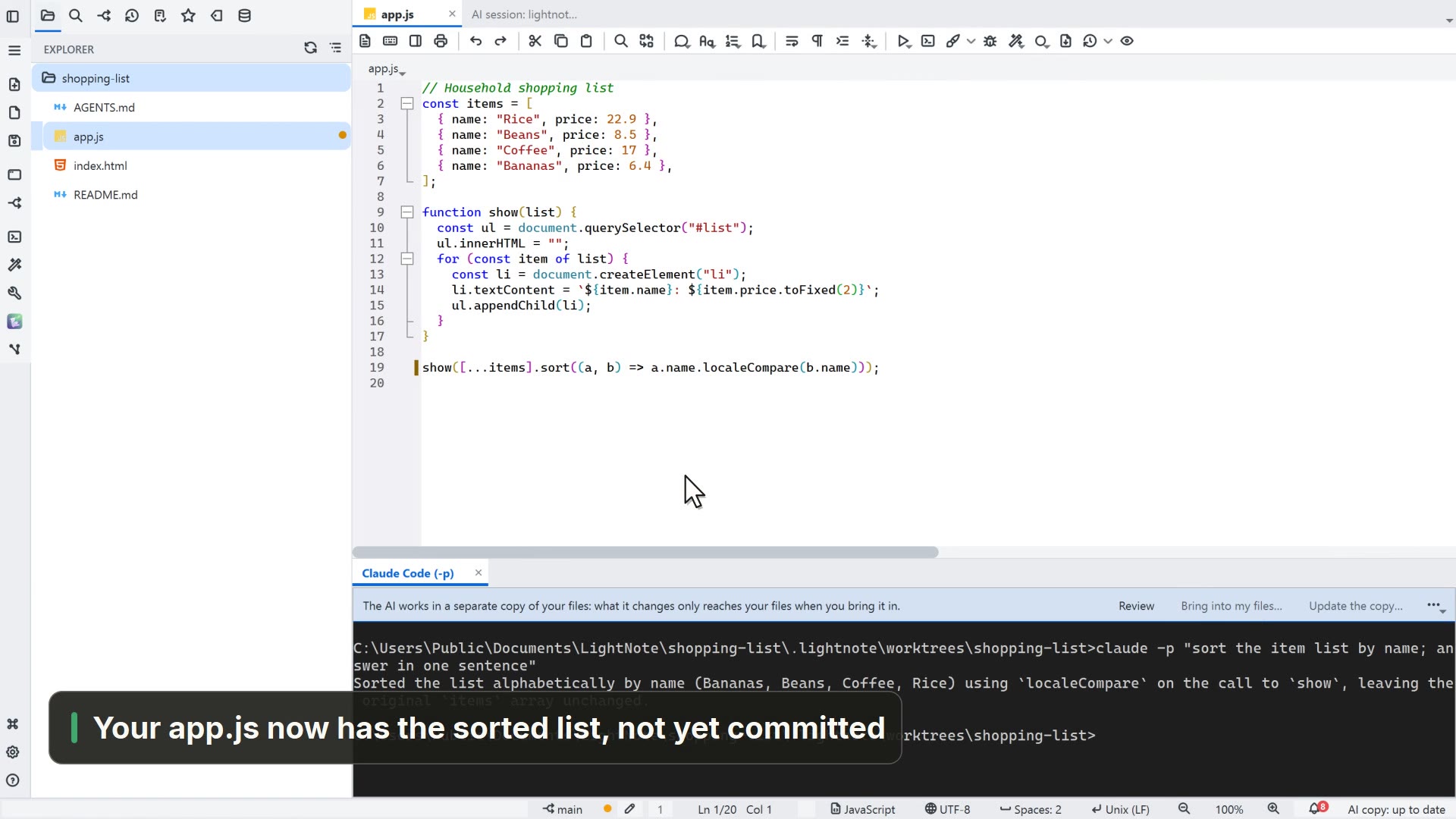
- A worktree without the commands. In Git folders, the isolated copy makes the agent work on its own branch, and what it changes does not show up in your files until you accept it. Turn it on per folder under Workspace Settings → Integrations. When it finishes, Bring into my files… applies the changes as uncommitted changes, and Discard the copy… deletes the copy and the branch.
- An automatic way back. When you open an AI CLI in a Git repository, LightNote saves a checkpoint (“Session …”), and reviewing the session's changes, from the card in the panel, opens the review screen with that checkpoint as the base. You can turn the feature off under Settings → General → Features.
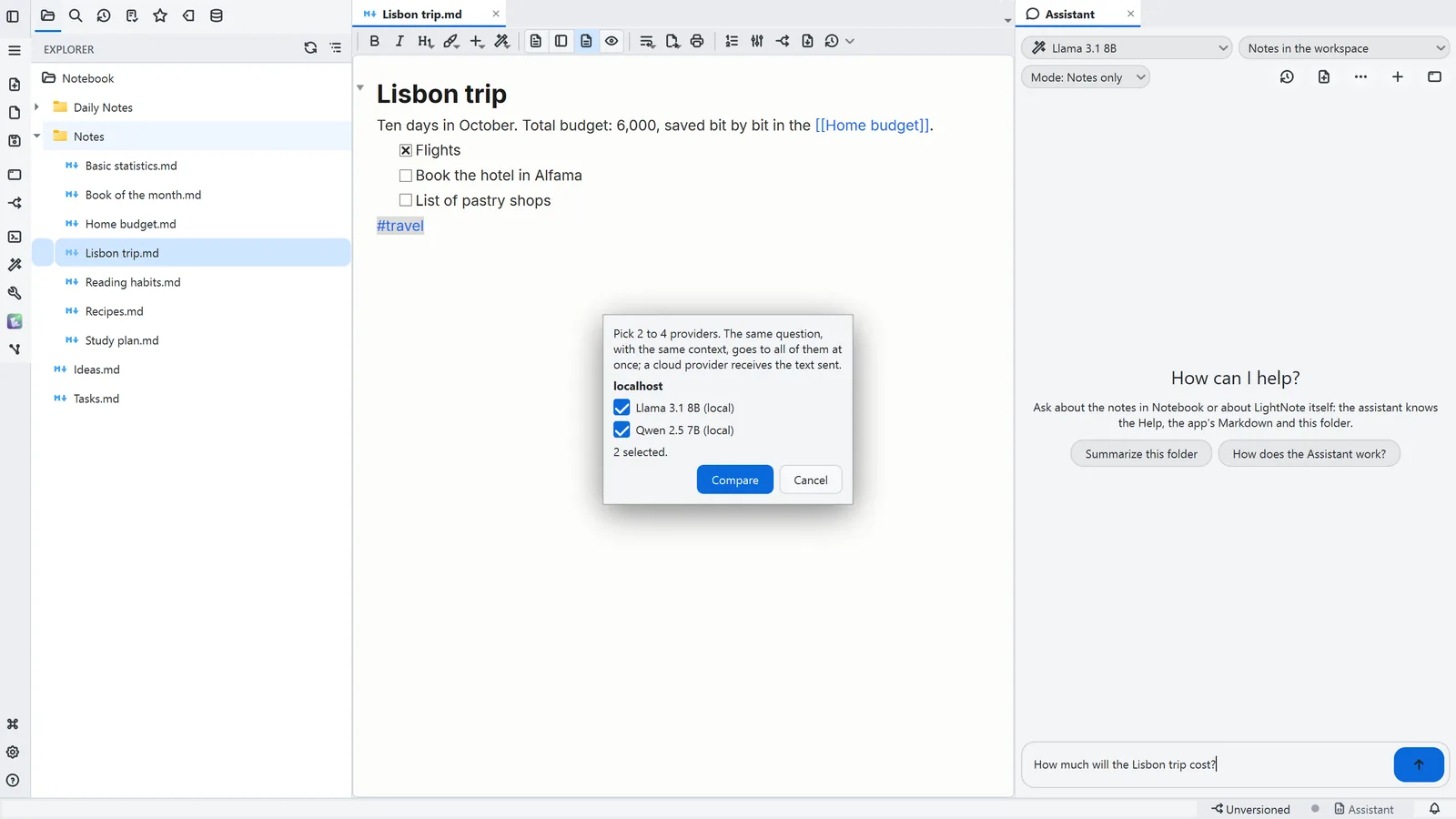
- Comparing model answers. In the Assistant, Compare answers… (or
/comparebefore the question) sends the same question to 2 to 4 configured providers and shows the answers side by side, with the time and tokens of each. The comparison is read-only: nothing is changed. That compares model answers; to compare what two agents did to your code, give each its own isolated copy and read the two diffs. - Code and terminals in one window. The editor splits into panes in rows and columns (Window → Layout: 1 pane, 2 columns, 3 columns or 2×2 grid), and the terminals sit in the last row. That keeps the file the agent is touching, and the diff, in view next to the terminal.
LightNote does not pick or run the agents for you: each CLI remains its own program, with its own account and its own limit. What it does is bring the sessions, the notices and the review together in one place.